Excel: Advanced Visuals to Wow Your Boss
Co-Founder at Career Principles | Microsoft MVP
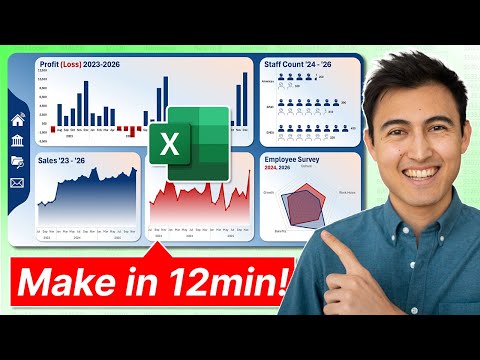
Microsoft expert: master Excel visuals — dynamic negatives, gradient fills, icon bars, radar charts, Power BI tips
Key insights
- Video overview: The tutorial walks through five advanced Excel visuals step by step.
It shows practical methods you can replicate to build a professional dashboard quickly. - Column Chart with negatives: Create a column chart that changes color for negative values automatically using separate series or conditional formatting.
This makes losses and gains easy to spot at a glance. - Line Chart with gradient fill: Build a line chart that includes data markers and a smooth gradient fill under the line.
The gradient improves readability and highlights trends over time. - Bar Chart using icons: Replace standard bars with images by inserting pictures and adding them as series markers or clipboard images.
Use icon-based bars to make comparisons more visual and memorable. - Radar Chart and dashboard navigation: Use a radar chart to visualize employee survey results and build a dashboard navigation with custom shapes and gradient buttons.
Navigation elements help stakeholders move quickly between views. - Microsoft 2025 enhancements: Leverage Microsoft 365 Copilot, improved forecasting, Power Query and dynamic functions like SCAN to automate cleaning, formulas, and visuals.
These tools speed work, reduce errors, and make advanced visuals easier to create.
Video at a glance
In a recent YouTube tutorial, Kenji Farré (Kenji Explains) [MVP] demonstrates how to build five striking visuals in Excel that aim to "impress your boss." The short walkthrough focuses on practical steps: a column chart that changes color for negatives, a line chart with gradient fill and markers, a bar chart that uses icons instead of bars, a radar chart for survey results, and a custom navigation bar to tie the visuals into a single dashboard. Moreover, the video balances design flair with clear technique so viewers can follow along and replicate the results. Consequently, the clip serves both as inspiration and as a hands-on lesson for intermediate Excel users.
What Kenji builds and why it matters
First, Kenji shows how to use conditional formatting and chart series to automatically recolor columns when values go negative, which helps viewers spot losses at a glance. Next, he applies gradient fills and marker customization to a line chart, improving both readability and aesthetic appeal without sacrificing data accuracy. Then, he demonstrates a creative approach to bar charts by inserting pictures and aligning them via the clipboard so icons replace standard bars, adding visual context to the data. Finally, the radar chart and the assembled dashboard emphasize comparative assessment and navigation, making the results actionable for meetings and reports.
Techniques and tools highlighted
The tutorial relies on several native Excel features such as conditional series, picture insertion, and layered shapes, and it also illustrates how to group shapes into a functional navigation bar. Importantly, Kenji uses simple tricks rather than heavy scripting, which makes the techniques accessible to many users while still producing polished results. Meanwhile, applied formatting and the use of images require attention to alignment and scaling, so he walks through resizing and snapping steps to maintain consistent visuals across different data sets. This practical focus ensures viewers learn methods they can adapt to their own spreadsheets.
Tradeoffs and implementation challenges
While these visuals enhance presentation, they introduce tradeoffs between aesthetics and maintainability. For example, replacing bars with pictures improves clarity and engagement, but it can complicate automated updates if row counts change or if new categories are added. Similarly, gradient fills and layered shapes look professional, yet they may increase file size and slow performance on older machines; therefore, users must weigh visual polish against file responsiveness. Additionally, achieving consistent cross-platform behavior can be difficult because formatting sometimes renders differently in web or mobile versions of spreadsheet software.
How AI and recent Excel features relate
Looking beyond the video itself, recent advances in spreadsheet tools like Microsoft 365 Copilot and improved forecasting functions can reduce the time spent creating charts and cleaning data. For instance, natural language prompts and automated formatting can suggest chart types or generate formulas, so designers can concentrate on the story instead of repetitive setup. However, automated suggestions still need human review to ensure the visuals match the business question and the audience, and they may not handle creative design choices such as picture-based bars without manual steps. Thus, the best results often come from combining automation with hands-on tuning.
Practical advice and newsroom perspective
For professionals who want to apply these techniques in reports or dashboards, the sensible approach is to prototype the visual first and then build a maintainable version that supports updates. Moreover, document clear naming conventions for picture assets and chart ranges so colleagues can edit the file without breaking the design. Also, test the dashboard on the platforms your audience uses to avoid surprises during presentations; compatibility checks reduce last-minute fixes. Ultimately, these visuals work best when they serve clear analytical goals rather than merely decorating a sheet.
Conclusion
Kenji Farré’s video offers a concise and practical toolkit for making advanced Excel visuals that look professional and communicate data effectively. While the tutorial favors manual, replicable steps, it also points to where automation and AI can streamline parts of the process, albeit with tradeoffs in control and design nuance. Consequently, the lesson for data storytellers is to balance visual ambition with clarity and maintainability, and to choose techniques that match the audience and the platform. By combining Kenji’s design tips with careful implementation, teams can produce dashboards that both inform and impress.

Keywords
advanced excel visuals, interactive excel dashboards, dynamic excel charts, excel data visualization techniques, excel dashboard templates, professional excel reports, excel charts for presentations, impress boss with excel skills