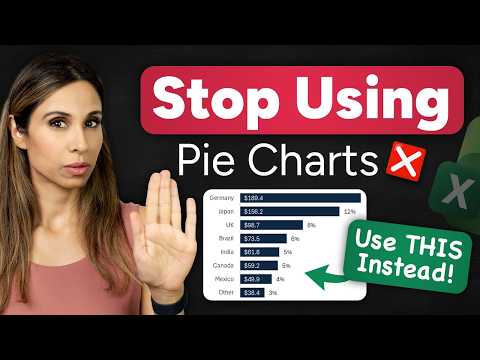
Excel Chart Thatll Impress Your Boss
Microsoft Excel expert tip ditch pie charts for dynamic auto sorting bar visuals with SORT percent labels and live total
Key insights
- Why pie charts fail: Pie charts break down quickly when you have many slices because labels overlap and percentages become hard to read.
Use a simpler chart to keep categories clear and your message sharp. - Linked data + bar chart: Build a clean bar chart tied to your source table so the chart updates when data changes.
This preserves the original data while showing a clearer, presentation-ready view. - Show % on bars (duplicate series): Add percent labels by creating a duplicate series that displays only percentage values, avoiding clutter on the main bars.
That keeps numeric context without crowding the visual. - Auto-sort with SORT(): Use the SORT function to feed a chart with ranked data automatically so the chart reorders itself as numbers change.
Auto-sorting keeps the most important items prominent without manual steps. - Dynamic title total: Link the chart title to a cell that calculates the total so the title updates automatically when values change.
This gives readers instant context and prevents outdated labels. - Auto-update & clean data: Use dynamic arrays (FILTER, SORT) and data-cleaning steps to make charts resilient to messy inputs; modern Excel also offers AI-assisted tools to speed cleanup and styling.
These steps reduce errors and save time when preparing visuals for reports.
Video at a glance
Leila Gharani [MVP] offers a hands-on YouTube tutorial showing how to turn a cluttered pie chart into a clear, presentation-ready bar chart in Excel. In the video, she demonstrates step-by-step techniques to keep the same information people expect from pies — such as percent of total — while improving readability and design. Furthermore, she explains how to make the chart auto-update and auto-sort so it stays useful as data changes over time.
How the improved chart is built
First, Gharani replaces the crowded pie chart with a horizontal bar chart, because bars show differences more clearly when there are many categories. Next, she uses a small set of formulas and a linked data layout to display both currency values and percent labels without cluttering the visual. Importantly, she uses the duplicate series trick to show percentage labels on the bars while keeping the main value series clean and readable.
Automation and dynamic features
Then, the video walks through making the chart dynamic by applying the SORT() function and other dynamic array formulas so the bars reorder automatically when values change. She also shows how to add a dynamic total to the chart title so viewers always see an up-to-date summary without manual edits. In addition, the tutorial covers simple tricks to keep the source data intact while presenting a sorted view, which preserves raw records for analysis while showing a more useful visual.
Why this approach matters and the tradeoffs
The approach improves clarity and avoids the familiar problem where many pie slices make comparisons hard, because bars align to a common axis and scale more intuitively. However, there are tradeoffs to consider: auto-sorting makes the chart easier to read but can change category order between reports, which may confuse audiences accustomed to a fixed layout. Likewise, duplicating a series to display percentages reduces label clutter, yet it slightly increases chart complexity and may require extra steps to update formatting consistently.
Modern Excel features and their challenges
Gharani’s method benefits from recent Excel enhancements such as dynamic array functions and better web chart editing, which simplify live sorting and label handling. At the same time, relying on the latest features can create compatibility issues: spreadsheets that use dynamic arrays or web-only editing options may behave differently in older Excel versions or for colleagues who use desktop builds without recent updates. Moreover, while AI-driven tools like Copilot in Excel and Agent Mode can speed chart creation and suggest layouts, they may mask design choices and require review to ensure the result matches the narrative you want to tell.
Practical guidance and final takeaways
For presenters who want cleaner visuals, the video offers clear, repeatable steps: switch to a bar chart, use linked data and formulas for percentages, apply SORT() for automatic ranking, and add a dynamic total to the title for context. Yet, you should balance automation with control by documenting the formulas you use and testing the file in recipients’ environments to avoid unexpected behavior. Finally, practice adjusting labels, colors, and spacing so the chart reads well at a glance; automated tools help draft the visual, but human judgment ensures it tells the right story.
Who benefits and next steps
This tutorial suits analysts, managers, and anyone who presents data in meetings and wants a faster path to professional charts. To adopt the techniques, begin with a copy of your worksheet, implement the linked data and SORT() step, and test auto-updates against sample changes in your source table. Consequently, you will reduce manual rework and present figures that are both accurate and visually persuasive.

Keywords
excel chart makeover, make ugly excel charts look professional, boss-ready excel charts, excel chart design tips, improve excel data visualization, professional excel chart formatting, polish excel charts for presentations, turn ugly chart into professional excel