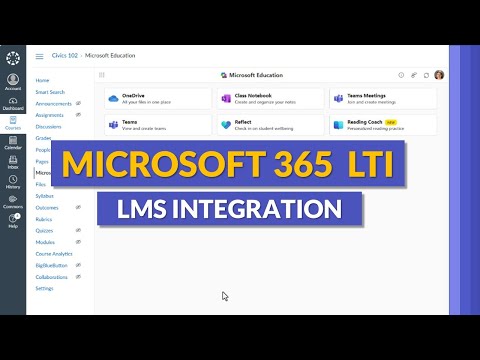
Microsoft 365 LTI: LMS Setup & Tips
Principal Group Product Manager - Microsoft Education
Microsoft three sixty five LTI streamlines LMS integration for Canvas Moodle with OneDrive OneNote Teams Reflect
Key insights
- Microsoft 365 LTI
New unified LTI 1.3 integration that brings Microsoft Education tools directly into LMS courses.
It replaces older separate LTIs and reduces tool switching for teachers and students. - Core tools
Includes Assignments, OneDrive, OneNote Class Notebook, Teams Meetings, Learning Accelerators, Reflect, and Reading Coach (preview).
Teachers can open and use these tools without leaving the LMS interface. - Benefits for educators
Supports multiple-document submissions, auto-graded Forms, grade and feedback syncing to the LMS, and assignment workflows without requiring a Teams class.
These features speed up grading and keep work organized inside the LMS. - AI features
Offers AI-assisted rubric and instruction generation and AI feedback within assignments.
Reading Coach preview gives personalized, real-time reading practice and fluency feedback to students. - Compatibility and control
Works with Canvas, Moodle, Schoology, D2L/Brightspace and any LTI 1.3–compliant LMS; administrators enable the app for their organization and manage access.
The new app continues to support legacy LTIs during the transition. - Quick setup and workflow
Admins install the LTI for their LMS and teachers add Microsoft content to courses; teachers can create assignments, schedule meetings, and manage class activity inside the LMS.
Tutorial videos demonstrate step-by-step setup and classroom use for hands-on guidance.
Video overview and context
The newsroom reviewed a tutorial video by Mike Tholfsen that explains how to use the new Microsoft 365 LTI app inside learning management systems. The video walks viewers through both IT admin pages and teacher-facing setup, showing practical steps for common environments such as Canvas, Moodle and D2L/Brightspace. Importantly, the presenter notes that the video reflects his personal work and opinions rather than an employer statement, which helps viewers judge the perspective and depth of the walkthrough.
Throughout the video Tholfsen demonstrates integrations with familiar Microsoft tools, which he accesses without leaving the LMS interface. He highlights features including OneDrive, OneNote Class Notebooks, Learning Accelerators, Reflect, and Reading Coach, as well as scheduling via Microsoft Teams. As a tutorial, it mixes high-level description with step-by-step actions so educators and admins can follow along in real time.
What the demo shows in practice
First, the video reviews the admin configuration necessary to enable the Microsoft 365 LTI app for an institution, explaining where administrators control app availability and permissions. Then the tutorial switches to a teacher view to show how to add Microsoft content, create assignments, and schedule meetings directly inside course pages, thereby eliminating the need to toggle between separate platforms. The presenter also covers grade-syncing behavior and how student submissions appear in the LMS gradebook after integration.
Later segments of the tutorial zoom into specific tools so viewers see how each feature behaves inside an LMS assignment workflow. For example, Tholfsen opens a OneNote Class Notebook and demonstrates file access through OneDrive, and then shows how Learning Accelerators and AI-assisted tools can generate rubrics or provide feedback. Finally, the video highlights the Reading Coach preview and how Reflect can support social-emotional checks, giving educators a sense of both classroom and individual support options.
Advantages and instructional benefits
The consolidated app reduces menu clutter by combining multiple Microsoft tools into a single, LTI-based integration, which helps teachers maintain focus on course design and student work. In practice, this unified approach supports smoother workflows because assignments, feedback, and grade syncing occur in the LMS, and teachers no longer have to create a separate Microsoft Teams class just to use assignment features. Consequently, institutions that prefer to keep instruction centered in the LMS can adopt Microsoft capabilities with less friction.
Moreover, the app brings AI-assisted features such as automated rubric generation and AI-driven feedback that can speed grading and provide richer guidance for students. These functionalities aim to save educator time while making feedback more consistent, and the Reading Coach preview introduces personalized reading practice directly to learners within the LMS environment. Thus, the integration can increase access to adaptive learning tools without a major overhaul of existing course structures.
Tradeoffs and practical challenges
However, the new approach introduces tradeoffs that institutions must weigh carefully, starting with administrative complexity. Although the integration supports LTI 1.3 Advantage, different LMS platforms implement LTI capabilities in slightly different ways, which can create variability in feature availability and behavior across courses. Consequently, IT teams may need to allocate time for testing, pilot deployments, and tailored documentation to ensure a consistent experience for educators and students.
Data privacy, AI reliability, and connectivity also present challenges. Schools must consider data residency, consent, and support for students who lack stable internet access because cloud-based, AI-driven features depend on steady connectivity and backend processing. Additionally, while AI tools can speed workflow, they sometimes produce uneven or biased results, so educators need training on when to trust automated suggestions and when to apply human judgment.
Implementation considerations and next steps
To deploy the Microsoft 365 LTI app successfully, administrators should begin with pilot groups to validate settings, workflows, and compliance requirements before rolling out at scale. Training for teachers should emphasize practical exercises that reflect real assignments so staff learn how to manage feedback, grade syncing, and student files directly in the LMS. In addition, IT teams should plan monitoring and support channels to handle edge cases and platform updates.
Overall, the video provides a useful, hands-on introduction for institutions considering the integration, while also making clear that careful planning matters for success. As schools weigh the benefits of unified access and AI assistance against implementation and privacy concerns, the recommended approach is a phased rollout with clear governance, teacher training, and ongoing evaluation to measure instructional impact and technical stability.

Keywords
Microsoft 365 LTI app, LTI app for LMS, Microsoft 365 LMS integration, Microsoft Teams LTI integration, Configure Microsoft 365 LTI, Microsoft 365 Canvas LTI setup, Microsoft 365 Blackboard LTI integration, Microsoft 365 LTI setup guide