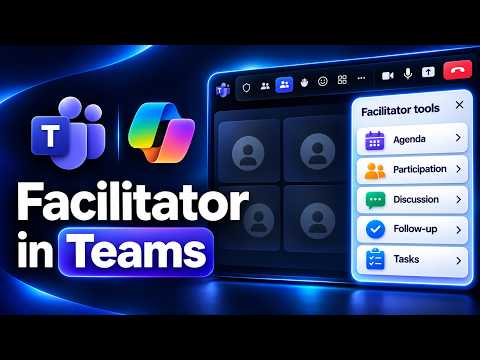
Teams Facilitator: organize meetings and track actions
Principal Group Product Manager - Microsoft Education
Teams Facilitator turns an agenda into shared meeting notes, tracks topics and tasks, and gives attendees a recap to catch up.
Key insights
- Turn on Facilitator from More actions during a meeting, or enable it before the meeting.
- Facilitator uses a meeting agenda to create topics in shared Notes and can add topics during the meeting.
- The demonstration starts transcription before Facilitator begins taking notes.
- Participants can use Copilot to recap the discussion and action items if they join late.
- The video description says Facilitator requires a Copilot Premium or Teams Premium subscription.
Teams Facilitator helps organize a meeting around an agenda, create shared notes, track discussion topics and capture follow-up tasks. It is relevant to meeting organizers who want to structure a session and participants who need a shared record or a quick way to catch up. Mike Tholfsen demonstrates the meeting workflow, from preparing an agenda to reviewing the recap, in a YouTube video.
What it does
Facilitator is an AI meeting assistant in Teams that works during the conversation, rather than only producing a summary after the meeting. In the demonstrated workflow, it reads an agenda created with a Loop page, turns its items into meeting topics and adds notes and tasks as the discussion continues. Participants can see the agenda and shared notes in the meeting, while the meeting recap provides an organized view of what happened afterward.
Its agenda is not fixed at the start: the organizer can ask Facilitator in chat to add a topic, and the new item appears in the agenda. Topics can also be marked as discussed, giving the group a visible way to track progress. The demonstration shows Facilitator suggesting food options in response to the conversation, as well as capturing assigned tasks for named participants.
Who it is for and what you need
Facilitator can help organizers running agenda-led meetings and attendees who want shared notes, action items or a recap. The video description says it requires a Copilot Premium or Teams Premium subscription. Check that requirement against the subscription available to your organization before planning to use it.
The demonstrated meeting begins with an agenda added through the meeting invitation using Loop. During the live meeting, the organizer turns on Facilitator and starts transcription; the notes and task capture then appear as the discussion proceeds. The example also starts a recording, but it does not present recording as a requirement for Facilitator.
How it works
You can enable Facilitator before the meeting or turn it on after joining. To prepare the meeting, the organizer creates it from Teams Calendar and adds an agenda using the meeting’s agenda option, which opens a Loop page in the demonstration. Once attendees join, the organizer can start Facilitator from the meeting controls.
- In Teams Calendar, create a meeting and add an agenda with the meeting agenda option. The demonstration uses a Loop page for the agenda.
- Join the meeting. Open More in the meeting controls and choose Turn on Facilitator.
- Start transcription. In the demonstrated meeting, the organizer selects Start for transcription before Facilitator takes notes.
- Open Notes to review the agenda and the notes and tasks that Facilitator adds as people talk.
- Use the meeting chat to ask Facilitator to add a topic. The organizer can also mark an agenda item as discussed or add another topic from the agenda.
In the example, Facilitator reviews the agenda and shares it so it is visible to attendees. As participants discuss agenda items, it tracks the topics, creates notes and captures task assignments. A participant who joins late can open Copilot and ask for a recap; the response in the demonstration is private to that participant.
After the meeting ends, the organizer can review the meeting’s recap. The example includes an AI summary, discussion organized by topic, follow-up tasks, mentions and a transcript, alongside the recording. These views give the team places to check what was discussed and who was assigned work.
Limitations and alternatives
Facilitator’s output depends on the meeting information and conversation it can work with. In the demonstrated setup, the meeting has an agenda and transcription is started; those are practical starting points when trying the workflow. The agenda is a useful structure, but the group can still add topics and mark items as discussed as the meeting changes.
AI-generated notes and task capture should be reviewed against what participants actually decided, especially before treating an item as a commitment. The recap shown includes the transcript and follow-up tasks, which can help attendees verify details. The video description identifies a subscription requirement, so confirm your eligibility before relying on the feature for a meeting.
Sources
Frequently asked questions
How do I turn on Facilitator in a Teams meeting?
In the meeting controls, open More and choose Turn on Facilitator. The demonstrated workflow also starts transcription.
What subscription does Teams Facilitator require?
The video description says Facilitator requires a Copilot Premium or Teams Premium subscription.
Can Facilitator add agenda topics during a meeting?
Yes. The organizer can mention Facilitator in meeting chat and ask it to add a topic, which then appears in the agenda.
Can someone who joins late catch up on a Teams meeting?
In the demonstrated workflow, a late attendee opens Copilot and asks for a recap. The response is private to that attendee.