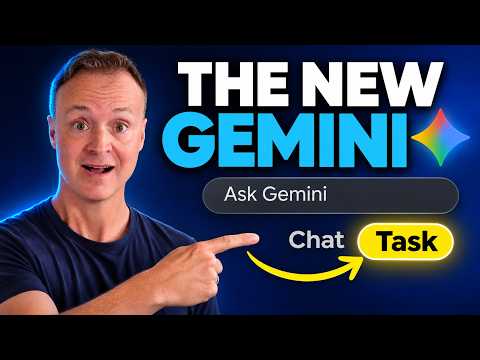
Google Gemini: use Skills, Task mode and schedules
Gemini users can save reusable instructions, organize project context in Notebooks and delegate multi-step work with Task mode.
Key insights
- Skills save reusable instructions and can be called with @ or applied automatically when a prompt matches.
- Gemini Notebook groups project chats, files, links and instructions so responses can use that context.
- Scheduled actions run a prompt at a chosen frequency; the transcript says users can have up to 10 active.
- Task mode can search connected Gmail and Drive, create a Sheet and draft email replies, but the user should review them.
- Task mode requires a Google AI Pro or Ultra plan on a personal account, and the transcript says it is not available in every country.
Google Gemini’s Skills, Notebooks, scheduled actions and Task mode let users reuse instructions, keep project context together and delegate multi-step work. These features matter to people who use Gemini for recurring writing, research or email and spreadsheet tasks. Teacher’s Tech demonstrates the workflows in a step-by-step YouTube tutorial, using a fictional coffee roaster as its example.
What it does
Gemini’s features serve different purposes. A Skill stores instructions for a repeated job, such as rewriting copy in a particular voice. A Notebook keeps a project’s chats, files, links and custom instructions in one place. Scheduled actions run a prompt on a repeating timetable, while Task mode attempts a multi-step job using connected services and information.
The tutorial’s example shows how these pieces can fit together: Gemini can use a saved email-writing Skill during a task that searches Gmail, adds information to a Google Sheet and creates draft replies. That does not make the output ready to send. The demonstration catches incorrect pricing drawn from an older email and corrects the draft before sending.
Who it is for and what you need
Skills are described in the tutorial as available on every plan, including free accounts. Task mode has a narrower requirement: the transcript says it needs a Google AI Pro or Ultra plan on a personal account, and the user must be at least 18. It also says Task mode is not available in every country.
To have Gemini work with Gmail, Calendar or Drive, the relevant apps must be connected. The tutorial connects Google Workspace from Gemini’s Customize area; without connectors, Gemini cannot see the inbox or calendar in the described workflows. The material does not give a complete regional, organizational-account or administrator eligibility list for the other features.
Most of the demonstrated features are said to work in the Gemini phone app. The transcript specifically limits editing Docs, Sheets and Slides in chat to the web, while PDFs can be used on a phone. Video generation has daily limits that depend on the user’s plan; the tutorial does not set out the limit amounts.
How it works
For project work, create a Notebook from Gemini’s sidebar and add relevant sources, such as uploaded files, Drive files, copied text or website links. In Notebook settings, add response instructions; the transcript also describes a Notebook memory option that considers chats in that Notebook when generating answers. Notebook chats appear under Past chats, and a chat can be added from elsewhere by using @Gemini Notebook.
To create a reusable Skill, ask Gemini to build one in a chat, or go to Customize and use Create with Gemini, Create manually or Upload. A Skill has a name, description and instructions, and can include reference files. The description helps Gemini decide when to apply it automatically. In a chat, type @ to call a Skill explicitly; Skills can also be combined. From Customize, users can edit or deactivate a Skill’s automatic use.
For a repeating prompt, describe the task and when it should run. Open the resulting scheduled action to adjust its name, prompt and frequency, then save it. The Scheduled page is where the tutorial says scheduled actions and task schedules can be managed. Users can pause or resume an action there. The tutorial notes that schedules run at approximate times and may not run after a usage limit is reached.
To delegate a multi-step job, switch from Chat to Task under the prompt box and specify the outcome, sources, desired output and actions Gemini should not take. The demonstrated task searches Gmail, checks Drive for launch information, creates a Sheet and saves email replies as drafts. Gemini can continue working when the browser tab is closed, according to the demonstration, and returns a summary of what it did.
Limitations and open questions
Review generated work before using it. In the example, Gemini puts an incorrect bag size in promotional copy and uses outdated wholesale pricing in an email draft. It also leaves placeholders in a generated price sheet when information is missing. These examples show why users should verify names, prices and other details against current source material.
Task mode’s ability to work across services depends on connected apps and the information available to Gemini. The tutorial’s example leaves email unsent, which gives the user a chance to check the drafts. The material does not establish that every action will always require approval, nor does it provide a full account of data handling, organization controls or connector permissions.
Scheduled actions have a stated maximum of 10 active schedules in the demonstration, and their timing is approximate. Availability varies at least by plan for Task mode and by country, but the tutorial does not give a full country list or a complete breakdown of all feature limits. Confirm the options shown in your own account before planning a workflow around them.
Sources
Frequently asked questions
Are Gemini Skills available on the free plan?
The tutorial says Skills work on every plan, including free accounts. They save instructions for reuse and can be called by typing @ in a chat.
What plan do I need for Gemini Task mode?
The transcript says Task mode requires Google AI Pro or Ultra on a personal account and is for users aged 18 or older. It is not available in every country.
How many scheduled actions can I have in Gemini?
The tutorial says up to 10 active scheduled actions can run at once. It also says they run at approximate times and may not run if a usage limit has been reached.
Can Gemini send email replies automatically in Task mode?
The demonstration creates Gmail drafts rather than sending them, so the user can review and correct them first. The material does not establish that every workflow has the same send behavior.