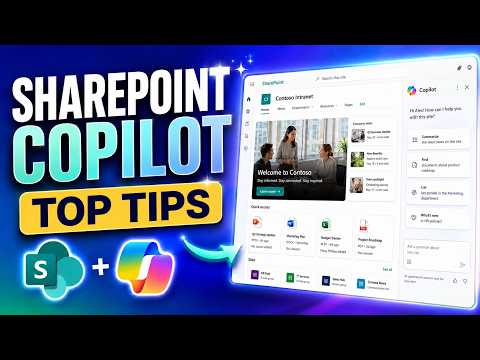
Copilot in SharePoint: New Features 2026
Principal Group Product Manager - Microsoft Education
SharePoint Copilot expert: turn Excel into dashboards, Word and PowerPoint assets, automate workflows in Microsoft cloud
Key insights
- Copilot in SharePoint: A natural‑language assistant that creates files, runs workflows, and manages site content directly inside SharePoint.
Copilot Premium license is required to use these features. - Key capabilities: generate Create Word, Excel, PowerPoint files from stored content, build interactive HTML dashboards, manage libraries via chat, share files and configure approvals without leaving the chat.
These tools streamline common content tasks into conversational steps. - Why it matters: Copilot helps you act on content instead of just finding it, cutting setup time for reports and reducing repetitive manual work.
Teams get faster document creation, simpler sharing, and more consistent branding and layouts. - Real-world uses: convert spreadsheets into dashboards or executive decks, create press releases and FAQs, produce audio overviews from documents, and clean up messy libraries through chat commands.
These workflows fit everyday reporting, communications, and content management needs. - Governance and limits: Site owners can set controls in Site AI settings to manage AI behavior, and previews included per‑user usage limits—check license and policy before broad deployment.
Plan governance to protect sensitive content and ensure compliance. - Extend and automate: developers can build SharePoint Copilot Apps with SPFx to create custom Copilot experiences, while users can save repeatable sequences as reusable skills to automate routine tasks.
Mike Tholfsen’s recent YouTube tutorial walks viewers through the 2026 update to Copilot in SharePoint, showing practical steps for turning stored content into finished work. In the video, he starts with a sales spreadsheet and demonstrates how to generate dashboards, executive presentations, Word documents, and even an interactive HTML dashboard without leaving SharePoint. Moreover, he highlights file sharing, library organization, branded layouts, and reusable automation — all from conversational prompts. Consequently, the piece serves as a hands-on guide for teams that want to move from file storage to active content creation.
What the Video Demonstrates
First, Tholfsen demonstrates creating new files directly from existing items, converting a spreadsheet into a polished Excel workbook and a presentation-ready PowerPoint deck. Then, he shows how to produce a press release in Word and an interactive HTML dashboard that pulls from multiple files, while also updating dashboards through simple filters. He also uses Copilot to summarize files, build FAQs, and produce audio overviews, which together show a wider set of output types than past assistants typically offered. Importantly, these examples highlight how natural-language commands can shortcut many manual steps.
Practical Workflows and Reusable Skills
Next, the tutorial focuses on workflows that matter to teams: sharing a file with a person, reorganizing folders by chat, and saving repeatable steps as reusable skills. By showing how to save common sequences as skills, Tholfsen argues teams can reduce repetitive setup time and keep outputs consistent. At the same time, he demonstrates how Copilot can apply approved branding and layouts automatically, which helps maintain corporate style across documents. As a result, teams can produce executive-ready materials faster while keeping a consistent look and feel.
Licensing, Limits, and Practical Constraints
Tholfsen makes a clear point about access: using these SharePoint capabilities requires an active Copilot Premium license within Microsoft 365, and during previews usage can include per-user daily and weekly limits. Therefore, organizations should plan for licensing costs and monitor limits to avoid disrupting workflows, especially for power users who automate many tasks. Furthermore, while Copilot can speed work, it does not remove the need for human review; generated outputs still require editing for accuracy and tone. Thus, teams must balance the convenience of automation with quality control and cost considerations.
Governance, Security, and Site Controls
On governance, Tholfsen notes site owners can manage AI behavior through a Site AI settings panel, which gives control over how Copilot interacts with content on a site. This is important because automated actions that move or share files can create compliance risks if they run unchecked, so clear policies and training remain essential. Additionally, the video points to the need for administrators to monitor how reusable skills and automated approvals are configured, since mistakes can amplify across teams. Consequently, governance must evolve alongside adoption to keep risk in check.
Developer Extensibility and Tradeoffs
Finally, the update opens new paths for developers through the SharePoint Framework and a preview model for Copilot-connected apps, which can extend how organizations customize AI-driven experiences. While this extensibility promises tailored solutions, it also raises tradeoffs: building custom integrations demands development time and ongoing maintenance, and it can complicate governance if third-party extensions bypass central controls. Therefore, organizations must weigh the benefits of customized automation against the cost and risk of managing bespoke solutions.
In summary, Tholfsen’s walkthrough makes a persuasive case that Copilot in SharePoint moves SharePoint from a passive file store to an active workspace, enabling quicker document creation and smarter content management. Still, the video also reminds viewers that licensing, usage limits, governance, and human oversight are essential parts of a responsible rollout. For teams considering adoption, the clear takeaway is to start with pilot scenarios, set governance guardrails, and measure outcomes before broader deployment. Consequently, organizations can adopt these features in ways that speed work while managing cost and risk.

Keywords
Copilot in SharePoint 2026, SharePoint Copilot features, Microsoft 365 Copilot SharePoint, SharePoint AI assistant, Copilot tips for SharePoint, SharePoint automation with Copilot, Copilot SharePoint integration, SharePoint Copilot tutorial