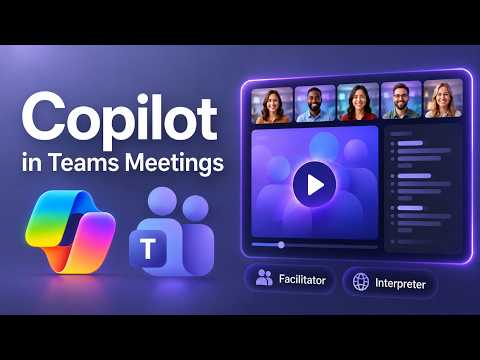
Copilot in Teams: 5 Essential Features
Principal Group Product Manager - Microsoft Education
Microsoft Copilot in Teams boosts productivity and accessibility with Facilitator Interpreter audio video recaps
Key insights
- Copilot in Teams turns live and recorded meetings into searchable summaries and answers.
It extracts key points, identifies speakers, and helps users ask follow-up questions using the meeting transcript. - Setup basics: enable Transcription before or during the meeting and click the Copilot icon to open the side panel.
Note: many features require Copilot Premium to run in your tenant. - Facilitator provides AI meeting notes, tracks the agenda, logs decisions, and extracts action items with assigned owners.
Use suggested prompts or type custom questions during the meeting for instant context. - Interpreter offers real‑time translation so participants can speak and understand across languages.
It makes meetings more accessible and helps remote, global teams collaborate smoothly. - Audio recap and Video recap let you catch up quickly by listening to a summary or jumping to recorded moments.
The meeting Recap tab includes timestamps, transcripts, and a Copilot box to ask targeted follow-ups after the meeting. - 2026 updates add smarter outputs: Real-time summarization, Tone & engagement analysis, markdown-style tables for easy sharing, name-mention detection, late-join prompts, and automated follow-up messages.
These improvements speed up post-meeting work and improve accountability.
[BEGIN HTMLDOC]
Video summary
In a recent tutorial video, Mike Tholfsen walks viewers through how to use Copilot in Microsoft Teams meetings and highlights several new 2026 features. He demonstrates how AI can make meetings more productive, more accessible, and easier to catch up on by creating notes, extracting action items, and producing audio and video recaps. The video is practical and demo-driven, focusing on hands-on steps and visible results rather than deep technical detail. Consequently, viewers get a clear sense of how these tools change meeting workflows in real settings.
Tholfsen shows three headline capabilities: the Facilitator for meeting notes and agenda tracking, the Interpreter for real-time language interpretation, and new Audio and Video Recap options for quick catch-ups. He also walks through selecting transcript text and reviewing the Recap tab after a meeting ends. Importantly, the tutorial notes that these features often require Copilot Premium, so organizations must consider licensing before expecting full functionality. Overall, the video frames Copilot as a practical assistant rather than a replacement for human meeting management.
Key features demonstrated
First, Tholfsen highlights live summarization that turns spoken content into concise AI meeting notes during the session, which helps late joiners catch up quickly. Then he shows how the system extracts action items and assigns owners, reducing manual tracking and increasing accountability for follow-up tasks. In addition, the demo includes a new Audio Recap feature that lets users listen to a short summary instead of reading, which is useful for multitasking and mobile review. Together, these features aim to cut the administrative load that often drains meeting time.
Beyond summaries, the video explores analytics such as tone and engagement analysis that assess how participants interacted and signal possible collaboration issues. Tholfsen also demonstrates automated follow-ups that send recaps and assigned tasks to stakeholders after the meeting, which can speed alignment. Moreover, the built-in Interpreter enables live translation across languages, helping globally distributed teams communicate more effectively. These functions illustrate how AI combines summarization, task management, and accessibility tools in one interface.
How it works in practice
Tholfsen emphasizes that transcription must be enabled for Copilot to operate fully because the AI analyzes the meeting transcript to generate notes and answers. During a meeting, users open the Copilot pane in Teams, choose suggested prompts or type questions, and then receive structured responses that reference transcript moments. After the meeting, the Recap tab collects summaries, action items, and tagged moments so teams can review decisions and follow up quickly. This flow connects live assistance with post-meeting review to keep work moving forward.
The video also shows how users can select specific transcript text to ask targeted follow-up questions, such as confirming a deadline or identifying who raised a concern. Additionally, the system flags whether a participant’s name was mentioned and offers late-joiner prompts that summarize missed content for those who enter the meeting late. Thus, Copilot blends real-time support with searchable records, which changes how teams find and reuse meeting information. However, the functionality depends on correct setup and consistent use of transcription and permissions.
Tradeoffs and challenges
On the positive side, Copilot can save time and improve accessibility, yet it introduces tradeoffs that organizations must weigh carefully. First, the need for continuous transcription raises privacy and compliance concerns, especially in regulated industries, because spoken content is recorded and processed by AI. Therefore, teams must balance convenience with data governance, ensuring that policies, consent, and retention rules are in place before broad deployment.
Second, while summaries and translations accelerate understanding, they can also introduce errors or oversimplify nuance, meaning human review remains essential for critical decisions. For example, real-time interpretation may miss cultural context or technical terms, and automated action item detection might not always identify the true owner. Consequently, over-reliance on automation can create gaps unless teams pair AI outputs with manual checks.
Finally, cost and administrative overhead matter: Copilot Premium licensing, configuration of interpreter settings, and training for staff require investment. Small teams must decide whether the productivity gains justify the expense, while large organizations must coordinate IT, compliance, and change management to realize benefits. In short, the tool adds value but also demands careful planning and governance.
Practical guidance for teams
To get the most from these features, Tholfsen’s demonstrations suggest a few practical steps: enable transcription only when needed, set clear expectations about AI use during meetings, and appoint a human facilitator to verify notes and decisions. Training participants on how to interact with the Copilot pane and how to ask targeted questions will improve the quality of automated summaries. In addition, teams should regularly audit outputs for accuracy and refine prompts and settings over time.
Moreover, organizations should pilot the Interpreter and Audio Recap features with diverse meeting types before rolling them out broadly, so they can assess translation quality and user acceptance. Lastly, combine automation with human oversight: use Copilot to reduce routine work, but keep people accountable for final decisions and sensitive communications. By balancing technology with clear processes, teams can benefit from Copilot while managing the risks and costs it introduces.
[END HTMLDOC]

Keywords
How to use Copilot in Microsoft Teams 2026, Microsoft Teams Copilot tutorial, Teams Copilot features for meetings, Copilot meeting summary Teams, Microsoft 365 Copilot in Teams meetings, Teams AI assistant for meetings, Copilot action items and notes Teams, Live meeting transcription Copilot Teams