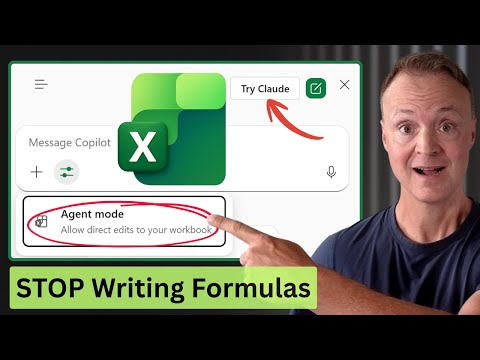
Microsoft Excel: AI Agent Mode How-To
Microsoft Excel Labs Agent Mode turns Copilot into agents automating dashboards, merging web data and switching models
Key insights
- Agent Mode: An AI feature in Excel that acts like an autonomous coworker to plan and run multi-step spreadsheet tasks.
It edits your workbook live, writes formulas, builds tables and charts, and shows its reasoning in a side pane so you can review each step. - Key benefits: Automates complex workflows like cleaning data, creating dashboards, and building reports from plain English prompts.
It supports iterative edits, keeps results auditable, and makes advanced Excel work accessible to non-experts. - Access and setup: Available in Excel for the web via the Excel Labs add-in; enable it from the Add-ins menu and turn on Agent Mode.
Once enabled, you can set Agent Mode as the default for your workbook sessions. - How to run tasks: Type a clear natural-language request (for example, “Create a budget tracker with variance highlights and a donut chart”).
The agent presents a step-by-step plan, executes changes live, and lets you pause, stop, or refine results as it works. - Model switching & live data: You can choose between AI models (for example, OpenAI or Anthropic Claude) and let the agent use web search to merge real-time external data into your workbook.
This helps build reports that combine internal data with up-to-date public information. - Best practices & limits: Review every change, use iterative prompts to refine results, and treat agent output as a draft to verify.
Agent Mode is powerful but may be in Preview, so check availability, watch for data privacy needs, and keep audit trails for important work.
Overview: Teacher's Tech Explains Excel's New Agent Mode
Teacher's Tech released a tutorial-style YouTube video that walks through Microsoft Excel’s new Agent Mode, describing it as a shift from single-question help to autonomous, multi-step assistance. The presenter demonstrates how an AI agent can plan, execute, and refine tasks directly in a workbook, showing live edits and a reasoning pane for transparency. As a result, viewers see how the feature aims to make complex spreadsheet work faster and more accessible to non-experts.
Moreover, the video explains that Agent Mode is available in preview via the Excel Labs add-in for Excel on the web and supports model switching between providers such as Anthropic’s Claude 3.5 Sonnet. The tutorial highlights key scenarios, from cleaning messy data to building dashboards and merging live web data into reports. Consequently, the clip frames this update as a significant step in bringing advanced AI directly into everyday spreadsheet tasks.
How to Access and Operate Agent Mode
Teacher's Tech outlines the access path clearly, advising users to add the Excel Labs add-in in Excel for the web and then enable Agent Mode within that pane. Next, the video shows how to type plain‑language prompts and preview the agent’s proposed plan before it edits the workbook, which helps users keep control of each step. This flow reduces the learning curve for those who do not know advanced formulas or scripting.
The tutorial also covers the ability to switch AI models, noting that different models produce different tradeoffs in style and accuracy, and that users may toggle providers depending on needs. In addition, Teacher's Tech demonstrates how the agent can perform web searches to pull live external data and merge it with internal spreadsheets, expanding the tool’s usefulness for reporting. However, the presenter cautions that web-sourced data and model outputs should be reviewed carefully before trusting them in production.
Workflows Demonstrated and Practical Benefits
In practice, the video illustrates how the agent can take a single prompt and create a complete, functional dashboard, including input cells, conditional formatting, and charts. Furthermore, the agent pauses to show each planned step, and it writes the formulas and builds PivotTables as needed, which makes the process transparent and easier to audit. As a result, users can learn by watching the AI perform tasks rather than reconstructing complex steps manually.
Teacher's Tech emphasizes iterative refinement as a key benefit: after the agent completes its work, you can ask it to adjust visuals or recalculate metrics, and it will rework the workbook accordingly. Likewise, the agent’s live editing helps teams collaborate since changes appear directly in the file and can be tracked with native Excel auditing features. Therefore, the feature promises time savings for routine analytics and reduces repetitive manual editing.
Tradeoffs, Risks, and Implementation Challenges
Despite clear advantages, the video also highlights several tradeoffs that organizations must consider, especially around control and trust. On one hand, autonomous agents speed tasks and lower expertise barriers; on the other hand, they can introduce incorrect formulas, unexpected changes, or over‑reliance on model judgment, so human oversight remains essential. Consequently, teams should treat agent outputs as drafts that require validation before deployment.
Privacy and data governance present further challenges, since using web search and external models may expose sensitive information or create compliance concerns, particularly in regulated environments. Moreover, switching between models brings tradeoffs in cost, latency, and the models’ tendencies to hallucinate or to prioritize different solution styles. Therefore, IT and data stewards must balance model flexibility with strict policies on data access, retention, and auditing.
Implications for Users and Final Assessment
Overall, Teacher's Tech presents Agent Mode as a powerful addition to Excel that stands to change how analysts and casual users approach spreadsheets, by automating multi-step tasks and surfacing the AI’s reasoning. Nevertheless, the video stresses that organizations should pilot the feature, build review processes, and maintain clear governance to prevent errors or data leakage. In practice, this measured approach will help teams capture productivity gains while limiting risk.
Looking ahead, the presenter raises a thoughtful question about whether this marks the end of manual spreadsheets, and then offers a balanced answer: automation will reduce manual drudgery, but skilled users will still add value by validating results, designing models, and making judgment calls. Ultimately, the video serves as a practical primer for early adopters and a reminder that AI-driven workflows need human checks, thoughtful deployment, and ongoing training to deliver reliable benefits.

Keywords
How to use AI Agent Mode in Excel, Excel AI Agent tutorial, Microsoft Excel Copilot Agent guide, Excel AI step-by-step, Use AI agents in Excel, Automate Excel with AI Agent, Excel Copilot workflow tips, Excel AI features and examples