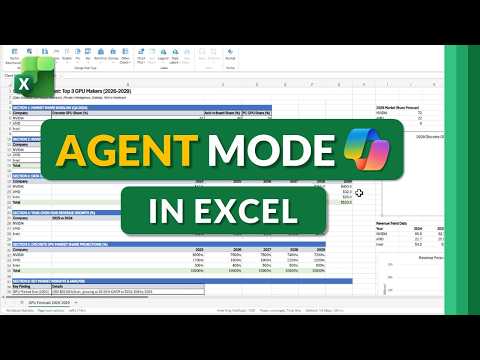
Excel Agent Mode: Step-by-Step Guide
Principal Group Product Manager - Microsoft Education
Use Excel Agent Mode for AI workflows, natural language data analysis and automation with Copilot in Microsoft apps
Key insights
- Agent Mode: An AI feature inside Microsoft Copilot that edits workbooks directly based on natural-language instructions.
It plans steps, runs actions (formulas, tables, charts, PivotTables), and keeps all results fully editable in Excel. - Availability: Rolling out to Microsoft 365 Commercial and Education customers in early 2026 and already available on recent Windows builds, with Mac and web support following.
Check your Excel app for the Copilot pane to confirm access. - Key benefits: Speeds up data work by automating formula writing, chart creation, and report layout.
It produces polished, editable output, helps fix errors, and iterates on requests so you get accurate results faster. - Requirements: You need a supported Microsoft 365 subscription and a modern Excel build (web, Windows, or Mac).
Some advanced model options and experimental features require admin or Insider/Beta access. - How to enable and use: Open Excel, launch the Copilot pane from the ribbon, and toggle Agent Mode in the Copilot Tools menu to allow direct workbook changes.
Type a clear goal, review proposed edits, then accept or refine the changes. - Practical tips and limits: Start with an outcome-based prompt (for example, build a loan-payment schedule with month, payment, principal, interest, and balance).
Ask Agent Mode to iterate if results need correction, and always validate formulas and data because some complex scenarios still need human review.
Introduction
Mike Tholfsen’s recent YouTube tutorial demonstrates how Agent Mode brings advanced AI workflows directly into Excel, and the video serves as a practical, step-by-step guide for everyday users. He explains that the feature is rolling out to all Microsoft 365 Commercial and Education subscribers in early 2026, moving beyond its initial availability to Copilot Premium customers. Consequently, the demonstration focuses on real examples that viewers can apply immediately, while also highlighting where the tool performs well and where it still needs work. Overall, the video frames Agent Mode as a productivity booster that integrates natural language prompts with native Excel editing.
What Agent Mode Is
Tholfsen describes Agent Mode as a shift from a passive chat assistant to an active agent that edits workbooks directly, plans multi-step tasks, and iterates on results. He emphasizes that the system can generate formulas, build tables and charts, and create PivotTables while preserving Excel’s regular editability so users can review and tweak output. In addition, he notes that the feature uses multi-model reasoning and can incorporate web-grounded search to bring current information into analysis. Thus, it blends automated actions with transparent steps so users retain oversight.
Access and Setup
The tutorial walks viewers through enabling the capability across platforms: Excel for web, Windows, and Mac. First, users open the Copilot pane from the Home ribbon and toggle on Agent Mode inside the Tools menu, which allows the agent to make direct workbook edits after confirmation. Second, Tholfsen explains subscription and platform requirements, noting that some commercial features may require admin configuration such as enabling Frontier access or joining the Beta Channel. Consequently, administrators and power users should check tenant settings and Excel versions before expecting the full feature set.
How It Works in Practice
To demonstrate, the video shows clear, outcome-focused prompts like building a loan calculator that outputs a monthly schedule and a formatted table, and creating an annual financial close report. Tholfsen highlights how the agent breaks a request into actionable steps, implements formulas, and then iterates when the user asks for refinements. He also illustrates that outputs remain fully editable in Excel, which means users can validate formulas, adjust formatting, or change logic after the agent completes its work. Therefore, the workflow blends speed with familiar Excel controls so users are not locked into a black box.
Benefits and Tradeoffs
The advantages are obvious in the video: Agent Mode saves time on repetitive tasks, helps users who lack deep Excel expertise produce polished, share-ready workbooks, and accelerates data analysis. However, Tholfsen carefully balances enthusiasm with caution by pointing out tradeoffs, such as the tension between automation and control. For instance, choosing automated edits increases speed but also raises the need for testing because AI-generated formulas can be incorrect or suboptimal in edge cases. Thus, teams should weigh efficiency gains against the responsibility to verify results before sharing them externally.
Challenges and Practical Considerations
Tholfsen does not gloss over limitations: the system can make mistakes, it depends on up-to-date subscription entitlements, and some advanced features are gated behind model-selection controls like Anthropic or OpenAI. Moreover, he highlights performance concerns in very large or complex workbooks and notes that real-time web data integration requires careful handling to avoid stale or misleading inputs. Consequently, best practice involves incremental adoption, manual validation, and clear governance so organizations maintain data integrity while benefiting from automation.
Best Practices for Adoption
In the video, practical tips include starting with clear, outcome-based prompts and testing results in a copy of production workbooks to prevent unintended changes. Tholfsen recommends iterating with short follow-up prompts to refine formulas or layouts, and reviewing each change before accepting it, which preserves accountability. He also suggests that IT teams document allowed models and settings, since choices about models and web grounding affect both performance and compliance. As a result, teams can capture productivity improvements while managing risk.
Conclusion
Mike Tholfsen’s tutorial offers a clear, hands-on introduction to Agent Mode in Excel, combining practical steps with thoughtful discussion of limits and tradeoffs. While the tool promises to speed up many common tasks and democratize advanced workbook creation, the video stresses the need for testing, oversight, and admin readiness. Overall, the guide is useful for both individual users and IT leaders planning a measured rollout, because it pairs actionable examples with realistic cautions. Therefore, viewers who follow the recommended practices can harness AI-assisted productivity while keeping control of their data and analyses.

Keywords
Agent Mode in Excel tutorial, Excel Agent Mode step-by-step, How to use Agent Mode Excel, Excel AI Agent tutorial, Enable Agent Mode Excel, Excel Agent Mode examples, Excel automation with Agent Mode, Excel Copilot Agent Mode guide