Microsoft Teams: Multilingual Transcripts
M365 Adoption Lead | 2X Microsoft MVP |Copilot | SharePoint Online | Microsoft Teams |Microsoft 365| at CloudEdge
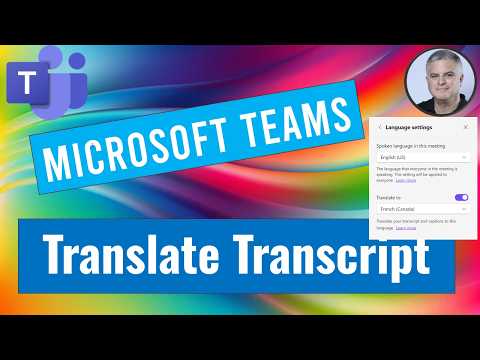
Microsoft Teams live transcript translation shows original and translated transcripts for inclusive multilingual meetings
Key insights
- Live Translated Transcripts: Use Teams Premium to start transcription (More (...) > Record and transcribe > Start transcription). After the transcript opens, go to Settings > Transcript > Transcript language to choose a language and toggle Show both original and translation to view side-by-side in the right pane.
- Live Translated Captions: Turn on live captions during a meeting (More (...) > Turn on live captions). Open the captions gear to set the speaker source language and your preferred target language so captions appear at the bottom with speaker names and save to the meeting chat.
- Multilingual Speech Recognition: Enable this in Meeting options by toggling Enable multilingual speech recognition. Presenters pick their spoken language so Teams auto-detects speakers and produces translations per participant preferences.
- Interpreter Agent: Use speech-to-speech interpretation for live audio in participants’ languages when available, giving a near-real-time translated audio option that scales without human interpreters.
- Admin, license, and platform requirements: Admins control transcription via Teams meeting policies and transcription defaults off. Features require business or enterprise Microsoft accounts (not personal Gmail accounts) and recent Teams apps on Windows 10+/macOS 10.14+.
- Key benefits and best practices: Translated transcripts and captions increase inclusivity, reduce misunderstandings, and speed follow-ups; encourage teams to enable dual view (original + translation), choose languages before speaking, and review recorded transcripts after meetings for accuracy.
A new YouTube video from Ami Diamond [MVP] highlights a practical update to Microsoft Teams that lets meeting participants translate transcripts and view both the original and translated text side-by-side. In the video, Ami — who is a man and a longtime Microsoft MVP — demonstrates how this feature works during real meetings, explaining settings, licenses, and the user experience. Consequently, the segment seeks to help global teams reduce misunderstandings and make meetings more inclusive while weighing practical tradeoffs.
What the Video Shows
First, Ami walks viewers through the main features, including Live Translated Transcripts, Live Translated Captions, Multilingual Speech Recognition, and the Interpreter Agent, and he explains where each appears in the Teams interface. Then, he demonstrates toggling transcription on, choosing a transcript language, and switching on the option to show both original and translated text in the right-side pane. Moreover, Ami points out that participants can enable captions in their preferred language during a meeting so that spoken content appears at the bottom of their screen in near real time.
Step-by-Step Usage in the Demo
During his walkthrough, Ami shows a simple flow: open More (…) in a meeting, start transcription or captions, set the source and target languages, and toggle the dual-view option when available. He also highlights how presenters can select their spoken language when Multilingual Speech Recognition is enabled, which helps the system route translations more accurately. Additionally, he notes that transcripts are saved to the meeting recap for later review, and he demonstrates how to switch languages post-meeting for follow-up checks.
Benefits and Tradeoffs
According to Ami, the feature brings clear benefits: meetings become more accessible to multilingual teams, follow-ups are easier, and external partners can participate without language barriers. However, he also acknowledges tradeoffs, since automated systems sometimes sacrifice perfect accuracy for speed, and real-time translations can introduce small delays or misinterpret technical terms. Therefore, the video advises teams to balance convenience and precision, using AI-powered translation for inclusivity while reserving human interpretation for high-stakes discussions that require absolute fidelity.
Technical and Administrative Challenges
Ami does not gloss over the limitations: the translation and transcription tools require business or enterprise accounts and recent Teams clients on supported operating systems, which means personal accounts generally cannot access these features. Moreover, administrators must enable transcription-related policies in the Teams admin center because the default may be off, and privacy settings or regulatory rules can further restrict use in some organizations. Consequently, IT teams must weigh the administrative overhead and licensing costs against the benefits of broader accessibility.
Practical Tips and Real-World Scenarios
For practical adoption, Ami suggests that meeting organizers schedule a brief test at the start of multilingual calls to confirm language settings, speaker labels, and caption visibility so participants know how to switch views if needed. He also recommends that presenters speak clearly and minimize overlapping talk to improve automatic recognition, and that teams keep a short glossary of technical terms to reduce translation errors in critical topics. Finally, he encourages teams to combine AI translation with human review for meeting notes when accuracy matters most.
In closing, Ami Diamond’s video serves as a useful, pragmatic guide for teams exploring Teams’ live translation capabilities, and it strikes a balanced tone by showing both how the tools work and where they fall short. While the technology meaningfully improves inclusivity and day-to-day productivity, decision-makers should consider licensing, admin controls, privacy, and accuracy tradeoffs before full rollout. Overall, the demonstration offers clear next steps for teams that want to try the feature and adapt policies to make multilingual meetings smoother and more reliable.

Keywords
Microsoft Teams translate transcript, translate Teams meeting transcript multiple languages, Teams live captions translate multiple languages, real time translation Microsoft Teams transcript, show transcript in multiple languages Teams, simultaneous translation Microsoft Teams meetings, auto translate meeting transcript Teams, multilingual captions Microsoft Teams