Power Platform Admin plugin: setup in Cowork
Software Development Redmond, Washington
Power Platform administrators can install the preview plugin for selected users, then connect it in Copilot Cowork for tenant-specific, read-only insights.
Key insights
- Install Power Platform Admin (preview) from Agents > Tools > Registry in the Microsoft 365 admin center.
- During installation, set the channel to Copilot and choose all users or specific users and groups.
- Users connect the plugin in Cowork under Customize > Installed using Power Platform for Admins V2.
- The plugin is described as read-only; it does not independently make administrative changes.
- Global Administrator, Power Platform Administrator, and Dynamics 365 Administrator are listed for data access.
The Power Platform Admin plugin for Copilot Cowork lets administrators ask natural-language questions about tenant resources and governance information, with read-only insights. It matters to Power Platform administrators and Microsoft 365 administrators who want to make the tool available to a defined group. Microsoft’s YouTube Short is the source that raises the setup task, while the available background notes describe the installation and connection steps.
What's new
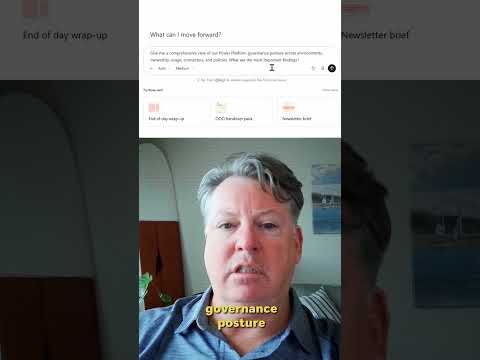
The plugin connects Cowork to Power Platform administration data through the Power Platform for Admins V2 connection. Instead of starting in multiple administrative views, a user can begin an investigation with a conversational question about the organization’s Power Platform resources. The notes describe the output as tenant-specific governance and resource information, rather than generic guidance.
This is an analysis and discovery tool, not a mechanism for making changes. The plugin is described as read-only and does not independently execute administrative actions. Administrators should continue to use the appropriate administration experiences for changes.
Who it is for and what you need
The feature is described as a preview. The notes do not establish broad availability, a specific license requirement, or a rollout schedule, so organizations should verify access in their own environment. Users need access to Copilot Cowork and a work or school account in the organization that contains the Power Platform resources.
Installing the plugin requires Microsoft 365 admin center access as a tenant administrator or Copilot administrator. Data access is separately associated with Global Administrator, Power Platform Administrator, or Dynamics 365 Administrator roles. Users also need permission to create the Power Platform for Admins V2 connection.
How it works
- In the Microsoft 365 admin center, go to Agents > Tools, open Registry, and search for Power Platform Admin (preview).
- Select the Microsoft-published plugin and choose Install. On Select users, set the channel to Copilot and choose All users or Specific users and groups. Review the selection and finish installation.
- In Cowork, open Customize and find the plugin under Installed. Select Connect, choose OAuth Connection as the authentication type for Power Platform for Admins V2, then sign in and complete consent with an appropriately authorized account.
- Ask Cowork a question about Power Platform environments, resources, or governance context. Use the relevant admin experience to carry out any required changes.
Limitations and open questions
The available material does not establish which licenses, regions, or tenants can use the preview, or whether every installation follows the same interface. It also does not provide a complete list of supported questions or data returned. Confirm the organization, account, requested permissions, and deployment audience before connecting.
The source material includes no detailed transcript of the Short, and the listed Microsoft website is a general site rather than a dedicated setup guide. The steps here reflect the supplied background notes; they should not be treated as confirmation of current availability or a guarantee that the interface is unchanged.
Sources
Frequently asked questions
How do I install the Power Platform Admin plugin in Cowork?
Install Power Platform Admin (preview) from Agents > Tools > Registry in the Microsoft 365 admin center, select the Copilot channel and target audience, then connect it in Cowork under Customize > Installed.
What permissions are needed to use the plugin?
The notes list Global Administrator, Power Platform Administrator, and Dynamics 365 Administrator for accessing the administration data. Plugin deployment also requires Microsoft 365 admin center access, which is a separate permission.
Does the Power Platform Admin plugin change environments?
The notes describe it as read-only and say it does not independently execute administrative actions. Use the appropriate administration experiences for changes.
Is the Power Platform Admin plugin generally available?
The supplied background notes describe it as a preview. They do not establish its availability by region, license, or tenant.