Excel: record reusable Copilot Skills
M365 Adoption Lead | 2X Microsoft MVP |Copilot | SharePoint Online | Microsoft Teams |Microsoft 365| at CloudEdge
Excel users can record a workflow and save it as a Copilot Skill to reuse repetitive workbook tasks.
Key insights
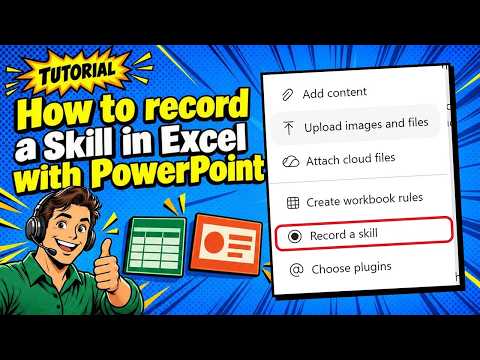
- Choose Record a skill from the plus menu in Copilot in Excel.
- Copilot can ask how to handle variable choices and how to check the workflow's result.
- The demonstration shows the saved Skill.md file in OneDrive.
- Excel for the web has the feature; Windows and Mac availability is rolling out to Insiders.
Excel’s Record a skill feature lets you demonstrate a workbook workflow and save it as a reusable Copilot Skill, rather than relying on a prompt alone. It is aimed at Excel users who repeat the same sequence of data cleanup, sorting, or filtering steps. Ami Diamond [MVP] demonstrates recording, clarifying, saving, and running a Skill in Excel.
What it does
A Skill is a reusable description of a task for Copilot. To create one, you perform the work in the workbook while recording is active; Copilot then turns the actions into a Skill that you can save and run again. The point is to show the task rather than begin by writing a prompt describing every step.
That makes the feature resemble Excel’s Macro Recorder, but the output is a Copilot Skill, not simply a traditional macro. In the demonstration, the workflow replaces “Not stated” model-year values with 2025, sorts the table, and filters it to show monitors. Copilot then asks how future runs should handle the replacement year and what final view to produce.
Those questions matter because a recorded workflow may include choices that need to be made explicit for reuse. The user can clarify a default and explain how to check the result. Once saved, the Skill can be selected and run again, and its Skill.md file is stored in OneDrive.
Who it is for and what you need
This is for people who regularly perform repeatable work in Excel and want Copilot to retain the process. A useful starting point is a workbook that contains an example of the task, along with the actions you want to capture. A clear demonstration gives Copilot a concrete workflow to turn into a Skill.
The feature is part of Copilot in Excel. Microsoft’s rollout information describes Record a skill as available in Excel for the web, while rolling out to Excel for Windows and Mac Insiders. Availability can therefore depend on the Excel platform and rollout stage. If the option is missing, check again as the rollout progresses.
The recording shown starts from Excel’s Copilot interface, where the user selects the plus menu and chooses Record a skill. The saved Skill is managed through Copilot’s plugin controls, and the example file can also be found in OneDrive. These details give users two ways to locate the result: from Copilot’s custom Skills area or in the folder holding the Skill.md file.
How it works
Open the workbook containing an example of the task. In Copilot in Excel, select the plus menu and choose Record a skill.
Perform the workflow directly in the workbook. In the example, the user replaces the “Not stated” model year with 2025, sorts by model year, and filters the table to monitors.
Stop the recording. Copilot generates a Skill and may ask clarification questions about how it should behave on future runs. Specify choices such as always using 2025, and explain how to verify the outcome.
Review the generated Skill and save it. The demonstration shows the Skill.md file in OneDrive and the Skill listed under Manage plugins and Custom.
Run the saved Skill on the workbook. Check its changes and output against the intended task; the example run reports that it did not find any “Not stated” entries to replace.
Copilot may need clarification before it can produce a reusable Skill. For example, a value used in the demonstration could be a one-time choice or a default for later runs. Answering that question helps make the intended behavior explicit. A good success check also gives you a way to assess whether the workflow completed as expected.
Limitations and alternatives
A recording captures actions, but it does not mean every future workbook will contain the same values or produce the same output. In the demonstration, the later run reports that it found no “Not stated” values. That is a practical reminder to review the outcome rather than assume every recorded step had something to change.
The Skill also depends on making choices clear. If the recording includes a value that may change, decide whether Copilot should always reuse it or ask each time. Confirm that the final sorting and filtering behavior is what you want, and include a way to check the result. Copilot’s clarification questions are part of shaping that behavior, not a substitute for reviewing the workbook.
For a workflow that should remain tied to one workbook, a .Rules worksheet is an alternative described in Microsoft’s Excel guidance. A reusable Skill is the better fit when you want the process available for similar workbooks; workbook-specific rules are suited to instructions that should travel with one file. The feature’s platform rollout is another consideration: access differs while Windows and Mac support rolls out to Insiders.
Sources
Frequently asked questions
How do you record a Skill in Excel?
In Copilot in Excel, select the plus menu and choose Record a skill. Perform the workflow in the workbook, stop recording, answer any clarification questions, and save the Skill.
Where does Excel save a recorded Copilot Skill?
The demonstration shows the Skill.md file stored in OneDrive. It can also be found under Manage plugins in the Custom Skills area.
Which Excel versions have Record a skill?
The feature is available in Excel for the web, with rollout to Excel for Windows and Mac Insiders. Availability depends on the platform and rollout stage.
Can an Excel Copilot Skill be used for workbook-specific instructions?
A .Rules worksheet is an alternative for instructions tied to one workbook. A reusable Skill is suited to workflows intended for similar workbooks.