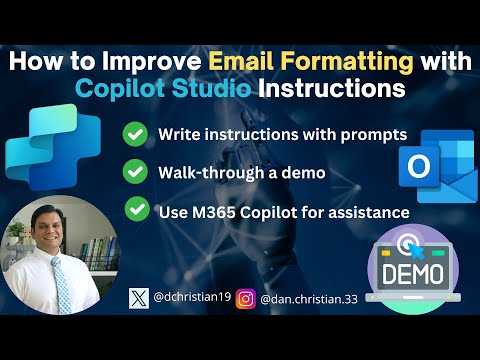
Copilot Studio: Email Formatting Tips
Lead Infrastructure Engineer / Vice President | Microsoft MCT & MVP | Speaker & Blogger
Microsoft Copilot Studio guide to perfect Send Email formatting with autonomous agents for polished Outlook messages
Key insights
- Copilot Studio overview: The video shows how to tune agent instructions so the Send Email action produces clean, professional emails automatically. It focuses on using Copilot Studio’s agent model rather than building separate flows or writing code.
- Rich text formatting guidance: Instruct the agent explicitly to use rich text for the email body (bold, lists, paragraphs). Clear instructions lead to consistent, readable output every time.
- Dynamic content and Templates: Use dynamic fields for "To," "Subject," and "Body" so the agent fills personalized data from context. Combine this with reusable templates to speed drafting and keep tone consistent.
- No-code interface: Copilot Studio uses form-based, drag-and-drop inputs to define fields and instructions. Users can edit drafts directly in Outlook with actions like Draft, Adjust, or Regenerate to refine tone and length.
- Send an Email V2 technical note: Inline expressions now must be preprocessed (for example with a Compose or Set Variable step) before passing into the Send Email action to ensure variables render correctly in the final message.
- Best practices: Tell the agent how to structure messages, preprocess dynamic values, test with small demos, and refine signatures. These steps produce consistent, polished emails without extra coding.
Overview
In a recent YouTube video, Daniel Christian [MVP] walks viewers through practical ways to improve email formatting using Copilot Studio. He demonstrates how to fine-tune agent instructions so that the built-in Send Email action produces clean and professional messages without extra coding. Accordingly, the video emphasizes that clear prompts and small configuration changes can yield more consistent results across different email scenarios. As a result, organizations can save time while raising the quality of automated communications.
What the video demonstrates
First, Daniel shows a step-by-step walkthrough of an autonomous agent that drafts and sends email content based on conversation context. During the initial demo he highlights common formatting problems, such as inconsistent paragraphs, missing signatures, and plain-text output instead of rich text. Then, he adjusts the agent’s instructions and runs a second demo to show visible improvements in layout, tone, and signature handling. These before-and-after clips make the impact of prompt wording and instruction detail easy to see.
Next, the video focuses on how to phrase generative guidance so the agent uses rich text formatting for the email body, applies lists or bolding where appropriate, and preserves line breaks. Daniel also illustrates how to embed template sections and dynamic fields so that the message adapts to recipients and scenarios. Finally, the demos include a refined signature example that consistently appears and respects formatting choices. Overall, the demonstrations stress incremental changes that yield immediate, practical benefits.
Technical details and tradeoffs
Daniel explains a key technical constraint: inline expressions or concatenations inside the email body may not render correctly unless preprocessed. Therefore, he recommends using intermediate steps such as Compose or Set Variable to build dynamic content before handing it to the Send Email action. While this extra step adds some complexity, it improves reliability and ensures variables like names or ticket numbers display as intended. Consequently, teams must weigh the slight workflow overhead against the benefit of predictable output.
Moreover, the video discusses tradeoffs between using templates and full dynamic generation. Templates offer consistency and speed, yet they can limit personalization and require maintenance when business rules change. Conversely, fully dynamic approaches increase flexibility but demand careful testing and governance to avoid inconsistent tone or formatting across recipients. Thus, organizations should balance template stability with targeted dynamic content to meet both efficiency and personalization goals.
Practical guidance and the demo results
Daniel provides clear prompt examples and recommended instruction phrasing to guide the agent toward professional formatting. He suggests telling the agent explicitly to use paragraphs, lists, and bold text where appropriate, and to prioritize clarity and conciseness in subject lines and body copy. Additionally, he shows how to map input fields such as "To," "Subject," and "Body" to dynamic sources so that the agent can pull context-aware information. These practical tips help reduce trial-and-error and accelerate useful outcomes.
After applying the refined instructions, the second and third demos show more consistent HTML-like output that Outlook and other clients render better. The improved messages include a clear greeting, structured body paragraphs, and a standardized signature block, which increases perceived professionalism. At the same time, Daniel notes that you should test messages across mail clients to confirm consistent rendering. This testing step highlights the importance of real-world validation when automating email formatting.
Challenges, governance, and recommendations
Despite the benefits, the video also calls attention to practical challenges such as cross-client rendering differences and organizational controls. For example, some recipients might see different formatting depending on their email client, and inline images or advanced HTML may not display uniformly. Therefore, Daniel recommends simpler formatting choices that degrade gracefully and encourages thorough testing in representative environments. In addition, governance policies should define who can update templates and instructions to prevent drift and preserve brand voice.
Security and privacy are also important considerations, since dynamic content often pulls from customer data or case records. Daniel advises limiting data exposure to only what’s necessary for the message, validating variable values, and logging changes to instruction sets. Finally, training and documentation help teams adopt the no-code approach without sacrificing quality, because clear operational rules reduce errors and speed onboarding. Taken together, these practices make automation safer and more dependable.
Conclusion
Daniel Christian’s video offers a useful, hands-on guide to improving automated email formatting with Copilot Studio. It combines practical demos with technical tips, demonstrating that thoughtful instruction design and modest preprocessing yield large gains in message quality. While tradeoffs exist between convenience and control, the video makes it clear that disciplined testing and governance close the gap. Consequently, teams that follow these recommendations can deliver more polished emails while keeping the implementation effort manageable.

Keywords
improve email formatting Copilot Studio, Copilot Studio email templates, AI email formatting tips, Copilot instructions for email layout, email design best practices Copilot, automate email formatting with Copilot, Copilot Studio Outlook email formatting, write formatted emails Copilot Studio