Animate PowerPoint Icons Creatively - Easy Steps
Animate PowerPoint Icons with Ramgopals Mastery - Engage and Impress!
Key insights
- Animating Icons in PowerPoint: Learn how to make your presentation icons dynamic and engaging through animation techniques.
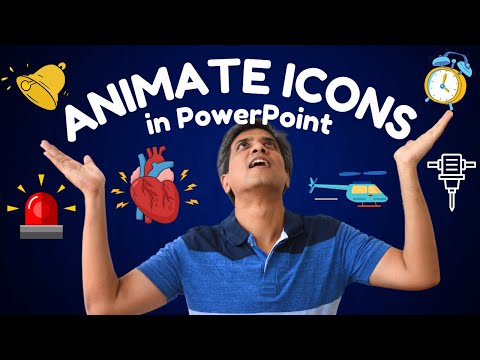
- Examples of Animated Icons: Includes a ringing alarm clock, beating heart, tolling bell, flashing ambulance light, and a drilling machine.
- Resource Availability: Access to comprehensive templates and training programs to master PowerPoint.
- Animated GIF Export: Capability to save animated slides as a GIF, enhancing presentation versatility.
- Managed by Experts: Tips and tricks shared by Arte and Ramgopal, dedicated hosts from Presentation Process.
Understanding PowerPoint Icon Animation
Introduction to Icon Animation
This video from "Presentation Process YouTube" shows how to animate icons in PowerPoint, making your presentations more engaging. Instead of static visuals, the tutorial navigates through transforming basic icons into dynamic elements. Viewers are invited to explore creative ways of animation with detailed guidance from the channel.
Contents and Demonstrations
The video provides a timeline of demonstrations, including animations such as a ringing alarm clock, a beating heart, and a tolling bell. These key timestamps help viewers quickly find specific animations relevant to their interests. In a clear, concise manner, the video shows how to implement these animations to make visual representations more captivating.
Animation Techniques and Tools
Furthermore, viewers are taught to save their animated icons as GIFs, allowing for versatile use across different mediums. This tutorial ensures that those following along can both learn and apply their new skills directly into their presentations or digital content.
Available Resources and Training Programs
The video also highlights several resources such as the "All In One PowerPoint Templates Bundle 2.0" and the "PowerPoint Mastery Training Program" by Ramgopal. These resources are designed to further enhance one’s skills in making high-quality presentations.
Conclusion
The tutorial encapsulated the breadth of creativity and technical skills you can incorporate into your presentations using PowerPoint. The step-by-step guidance provided in the video is accessible to anyone looking to improve their presentation aesthetics and effectiveness.
Exploring Advanced Animation in PowerPoint
Animating icons in presentations isn’t just about making them move. It’s about using movement to tell a more compelling story to your audience. Whether it’s a beating heart symbolizing health topics or a flashing ambulance light for emergency services discussions, each animated icon can significantly enhance how your message is received.
With tools like PowerPoint, users have the ability to convert static boring icons into intriguing graphics that draw the viewer’s eye and hold their attention. This not only makes the information more digestible but also adds a professional touch to presentations.
This capability is especially useful in professional settings where the clarity and impact of your message can influence career and business outcomes. For those who are not adept at advanced features in PowerPoint, tutorials by channels such as "Presentation Process YouTube" are valuable resources that provide easy-to-follow, practical advice on leveraging these tools.
Moreover, the integration of animations can catalyze the retention of information among audiences. With animated visuals, presenters can ensure that their point is not just seen but felt and remembered. This is especially crucial in educational and training settings where comprehension and recall are desired outcomes.
By effectively utilizing the features and techniques discussed in such tutorials, users can transform mundane presentations into dynamic and memorable engagements. All it takes is a bit of creativity and the willingness to experiment with different animation features available in PowerPoint.
Finally, preserving these animations in versatile formats like GIFs means that your hard work can be displayed across various platforms, from web to mobile, ensuring your presentations always make their mark, regardless of the medium.

People also ask
"How to animate icons in PowerPoint?"
To animate icons or objects in PowerPoint, you should first select the icon or object you wish to animate. Then, navigate to the Animations tab and choose your desired animation effect from the available gallery. Animations are categorized by their purpose: entrance effects are indicated with a green icon, emphasis effects with a yellow icon, and exit effects with a red icon. Additionally, some animations offer Effect Options which allow you to specify the direction of the animation.
"How do you add unique Animations in PowerPoint?"
To add unique animations in PowerPoint, consider using dynamic exits to bring content onto a slide and stylish exits to move content off of a slide. These techniques can enhance the visual appeal of your presentations.
"What are 4 different ways you can animate an image in PowerPoint?"
In PowerPoint, you can animate an image using four main types of effects: entrance, emphasis, exit, and motion paths. These options help you determine when the animation should be triggered during your presentation.
"How do you create a custom animation in PowerPoint?"
To create a custom animation in PowerPoint, use the Custom Motion Path option. This feature allows you to design a specific path for the animation to follow, offering a personalized touch to your presentation's animations.
Keywords
PowerPoint icon animation, creative icon animation, animate icons tutorial, PowerPoint animation tips, custom icons PowerPoint, enhance PowerPoint presentations, PowerPoint design ideas, interactive PowerPoint icons