Copilot Studio: Agents with Own Computer
Senior Manager at Ernst & Young | Microsoft MVP | MCT
Microsoft expert guide to building Copilot Studio agents that control PCs via natural language, no code, Power Platform
Key insights
- Copilot Studio lets you build conversational AI agents with a no-code, natural language interface.
It creates agents that can automate tasks across Microsoft 365 without traditional programming. - Start by signing in, choosing an environment, and creating a new agent with a short natural-language description.
Then set the agent name, upload or generate an icon, and write clear instructions to guide behavior. - Add knowledge sources and tools so the agent has context and actions: connect SharePoint, OneDrive, Teams, files, or web content, and enable triggers or external tools for task execution.
Use multi-agent patterns when workflows need parent-child orchestration or specialized helpers. - For agents to act on a user’s machine, common approaches include synced cloud storage (OneDrive) for local files and using automation flows such as Power Automate Desktop or secure connectors to run desktop actions.
Documentation does not claim a single "agent runs on your PC" feature, so prefer controlled connectors and local automation flows for real‑world tasks. - Always test and share inside Copilot Studio: run demos, refine instructions (up to the platform limits), and export or deploy agents to Teams or web apps for team use.
Start with a small workflow, validate outputs, then expand capabilities and integrations. - Follow security and governance rules: pick the right environment, restrict data sources and schemas, monitor agent runs, and limit permissions.
Use best practices like least privilege, clear user prompts, and iterative testing to keep automation safe and reliable.
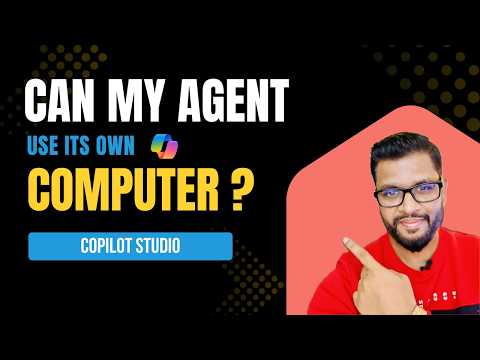
Deepak Shrivastava [MVP] published a concise tutorial video that walks viewers through creating an agent in Copilot Studio which can operate a user’s own computer to complete tasks. In the video, Shrivastava demonstrates how agents can click buttons, fill forms, and perform automated workflows using plain language instead of code. Accordingly, the tutorial aims to show how easy it can be to give a Copilot hands-on control of desktop tasks. As a result, the video serves as a practical introduction for both beginners and experienced users who want to explore automation without programming.
What the Video Demonstrates
The video opens with a clear explanation of the goal: build an agent that interacts with a computer to carry out routine tasks. Then, Shrivastava guides viewers step by step, showing the platform interface, how to define behaviors, and how agents interpret natural language instructions. Furthermore, the clip highlights real examples where the agent clicks through interfaces and fills fields to complete a process automatically. Therefore, viewers get a concrete sense of how virtual assistants can bridge chat-based AI and desktop actions.
In addition, the presenter stresses the no-code aspect of the workflow, noting that users do not need to write scripts to make the agent act. Consequently, the video positions AI agents as tools accessible to non-developers and teams with limited technical resources. Moreover, Shrivastava briefly touches on integrations with common productivity apps, which help agents use contextual information. This practical focus helps viewers imagine applying agents to real workplace tasks.
How the Agent Is Built
Shrivastava breaks the build process into manageable steps that start with signing into Copilot Studio and selecting an environment. Afterward, he shows how to describe the agent in natural language, set a name and instructions, and then refine behavior with editable prompts and tools. Next, the video demonstrates adding knowledge sources such as files or application contexts so the agent can respond with up-to-date information. Thus, the sequence makes clear how declarative authoring replaces traditional coding in many scenarios.
Following the setup, the tutorial walks through testing and iterating on the agent by running sample tasks and observing outcomes. Shrivastava emphasizes adjusting instructions and triggers to improve reliability and user intent detection. He also shows how to assign icons and descriptions so teams can recognize and share agents easily. Consequently, the build-test-refine cycle appears straightforward but requires careful tuning for robust results.
Practical Uses and Benefits
The video presents practical use cases such as automating repetitive data entry, generating documents, and managing routine communications. In these examples, the agent reduces manual clicks and saves time, which can boost productivity across departments. Furthermore, the no-code design lets business users prototype automations quickly and then hand them off to teams for production use. Therefore, the approach shortens the path from idea to working automation.
Moreover, Shrivastava highlights scenarios where agents improve consistency, for example by following defined steps precisely every time. He also notes that multi-agent setups can distribute work across complementary agents to handle complex processes. As a result, organizations can scale small automations into broader workflows without heavy engineering. However, the host balances excitement with caution around testing and governance.
Tradeoffs and Challenges
Despite the clear advantages, the video acknowledges several tradeoffs that organizations must consider, starting with security and privacy when an agent accesses local files or desktop tools. Thus, team leaders must balance automation gains against the need for permissions, auditing, and data handling policies. Additionally, desktop automation can be brittle: UI changes, latency, or unexpected pop-ups may cause errors unless the agent includes robust error handling. Therefore, reliability requires ongoing maintenance and careful configuration.
Furthermore, Shrivastava points out that no-code simplicity can mask complexity, and advanced scenarios may still require technical involvement. In particular, integrating with backend systems or enforcing enterprise governance will often call for IT oversight. Consequently, adopters should plan for operational support and change management rather than treating agents as one-off experiments. This balanced view helps organizations weigh short-term wins against long-term responsibilities.
Outlook and Recommendations
Overall, the video by Deepak Shrivastava [MVP] serves as a useful primer for anyone exploring how to extend Copilot Studio into desktop automation. For readers considering adoption, the recommendation is to start with small, well-defined tasks, validate outcomes, and then expand incrementally while keeping governance in place. Moreover, teams should document agent behavior and monitor runs to catch issues early and improve trust. In this way, organizations can responsibly capture the productivity benefits while managing the risks associated with autonomous automation.
Finally, the tutorial illustrates how conversational AI can move beyond chat into tangible actions on a computer, and it does so in a way that makes experimentation accessible. Consequently, the video is a timely demonstration of how no-code agents can change routine work, yet it also underscores the need for thoughtful implementation. Therefore, viewers should consider both the promise and the practical constraints before deploying agents at scale.
Keywords
how to create Copilot Studio agent, Copilot Studio agent tutorial, build AI agent with own computer, Copilot Studio autonomous agent setup, Microsoft Copilot Studio guide, AI agents step by step tutorial, create local computer agent Copilot, Copilot Studio agent development