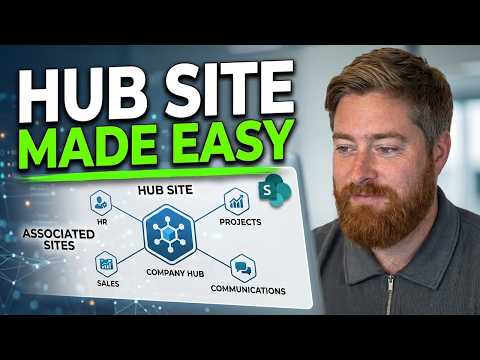
SharePoint Online: create and register a hub site
SharePoint admins can create a Communication site and register it as a hub for organizing related intranet sites.
Key insights
- The demonstrated site is a Communication site, created from the SharePoint admin center.
- The setup requires the SharePoint Administrator role, according to the demonstration.
- Register the existing site as a hub from the SharePoint admin center's Hub option.
- You can specify who is allowed to associate sites with the hub.
- Associated sites use a shared organizational structure without becoming subsites.
SharePoint Online lets an administrator create a site and register it as a hub, giving related intranet sites a shared navigation and organizational structure. This setup is relevant to SharePoint administrators and intranet teams planning a central site alongside department or business-area sites. Dougie Wood [MVP] demonstrates the setup in a YouTube video.
What it does
A hub site is an existing SharePoint site that is registered to connect related sites. In the demonstration, the starting point is a Communication site intended to serve as an intranet home page. Once registered, the hub can provide shared navigation and branding for sites associated with it.
This is different from the older subsite hierarchy described in the demonstration. Rather than placing department areas underneath the intranet site as subsites, the organization can connect separate sites to a hub. The connected sites remain distinct sites; associating them does not combine their content into one site.
The hub creates a common layer for users to move between related areas. The research notes also describe surfacing content from connected sites, but the demonstration focuses on creating and registering the hub rather than configuring content aggregation.
Who it is for and what you need
The demonstrated process requires the SharePoint Administrator role. Wood says that without the role, the Microsoft 365 admin center entry point may not be available, and the user should contact their IT department or support provider. The research notes say that a higher-level Microsoft 365 administrator can also register a hub.
The walkthrough uses a Communication site for an intranet. It does not give a required license, tenant setting, region, or rollout stage, so those requirements cannot be confirmed from the available material. It also does not establish that every user or tenant can create a site in the same way.
Before creating the site, decide who should own it and who should be allowed to associate other sites with the hub. In the example, the creator selects themself as owner and limits association rights to themself. That choice is a governance setting, not a general recommendation for every organization.
How it works
The walkthrough starts in the Microsoft 365 admin center and uses the SharePoint admin center to create and register the site. Its demonstrated path is:
- Go to office.com and open the Admin app from the app launcher.
- In the Microsoft 365 admin center, select Show all, then choose SharePoint under Admin centers.
- Select Create, then choose Communication site for the intranet example.
- Choose a template. The demonstration suggests using a template if it closely matches the intended design; otherwise, use the Standard communication site option.
- Enter a site name, select the site owner, set the time zone if needed, and create the site.
- Return to the SharePoint admin center, find and select the new site, and choose Hub.
- Register the site as its own hub, enter the hub name, choose who can associate sites, and select Save.
The site name can be changed later in the admin center, according to the demonstration, so a working name can be used during early planning. After saving the hub settings, the presenter refreshes the site and sees a navigation bar appear. The demonstration uses that change as a visible indication that the hub registration took effect.
Registering the hub is only the foundation. The organization still needs to create or identify the other sites and associate them with the hub. The demo mentions that a later part will build out the home page, but it does not show the full intranet design or the process for associating those additional sites.
Limitations and open questions
The walkthrough does not cover every administrative consideration. It does not show how to associate a department site, how approval requests work, or how to configure the hub's navigation and branding after registration. It also does not verify licensing, availability by region, or tenant-specific restrictions.
One distinction matters for planning: hub association provides shared structure, but it should not be treated as proof that permissions automatically become identical across all sites. The research notes describe associated sites as retaining their own permissions and ownership, while the demonstration mentions permission inheritance as a possible way to manage associated sites. Confirm the intended permissions model before relying on inheritance.
The steps shown are through the admin center, not an automated provisioning method. For repeatable deployments, the research notes mention PowerShell, but no official Microsoft documentation URL is included in the supplied sources to verify those commands. This article therefore focuses on the demonstrated admin-center process and leaves automation details out.
Sources
Frequently asked questions
What role do I need to register a SharePoint hub site?
The demonstration says you need the SharePoint Administrator role to use the SharePoint admin center for this process. Its research notes also identify higher-level Microsoft 365 administrators as able to register a hub.
How do I register a SharePoint site as a hub?
In the SharePoint admin center, select the existing site, choose Hub, enter the hub name and specify who can associate sites, then save.
Should an intranet hub be a Communication site or a Team site?
The demonstration chooses a Communication site for its intranet example. It does not claim that every hub must use that site type.
Do sites associated with a SharePoint hub become subsites?
No. The material describes associated sites as separate sites connected through the hub, rather than subsites in a parent-child structure.