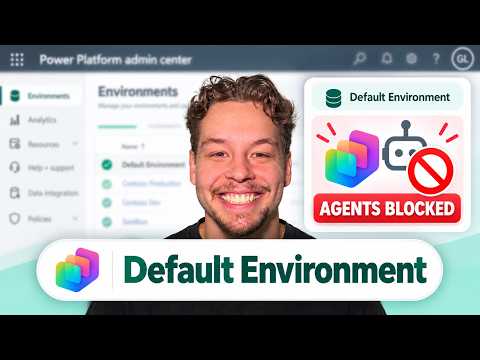
Copilot Studio: Block Agents in Default
Certified Power Apps Consultant & Host of CitizenDeveloper365
Microsoft guide to block Copilot Studio agents in Default Environment with Power Platform DLP to protect Dataverse
Key insights
- Default Environment is an open maker workspace that risks accidental data exposure and unexpected Copilot Credits usage; apply guardrails so agents don’t access sensitive data or rack up costs.
- Use a Data Loss Prevention (DLP) policy in the Power Platform admin center to block the connectors and features Copilot Studio needs; blocking these items effectively stops agents from running in the Default Environment.
- Enable a Tenant-level publishing block for generative AI to stop agent publishing across the tenant, but combine this with environment DLP rules because non‑generative agents can still publish without connector blocks.
- To configure a DLP for the Default Environment: open the Power Platform admin center, go to Security → Data and privacy → Data policies, create or edit a policy, add the Default Environment, block the target connectors and capabilities, then save and test.
- Blocking Virtual Connectors and marking them as Blocked connector prevents agents from accessing Dataverse, SharePoint, HTTP endpoints, and other services so agents cannot read or send business data.
- Adopt governance best practices: use a Center of Excellence (CoE), route development to managed environments, classify connectors (Business/Non‑Business/Blocked), monitor usage and costs, and test policies before broad enforcement.
Griffin Lickfeldt, known on his channel as Citizen Developer, published a detailed YouTube tutorial that explains how administrators can block Copilot Studio agents from running in the Default Environment of the Microsoft Power Platform. In the video, Lickfeldt demonstrates a practical approach: using a Data Loss Prevention (DLP) policy in the Power Platform Admin Center to block the underlying Virtual Connectors that enable agent execution. Consequently, this method aims to deliver a clear stop to agent publishing and data access in environments where broad maker access poses a governance risk. Editors should note that the walkthrough is aimed at IT administrators, Center of Excellence leads, and citizen developer champions who need immediate, actionable controls.
What the Video Shows
First, Lickfeldt outlines why the Default Environment is considered high risk: it is available to many licensed makers and is frequently used for experimentation. Then, he demonstrates how to identify the Copilot Studio virtual connector and classify it as Blocked inside a DLP policy so that the connector cannot be used by agents. He walks through the necessary steps in the Power Platform Admin Center, from creating or editing a policy to assigning it to the Default Environment and testing the results. Overall, the segment is practical and step-by-step, allowing administrators to replicate the actions in their tenants.
Why Connector Blocking Matters
According to Lickfeldt, disabling only agent publishing at the tenant level is useful but incomplete, because a topic-only agent might still publish without generative features. Therefore, blocking the Virtual Connectors tied to Copilot Studio closes a more direct path for agents to access business data like Dataverse and SharePoint. Moreover, connector blocking prevents agents from calling external services or triggering flows that could expose sensitive information or consume costly Copilot Credits. In short, the combination of tenant-level settings and environment-specific DLP provides stronger protection than either control alone.
Tradeoffs and Operational Challenges
However, this approach has important tradeoffs. On one hand, blocking connectors protects critical data and reduces accidental exposure; on the other hand, it may curtail legitimate business scenarios that require connectors for approved solutions. In addition, administrators must manage the risk of unintended disruption, because DLP policies can affect apps and flows outside of Copilot Studio if connectors are widely used. Thus, careful scoping, testing, and communication are necessary to avoid frustrating makers and breaking production integrations.
Implementation Best Practices
Lickfeldt recommends a layered strategy: first, disable generative AI publishing where appropriate at the tenant level, and then apply a restrictive DLP policy specifically to the Default Environment. Next, classify connectors clearly using categories such as Business, Non-Business, and Blocked, and route builders toward managed environments for sanctioned development. Additionally, administrators should test policies in a pilot tenant and verify that necessary integrations continue to work before broad enforcement. Finally, documenting the policy changes and training maker communities will reduce friction and improve compliance.
Monitoring, Governance, and Cost Control
Beyond blocking, Lickfeldt emphasizes the need for monitoring to catch unauthorized agent usage and unexpected credit consumption. For example, tenant admins should track Copilot Credits and audit logs to detect unusual activity and to enforce budget controls. In addition, implementing Center of Excellence practices helps standardize environment design, lifecycle management, and approval workflows across the organization. Consequently, governance becomes not only a technical setting but an operational discipline that balances security, cost, and productivity.
Final Assessment
In conclusion, the video provides a repeatable, hands-on blueprint for reducing the risk posed by agents in the Default Environment by blocking key connectors with DLP policies. While the method strengthens defenses and limits unwanted agent behavior, it also requires tradeoffs in terms of developer agility and potential service disruption. Therefore, organizations should combine connector blocking with tenant-level controls, environment routing, clear communication, and monitoring to achieve a balanced outcome. Ultimately, Griffin Lickfeldt’s walkthrough is a practical resource for administrators who need immediate, repeatable steps to govern Copilot Studio safely within the Power Platform ecosystem.

Keywords
block Copilot Studio agents Power Platform, disable Copilot agents default environment, block Copilot Studio in default environment, disable Copilot Studio agents Power Apps, restrict Copilot agents Power Platform admin, Power Platform Copilot security settings, prevent Copilot Studio agents organization, how to block Copilot agents Power Platform