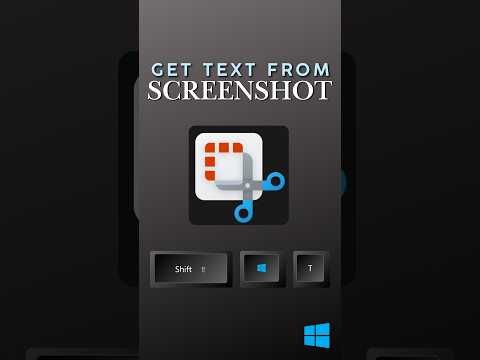
Windows Snipping Tool: copy text from screenshots
Use Text actions in the Windows Snipping Tool to select or copy text from a screenshot and redact detected contact details.
Key insights
- Text actions uses OCR to recognize text in a Snipping Tool capture.
- Copy selected text or use Copy all text to put the recognized content on the clipboard.
- Quick redact can identify email addresses and phone numbers for redaction.
- OCR runs locally on the Windows device, according to Microsoft's description.
- Check recognized text and redactions, especially before sharing sensitive screenshots.
The Windows Snipping Tool can use Text actions to recognize text in a screenshot, letting you select or copy it instead of retyping it. This is useful for Windows users who need to reuse text from error messages, images, documents, or interfaces where the text cannot be selected normally. Efficiency 365 by Dr Nitin demonstrates the screenshot-to-text workflow in a YouTube Short.
What it does
Text actions applies optical character recognition (OCR) to a screenshot: the tool analyzes the image and presents recognized words as selectable text. You can copy a specific passage or copy all recognized text to the clipboard, then paste it into an editor, email, or another application.
The feature also includes Quick redact, which can detect email addresses and phone numbers and obscure them in the screenshot. Microsoft describes the OCR processing as local to the device, so the image does not need to be sent to an online service for this text recognition workflow.
Who it is for and what you need
This workflow suits Windows users who handle support messages, screenshots, or other on-screen content that is difficult to copy as text. It starts with a screen capture made in or opened with the Snipping Tool; the recognized text can then be copied and pasted wherever it is needed.
It can also help prepare an image for sharing by identifying some contact details for redaction. Treat the recognition and redaction as assistance rather than a guarantee: review both the extracted text and the resulting image before using them for important work.
How it works
- Open the Snipping Tool, or press Windows key + Shift + S, and select the screen area.
- Open the captured snip in the Snipping Tool and choose Text actions.
- Select the words or passage you need, or choose Copy all text to copy the recognized content.
- Paste the text with Ctrl + V. To conceal detected contact details in the image, use Quick redact and inspect the result.
Limitations and alternatives
OCR can make mistakes, particularly when text is small, blurry, low-contrast, handwritten, or distorted. Check names, amounts, serial numbers, and technical messages against the original image before relying on the copied text.
Quick redact targets detected email addresses and phone numbers; it should not be treated as a complete privacy review. Inspect the screenshot manually for other sensitive information and confirm that the intended details are hidden before sharing. PowerToys Text Extractor is another Windows option for copying text from a screen region without first working through a full screenshot in Snipping Tool.
Sources
Frequently asked questions
How do I copy text from a screenshot in Windows?
Capture an area with Snipping Tool or Windows key + Shift + S, open the snip, and choose Text actions. Select text or choose Copy all text, then paste it with Ctrl + V.
Can the Snipping Tool redact email addresses and phone numbers?
Quick redact can detect email addresses and phone numbers and obscure them. Review the image afterward, because the feature should not be treated as a complete privacy check.
Does Snipping Tool OCR send screenshot text online?
Microsoft describes the OCR processing for this feature as local to the Windows device.
What can affect text recognition in Snipping Tool?
Small, blurry, low-contrast, handwritten, or distorted text can lead to recognition errors. Check the copied result against the screenshot.