PowerPoint: Easy Step Reveal Animation
Microsoft PowerPoint step by step animation tutorial with templates and CEO pack to upgrade Microsoft Office slides
Key insights
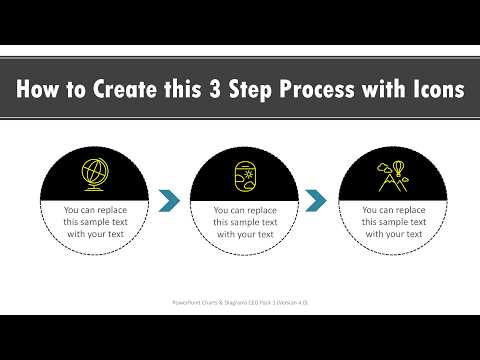
- This YouTube tutorial shows how to build a Fun Step-by-Step Process Reveal Animation in PowerPoint.
It reveals each step one at a time to explain workflows, timelines, or project phases clearly. - Follow five simple creation steps: design the shapes and icons, apply effects, sequence them, customize timing, and preview.
Use the Animation Pane to reorder and fine-tune each element. - Choose animation effects that match your message, such as fade, fly-in, or Morph.
Morph gives smooth transitions between shapes and helps create a polished look. - PowerPoint 2025 adds helpful tools like AI suggestions and automation, and deep integration with Copilot to speed up animation setup and styling.
These features offer smart recommendations and can automate repetitive tasks. - Use presenter-friendly settings: set reveals to On Click for control, adjust duration and delay for pacing, and group related items to avoid clutter.
Keep timing consistent so the audience can follow each step. - Prioritize Clarity in visual design: use simple icons, consistent colors, and readable fonts.
Always preview the full sequence on the device you’ll present with and refine any confusing transitions.
The newsroom reviewed a recent tutorial video from Presentation Process YouTube that demonstrates a practical approach to building what they call the Fun Step-by-Step Process Reveal Animation in PowerPoint. The video walks viewers through creating a background and icon, adding elements, applying animations, and previewing the final sequence, and it is presented in a clear, demo-focused style. Consequently, the tutorial suits both newcomers and experienced presenters who want to make process explanations more dynamic. In this report, we summarize the key techniques, weigh tradeoffs, and highlight practical challenges that emerge when adopting these animated designs.
What the Video Demonstrates
First, the presenters show how to design the visual foundation for a process slide by creating a clean background and building simple icons that represent each step. Then, they add supporting elements such as text boxes and connecting shapes to clarify relationships between steps, so the layout reads logically when revealed. After that, the tutorial applies sequential animations to each element to reveal the process one piece at a time, which helps the audience follow the narrative. Finally, the hosts preview the assembled slide so viewers can see how timing, order, and transitions work together to produce a cohesive effect.
Importantly, the tutorial breaks the work into short segments, making each action easy to replicate. The presenters pause to explain key animation properties and to show how small timing changes affect the viewer’s perception. This stepwise pacing helps beginners avoid overwhelming complexity, while still offering refinements that advanced users can apply. Thus, the video balances approachability with useful depth.
Techniques and Tools Highlighted
The tutorial relies heavily on a few core PowerPoint features, including the animation gallery and the Animation Pane, which the presenters use to sequence and time each reveal. They also demonstrate creative use of the Morph transition to create smooth transformations between states, and they adjust durations and delays so the flow feels natural. In addition, the presenters reference template packs and design assets that can speed the build, though the core lesson remains usable without purchased resources.
Moreover, the video notes recent enhancements in the PowerPoint environment that help streamline work. For example, built-in suggestions and automation can propose animation choices based on slide content, while drag-and-drop reordering in the Animation Pane simplifies sequencing. The tutorial also mentions integration with productivity assistants that can offer contextual tips, which is helpful for iterating quickly. Overall, the presenters emphasize pragmatic use of these tools rather than relying on one single advanced feature.
At the same time, the video keeps the file and performance implications in mind by advising simple shapes and vector icons, which usually render faster and scale predictably. They recommend previewing the slide on the presentation device to ensure transitions run smoothly under real-world conditions. Consequently, viewers receive both creative inspiration and operational advice in the same session.
Practical Benefits and Use Cases
Animating process steps one at a time improves audience focus because it controls information flow and prevents cognitive overload, especially when explaining complex workflows or project timelines. As a result, presenters can guide attention and emphasize the sequence of actions, which supports better retention and clearer takeaway messages. Furthermore, the method works well for training sessions, executive briefings, and sales pitches where clarity and pacing matter most.
However, presenters must balance visual appeal with clarity, since overusing motion can distract rather than inform. For instance, too many flashy effects or inconsistent timing may make the slide feel busy and reduce comprehension. Therefore, the tutorial recommends restrained use of effects and consistent timing rules so that animation enhances meaning rather than competing with it. In practice, modest, well-timed movement yields the best tradeoff between engagement and information clarity.
Challenges and Tradeoffs
One challenge the video acknowledges is compatibility: not every animation or transition behaves the same across older PowerPoint versions or different viewing platforms. Thus, teams that share files across devices should test on the lowest-common-denominator environment. Additionally, complex animations can increase file size and sometimes strain older hardware, so presenters must weigh visual polish against performance and reliability.
Another common tradeoff involves presenter control versus automation. While AI suggestions and automated effects speed design, they sometimes produce choices that require manual refinement to match brand tone or narrative emphasis. Therefore, creators often need to balance convenience with intentional adjustments to timing and sequencing. In short, automation accelerates production but does not replace thoughtful editing.
How to Recreate the Effect
To reproduce the core effect, start by sketching the process steps and placing shapes or icons in a logical layout on a single slide. Then, apply entrance animations to each element and use the Animation Pane to control order, setting entries to "On Click" when you want manual pacing or to timed sequences when you prefer an automatic flow. After that, refine duration and delay settings, preview frequently, and test on the target presentation hardware to confirm smooth playback.
For efficiency, the presenters advise using vector icons and simple fills, keeping grouping and alignment consistent, and saving reusable slide templates for future projects. Ultimately, the technique rewards iteration: small timing tweaks and consistent design rules produce professional, readable results without excessive complexity.
Final Takeaways
In summary, the Presentation Process YouTube tutorial offers a concise, hands-on walkthrough for building a step-by-step reveal in PowerPoint, pairing creative techniques with practical constraints. While the approach boosts engagement and clarity, producers must manage tradeoffs around compatibility, file size, and the risk of over-animation. Nevertheless, with careful sequencing and restrained effects, presenters can create compelling process slides that clarify complex ideas and keep audiences focused.

Keywords
PowerPoint process reveal animation, step-by-step animation PowerPoint, easy PowerPoint animation tutorial, process flow animation PowerPoint, animated process slide tutorial, fun PowerPoint animation ideas, reveal effect PowerPoint tutorial, PowerPoint sequential animation guide