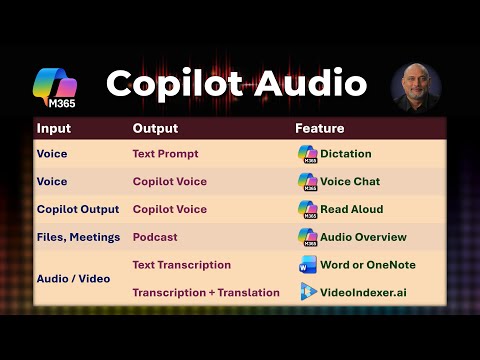
Copilot: 4 Audio Tips for Creators
Microsoft expert guide to audio with Copilot: dictation, mic setup, voice chat, Read Aloud, Word, OneNote, Teams
Key insights
- Audio Recap: Turn Teams meeting notes into playable summaries you can listen to on the go.
Choose styles like Newscast, Executive, or Casual to match tone, then replay or share the recap when you need a quick catch-up. - Audio Overview: Convert Word documents and Copilot notebooks into podcast-style overviews for hands-free review.
Request an audio overview, pick length and style, and listen while commuting or multitasking. - Voice Chat: Speak directly to Copilot in the standalone app for live, conversational responses.
Enable your microphone, ask questions or give commands, and receive spoken replies for faster, natural interactions. - Dictation & Read Aloud: Use dictation to capture thoughts quickly and Read Aloud to have content narrated back to you.
Adjust mic settings and use these features to write or consume notes without typing. - Controls & Customization: Control playback speed, skip sections, pause, and choose narration style or voice.
Provide feedback (thumbs up/down) to refine audio results and tailor summaries to your needs. - Permissions & Limits: Grant microphone access and keep apps updated to use audio features; expect usage limits and privacy safeguards.
Always review AI-generated audio for accuracy before acting on it.
Introduction
A recent YouTube video from Efficiency 365 by Dr Nitin demonstrates how to use audio features with Copilot across Microsoft 365 apps. The video breaks down several practical workflows, including dictation, microphone setup, voice chat, and read-aloud tools. Consequently, it offers a concise tour for users who want to move from reading to listening and speaking with AI. Overall, the presentation aims to show how audio can make productivity more natural and hands-free.
Video Overview: What Was Demonstrated
Dr Nitin opens by walking viewers through timestamps that mark each capability, which helps users skip to segments they care about. First, he shows basic dictation and microphone configuration so users can get clear input, and then he moves on to voice chat and read-aloud functionality. Next, the video covers higher-level features such as podcast-style overviews, document audio summaries, and notebook audio overviews. Finally, he demonstrates meeting recaps and audio transcripts to show how recordings and notes convert into listenable content.
The demonstration highlights how each feature appears in different apps, including Teams, Word, and Copilot notebooks. For example, meeting recaps in Teams can be produced in different narration styles, while Word can generate podcast-like overviews of long documents. Additionally, the standalone Copilot app supports real-time voice chat and dictation to triage tasks. Dr Nitin emphasizes the convenience of switching between listening, speaking, and editing as needed.
Throughout the video, Dr Nitin notes setup steps such as enabling microphone permissions and choosing the right input device. He also shows the simple controls available on the audio player, like speed control, skip, and pause, which help with quick reviews. Moreover, the video points out how the system can create transcripts alongside audio, making it easier to search later. As a result, the examples help viewers imagine real-world uses while also preparing for practical setup needs.
Practical Uses and Workflows
The video organizes applications into four clear use cases, beginning with hands-free meeting catch-ups through audio recaps in Teams. In these recaps, users can choose narration styles—such as concise or conversational—to suit different audiences, and they can replay summaries on the go. Therefore, commuters and busy professionals can absorb meeting highlights without sitting down to read full notes. This change supports multitasking and accessibility at the same time.
Second, Dr Nitin shows how to convert documents and notebooks into podcast-style audio so teams can preview reports while moving. Users may customize playback speed and voice style, which makes long reports more consumable and easier to share across teams. Consequently, this approach supports quick briefings and iterative reviews without opening documents repeatedly. It also creates new options for training and onboarding where audio is easier to consume than text.
Third, the video demonstrates real-time voice chat with Copilot, which allows natural spoken queries and immediate spoken responses. This interaction model makes the AI feel more like a colleague during planning sessions or quick problem-solving. Lastly, voice-enabled features such as dictation and read-aloud make everyday tasks faster and more accessible for users who prefer speaking or listening. Altogether, these workflows point to more flexible ways to interact with content across devices.
Tradeoffs and Implementation Challenges
Despite the clear benefits, the video also implies several tradeoffs that organizations must weigh. For instance, while audio saves time, it can introduce errors in transcription and interpretation, so teams must still verify important facts or meeting decisions. Moreover, relying on audio summaries may reduce deep reading, which can affect nuanced decision-making for complex documents. Therefore, users should balance speed with careful review when using audio-first workflows.
Privacy and permissions are another concern highlighted indirectly in the setup steps, since microphone access and meeting audio require explicit consent and strong governance. In addition, ambient noise, microphone quality, and accents can reduce recognition accuracy and frustrate users who expect perfect transcriptions. Consequently, IT teams need to provide clear guidance on device configuration and acceptable use to get consistent results.
Finally, rollout and platform parity can be uneven: some features may arrive on desktop or mobile first, and usage limits or daily quotas could affect heavy users. As a result, organizations must plan pilots and training to measure impact before broad deployment. In short, the video makes it clear that audio brings convenience, but careful implementation and oversight remain essential.
Practical Tips and Next Steps
To get started, follow the basic steps shown in the video: check microphone settings, grant permissions, and test dictation in a quiet space. Next, try converting a short document into an audio overview to evaluate voice style and playback speed, and then compare the transcript against the source to spot-check accuracy. Doing this will help teams set realistic expectations and fine-tune their workflow for everyday use.
Looking ahead, Dr Nitin’s video offers a useful snapshot of how audio features can change routine work, and it encourages gradual adoption with pilot users. Therefore, organizations should combine technical testing with user training and privacy checks to make the shift safely. Ultimately, the video serves as a practical guide and a reminder that audio can enhance productivity, provided teams manage tradeoffs and keep human review in the loop.

Keywords
Copilot audio features, use audio with Copilot, Copilot voice commands, Copilot audio transcription, Copilot text to speech, Copilot meeting recording summaries, Copilot audio editing tools, Copilot podcast creation tips