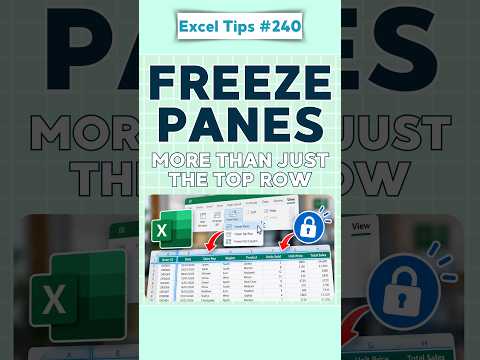
Excel Freeze Panes Keeps Headings in View
Alan Murray’s short shows how Excel Freeze Panes keeps chosen rows and columns visible as you scroll through a worksheet.
Key insights
- Freeze Panes keeps selected rows at the top and columns on the left visible while the rest of the worksheet scrolls.
- Excel freezes the rows above and columns to the left of the selected cell.
- Select A2 to freeze the first row, or B1 to freeze the first column.
- Select C3 to keep the first two rows and columns visible.
- Freeze Panes changes the worksheet view, not its data.
Alan Murray (Computergaga) recently published a 1-minute YouTube Short about using Freeze Panes in Excel. The feature keeps selected rows and columns visible while the rest of a worksheet scrolls, helping people retain headings and identifiers in larger tables. The key is to select the cell below and to the right of the area that should stay on screen.
What's new
The Short focuses on an existing Excel feature rather than announcing a product change. Freeze Panes is available from the View tab and can hold rows, columns, or both in place as you move through a worksheet. Excel uses the selected cell to determine the boundary: rows above it and columns to its left remain visible.
For example, selecting A2 sets the boundary below row 1, so the first row stays visible. Selecting B1 sets it to the right of column A, keeping the first column in view. Selecting C3 keeps rows 1 and 2 and columns A and B visible.
Why it matters
For people working with long lists, reports, schedules, or other wide worksheets, scrolling can move column headings and row identifiers off screen. Keeping those labels visible makes it easier to match a value with the heading or identifier that gives it context. This can also reduce the need to scroll back to the top when checking entries.
The setting affects the worksheet view, not the underlying data. That makes it useful for readers and editors who need a more navigable view without changing cell contents. The material does not describe any licensing requirements or a rollout; it presents Freeze Panes as a standard Excel command.
How it works
To freeze a custom area, first select the cell immediately below the last row and immediately to the right of the last column you want to keep visible. Then open the View tab, choose Freeze Panes, and choose Freeze Panes in the menu. For instance, C3 is the selection for keeping the first two rows and two columns in view.
Excel also offers shortcuts for common layouts. Freeze Top Row keeps row 1 visible, while Freeze First Column keeps column A visible. To return to normal scrolling, use View, then Freeze Panes, then Unfreeze Panes; the worksheet data is not deleted or moved.
Limitations and open questions
The Short is brief and the supplied video description contains no transcript or detailed demonstration notes. The accompanying background material describes the menu path and cell-selection rule, but does not establish whether the interface differs across Excel versions or platforms. It also does not cover troubleshooting or explain how Freeze Panes compares in practice with Split beyond noting that Split creates separate scrolling areas.
For the specific walkthrough, see Alan Murray’s Excel Freeze Panes Short. Readers looking for more Excel coverage can visit our Excel topic page.
Sources
Frequently asked questions
How do I keep the top row visible in Excel?
Go to View, choose Freeze Panes, then select Freeze Top Row. This keeps row 1 visible while scrolling.
How do I freeze both rows and columns?
Select the cell below the rows and to the right of the columns to keep visible, then use View > Freeze Panes > Freeze Panes. For the first two rows and columns, select C3.
Does freezing panes change worksheet data?
No. The background notes say freezing panes changes the worksheet view, not the data.
How do I remove frozen panes?
Choose View > Freeze Panes > Unfreeze Panes. The material says this restores normal scrolling without modifying worksheet data.