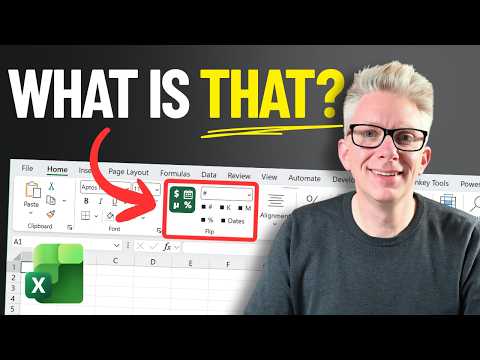
Excel Flip add-in cycles through saved number formats
Excel Off The Grid will show you how to work smarter, not harder with Microsoft Excel.
The Flip add-in lets Excel Academy members save custom number formats and cycle through them in cells, tables, PivotTables, and chart labels.
Key insights
- Excel stores custom number formats at the workbook level, so they are not automatically available in a new workbook.
- Flip can store up to three number formats under each named entry and cycle through them with a click.
- Members can import a format from a selected cell or edit one manually using the number format dialog.
- A Flip entry can be added to Quick Access and assigned a keyboard shortcut.
- The add-in can apply formats to PivotTable fields, table columns, and chart data labels.
Excel's Flip add-in keeps custom number formats available to apply and cycle through, rather than requiring users to recreate them in each workbook. It is aimed at Excel users who repeatedly apply specialized formats, including finance and reporting users who need different views of the same values. Excel Off The Grid demonstrates how to create, arrange, and apply saved formats with the add-in.
What it does
Excel stores custom number formats at the workbook level. A format created in one workbook therefore does not automatically appear in the Custom list when you open another workbook. Users who rely on formats across files may need to create them again, or use partial workarounds such as templates and copying worksheets.
Flip is an Excel add-in designed to keep favorite number formats close at hand. Instead of being limited to one format for a named entry, each entry can hold up to three formats. Clicking the entry cycles through those options, applying a different presentation without changing the underlying value.
That is useful when a report needs alternate presentations, such as values with different decimal precision. The demonstration also builds a format for positives, negatives, zero values, and text, with spacing intended to align figures and parentheses. These are examples of what a custom number format can contain, not a requirement to use the same format.
Who it is for and what you need
Flip is for Excel users who reuse custom number formats and want to apply them in multiple workbooks. The publisher says the add-in is available to Excel Academy members. The supplied material does not state a separate Excel license requirement, supported platforms, tenant or regional availability, or whether there is a trial.
To follow the workflow, you need a format to save or the ability to create one in Excel. You can import a format from a selected cell, edit a format manually, or use the number format dialog. The transcript does not specify an installation path, so it does not establish how the add-in is installed or what permissions installation requires.
Flip's Quick Access area can expose a saved entry for faster use, and the add-in has a setting for assigning a shortcut to a position. Excel users can also explore other Excel guidance for ways to work with the application, but availability details for Flip should be checked with its publisher.
How it works
The demonstrated workflow creates a named entry, fills its format slots, and then applies it where needed. The entry's position in the dropdown and visibility in Quick Access are configurable. The core steps are:
- Open the Flip dropdown and choose New. Rename the new entry, which is initially given a name such as “New 1.”
- Use Position to choose where the entry appears in the dropdown. Choose Display in Quick Access to add it to that area.
- Select a cell that already has the number format you want. In the Flip menu, import that format into the entry, or edit a format manually or through the number format dialog.
- Use the Format 1, Format 2, and Format 3 choices to add variations. The demonstration copies a format and edits decimal places to create alternate versions.
- Select cells and click the entry in Quick Access to cycle through its formats. If it is not in Quick Access, select it from the dropdown and use the Flip button.
- To add a shortcut, choose Set Quick Access Shortcuts, select a position, and assign a key combination. The demonstration uses Ctrl+Shift+D and shows it cycling through the three options.
Flip can also apply a format beyond an ordinary selected cell. The demonstration selects a single cell in a PivotTable field and applies the format to the whole field, and selects a cell in a table column to apply it to the column. It also applies formats to chart data labels.
The publisher's example format uses separate sections for positive values, negative values, zero, and text, separated by semicolons. It adds parentheses to negative values and uses underscore spacing to align positive and zero values with the closing parenthesis. The format includes an asterisk and space in the text section to pad text. This illustrates why saving reusable formats can help, but users should adapt the syntax to their own reporting requirements.
Limitations and open questions
Flip is not presented as a built-in Excel feature: it is a third-party add-in, and the supplied description limits access to Excel Academy members. That means users should not assume the add-in is available through their existing Excel subscription or organization. The source material does not give pricing, platform compatibility, installation instructions, or details about how saved entries are stored.
The transcript says each named entry can contain up to three formats and that users can create as many entries as they want. It does not explain whether entries sync between devices, how they are backed up, or what happens to them if membership or add-in access ends. It also does not describe behavior for every kind of selection or every Excel environment.
Templates and copying worksheets are mentioned as partial alternatives for carrying formats into other workbooks, but the publisher characterizes them as insufficient for the workflow. Flip's stated purpose is to make saved formats easy to apply across workbooks; it does not change the underlying number values. Organizations evaluating it should confirm membership, compatibility, and deployment details with the publisher before relying on it.
Sources
Frequently asked questions
Who can use the Excel Flip add-in?
The supplied description says Flip is available to Excel Academy members. It does not specify a separate Excel license requirement or other eligibility details.
How do I save a custom number format in Flip?
Create a new named entry from the Flip dropdown, then import a format from a selected cell or edit it manually. Each entry can have up to three format variations.
Can Flip format PivotTables and chart labels?
The demonstration applies a format to an entire PivotTable field after selecting one cell, and also applies formats to table columns and chart data labels.
Does Flip sync saved formats between devices?
The available material does not explain whether Flip entries sync between devices or how they are stored.