Microsoft Lists: Visual Design Tips
Design more visually appealing Microsoft Lists with expert formatting, themes and list design tips in this tutorial
Key insights
- Microsoft Lists: A Microsoft 365 tool for organizing structured data like tasks, assets, contacts, and events.
You can create lists in the Lists app, Teams, or SharePoint and combine spreadsheet-style data with collaboration features. - Flexible views: Choose how to present the same information with Grid, Calendar, Gallery, or custom views.
Teams can create different views for detailed work, timelines, or visual summaries to match audience needs. - Conditional formatting: Use colors, icons, and visual cues to highlight status, priority, or exceptions.
Apply formatting sparingly so important items stand out without overwhelming readers. - Improved forms: New form features include logos, images, conditional branching, extra field types, response limits, and start/end dates.
Branching shows only relevant questions, which shortens forms and reduces extra input. - Branding and presentation: Add logos and visual styling to make forms and lists feel like purpose-built apps.
Clear branding helps users trust forms and quickly recognize the owner or purpose. - Teams integration: Lists now show richer link previews in Microsoft Teams and support rules and notifications.
This improves clarity when sharing items and helps teams scan information faster.
Overview of the Video
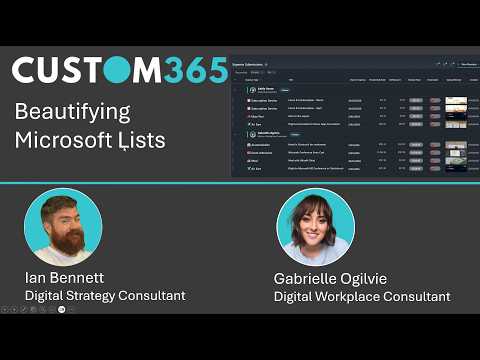
The newsroom reviewed a recent YouTube video by Custom 365 that highlights design updates to Microsoft Lists. The host frames the tool as evolving from a simple tracker into a more visual and flexible workspace for business data. Consequently, the video focuses on clearer layouts, enriched forms, and visual formatting intended to help teams scan and act on information faster.
Moreover, the presenter demonstrates how lists created in the Microsoft Lists app, Teams, or SharePoint can now look and behave more like lightweight applications. He emphasizes improved views, conditional formatting, and form enhancements, while noting that these changes aim to reduce friction without requiring full app development. As a result, the video positions the updates as practical for operations, project managers, and service teams.
Visual and Layout Enhancements
First, the video outlines several display options designed to make content easier to interpret at a glance. For example, the presenter contrasts the traditional grid with card-based and calendar presentations, and he explains that different audiences benefit from different layouts. Thus, teams can choose the view that best fits their workflow rather than forcing everyone into the same interface.
- Grid view for spreadsheet-style editing
- Calendar view for date-driven planning
- Gallery view for visual, card-based summaries
- Custom views with filters and sorting
Next, the video highlights conditional formatting as a way to surface priorities and exceptions automatically. For instance, overdue tasks can appear in red while completed items show in green, and icons can draw attention to missing data. However, the presenter cautions that excessive colors or icons may increase cognitive load and make lists harder to read.
Forms and Data Collection Improvements
The presenter spends significant time on the new form experience, which now lets users create a form first and generate the underlying list automatically. Consequently, teams can quickly deploy intake forms for employee requests, event registrations, or issue reports without building a full application. The video shows features such as conditional branching, image support, and response limits that make forms shorter and more targeted.
Furthermore, the addition of branding and logos aims to present a more professional interface for internal and external respondents. Yet, the video also addresses trade-offs: richer forms can improve trust and clarity, but they may require more governance to maintain consistent branding and accessibility. Thus, organizations need to balance visual polish with standardization and usability.
Integration, Previews, and Presentation
The video demonstrates improved link previews when sharing Microsoft Lists content inside Teams, which replaces plain links with richer visual context. This change helps recipients understand what they will open before they click, thereby reducing unnecessary navigation and confusion. In addition, presenters can tailor what fields appear in a preview so that the most relevant details show up in conversations and channels.
At the same time, the host notes practical constraints like performance and mobile display. Rich card views and images can increase load times on slower networks, and administrators may need to monitor how custom views affect list responsiveness. Therefore, designers should test layouts on typical devices used by their teams to ensure consistent performance.
Trade-offs, Challenges, and Adoption
Finally, the video discusses the broader challenges organizations will face as they adopt these visual features. While richer visuals and forms improve clarity for many users, they also create governance questions about who can design views, what branding is allowed, and how to ensure accessibility across populations. Consequently, teams must develop simple policies that balance creativity with control.
Moreover, the presenter recommends incremental rollout and user training to avoid confusion. He suggests starting with a few standard templates for common processes and then allowing power users to create specialized views. In this way, organizations can capture the benefits of improved presentation while managing maintenance overhead and preventing visual fragmentation.
In summary, the Custom 365 video offers a practical look at how Microsoft Lists is becoming more visual and form-centric, while also emphasizing the trade-offs between flexibility, performance, and governance. Ultimately, teams that plan design guidelines and test performance across devices are most likely to gain productivity and clarity from these updates.

Keywords
Microsoft Lists design tips, Microsoft Lists visual formatting, customize Microsoft Lists views, Microsoft Lists conditional formatting, make Microsoft Lists look better, Microsoft Lists templates and themes, list view formatting SharePoint, Microsoft Lists column formatting examples