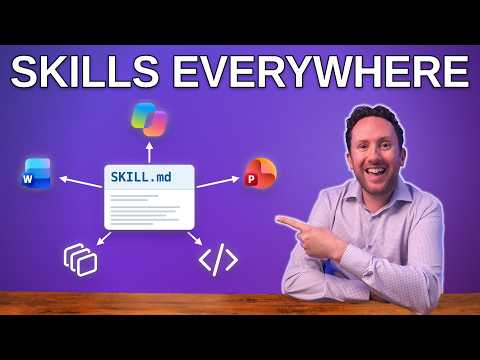
Copilot Skills: reuse skills across apps
Consultant at Bright Ideas Agency | Digital Transformation | Microsoft 365 | Modern Workplace
A skill created in Copilot Chat can be used in several Copilot experiences, while admins can package one for wider distribution.
Key insights
- A skill can contain a SKILL.md file plus reference files or scripts.
- A Chat-created skill worked in Word, PowerPoint, Cowork, Workspaces and Copilot Code in the publisher's test.
- The admin center's Agents > Tools page expects an app package, not Chat's downloadable skill package.
- The publisher did not find the same Chat skill in Excel or SharePoint during testing.
- PowerPoint, Cowork and other experiences may require users to enable a skill in different places.
Microsoft Copilot Skills can now be reused across several Copilot experiences, so users can apply a saved set of instructions without copying it into each app. This matters to Microsoft 365 users who repeat work such as checking documents against a house style, and to admins who want to make an approved workflow available to others. Nick DeCourcy (Bright Ideas Agency) demonstrates creating a skill in Copilot Chat and testing it across apps.
What's new
A Copilot Skill packages instructions for a repeatable task. In the demonstration, the skill is a house-style checker for a fictional retailer: it fixes issues the rules allow and flags others for an editor. The skill folder includes a SKILL.md file, and may include reference files or scripts alongside it.
The notable change is that the skill created and saved in Copilot Chat was available in several other experiences without manually copying or uploading it for each one. The demonstration shows it in Chat, Word, PowerPoint, Cowork, Workspaces, Projects and Copilot Code. This is broader reuse, not universal support: the publisher found that Excel and SharePoint still handled skills separately.
Microsoft’s plugin registry announcement describes a central place to discover and govern plugins across Copilot experiences. In the demonstration, a plugin can contain skills, connectors, or both, and admins manage them through Agents > Tools in the Microsoft 365 admin center. Microsoft’s management documentation covers plugins, skills and MCP servers.
Who it is for and what you need
For end users, the demonstrated workflow is useful when a task has repeatable instructions and source material, such as a style guide. The example starts with a document containing rules marked either “fix it” or “flag it,” which Chat turns into a skill. Users can then select the skill in Chat or enable it in another supported experience.
Admins may use the central management path to upload a package and choose who receives it. The demonstration distinguishes between Chat’s downloadable skill package and the app package accepted by Agents > Tools. The latter wraps the skill with a manifest and two icons. The publisher says to request an app package from Chat if the goal is to upload through Tools.
The provided material does not specify required Microsoft 365 or Copilot licenses, tenant settings, or regional availability. It also does not establish that the feature is available to every organization. Copilot Code and Opal are described as Frontier previews in the publisher’s notes, and preview behavior may change.
How it works
- In Copilot Chat, provide the task guidance and any relevant reference material, then ask Chat to create a skill. In the example, the input is a house-style guide with rules for changes and flags.
- Save the skill in Chat. The demonstration shows Chat offering a save option as well as a downloadable package. The saved skill can be selected in Chat’s context when asking Copilot to apply the process.
- In Word, open the Copilot plugins list and select the skill. The publisher used the desktop app to apply edits with Track Changes and comments. In PowerPoint, the skill appeared after opening Manage Plugins and enabling Organization.
- In Cowork, enable the skill under Plugins. The demonstration also uses it in Workspaces and Projects, and in Copilot Code. The exact control for enabling it varies by experience.
- To distribute it, go to Agents > Tools in the Microsoft 365 admin center, upload an app package, choose users, and review and install it. The demonstration says this deploys the skill for the selected audience.
These steps describe the observed workflow, not a guarantee that every tenant has the same controls. For a SharePoint-specific skills feature, Microsoft maintains separate documentation on extending Copilot in SharePoint with skills.
Limitations and open questions
The main limitation is uneven support. In the publisher’s test, the Chat-created skill did not appear in Excel, where skills used a separate OneDrive folder. SharePoint skills were also separate, and the Chat skill did not appear there. Opal could import the downloaded package manually, but that is not the same as the shared, connected experience demonstrated elsewhere.
Enabling the skill is not consistent across apps: it appears in different menus or settings, and may require a user to turn it on. The publisher also reports that Word desktop applied granular edits with Track Changes, while repeated attempts in Word for the web did not produce the same word-level edits. That is a test result, not confirmation of a general difference between the two versions.
The available material does not resolve when the remaining apps will support a common skill, which licenses are required, or how broadly the feature has rolled out. It also does not give a complete admin policy or troubleshooting guide. Before relying on a skill for a team process, verify that its package, access controls and target experiences work in your own environment.
Sources
- Microsoft: Introducing the plugin registry
- Microsoft Learn: Manage plugins, skills and MCP servers
- Microsoft Learn: Extend Copilot in SharePoint with skills
- Nick DeCourcy (Bright Ideas Agency): Copilot Skills demonstration
Frequently asked questions
Which Copilot apps can use a skill created in Copilot Chat?
In the publisher's test, the same skill worked in Chat, Word, PowerPoint, Cowork, Workspaces, Projects and Copilot Code. Excel and SharePoint did not use that skill in the test.
How do admins deploy a Copilot Skill?
Use Agents > Tools in the Microsoft 365 admin center to upload an app package, choose users, and review and install it. The package expected there is different from Chat's downloadable skill package.
What license do Copilot Skills require?
The available material does not specify required licenses. Confirm licensing and access in your tenant before planning a deployment.
Do Copilot Skills work in Excel and SharePoint?
The publisher did not find a Chat-created skill in either app during testing. The material describes Excel and SharePoint skills as separate experiences, but does not establish when that will change.