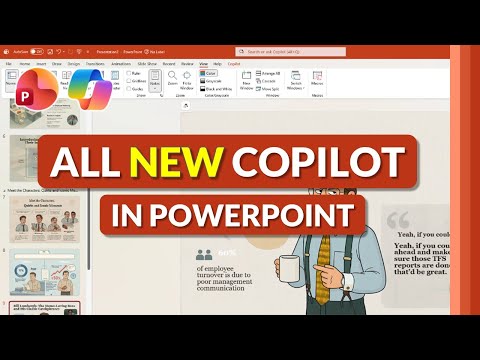
PowerPoint Copilot: Huge 2025 Upgrades
Principal Group Product Manager - Microsoft Education
Microsoft expert: PowerPoint Copilot AI builds presentations, rewrites slides, redesigns layouts, adds images and notes
Key insights
- Rapid presentation generation: Copilot turns a single prompt or up to five reference files (Word, PDF, Excel, Loop) into a full slide deck in about 30–60 seconds, cutting manual slide creation time drastically.
- Intelligent slide customization: Request specific slide types like agenda, timeline, or comparison and Copilot applies consistent layouts, formatting, and your chosen template or uploaded brand assets (logos, colors, fonts).
- Interactive chat and clarification: Use the built-in chat to refine content; Copilot asks follow-up questions to clarify ambiguous requests and updates slides without leaving PowerPoint.
- Data and Microsoft 365 integration: Copilot pulls content from Excel, Teams transcripts, OneDrive and SharePoint, and saves generated presentations to OneDrive for easy sharing and collaboration across your tenant.
- Speaker notes and summaries: Copilot automatically creates speaker notes and can condense long decks into executive summaries or key takeaways for quick review and decision-making.
- How to start: Activate Copilot with a Microsoft 365 Copilot subscription, provide a prompt or upload files, pick a style or branded template, review the outline, then generate and refine slides using the chat.
Overview of the tutorial video
In a clear walkthrough, Mike Tholfsen demonstrates how Copilot integrates with PowerPoint to speed up slide creation and editing. The video explains core capabilities, showing how the AI can build presentations from a single prompt or by using up to five reference files. Consequently, viewers see practical examples of slide generation, redesign, summarization, and automated speaker notes, which together aim to remove the “blank slide” problem that often slows work.
Furthermore, the presenter emphasizes that this functionality is embedded inside the Microsoft productivity environment, so generated decks save directly into OneDrive and fit into existing workflows. The demonstration targets a wide audience: students, educators, business users, and presenters who want faster, more consistent results. Overall, the video frames the tool as a productivity multiplier while signaling the need for human oversight.
What’s new in the 2025 release
The video highlights several updates in the 2025 iteration, including faster generation times and more accurate contextual prompts. In addition, the system asks clarifying questions when a request is ambiguous, which helps produce slides that match user intent more closely. These refinements aim to reduce rework and increase the likelihood that the first draft is usable.
Moreover, the update extends integration points so that Excel, meeting transcripts from Teams, and cloud files in OneDrive or SharePoint, thereby keeping content current and relevant. There is also a stronger onboarding experience with walkthroughs and template guidance for organizations that want consistent branding. However, these improvements assume users have access to a compatible subscription and proper tenant settings, which can affect rollout speed.
How it works: step-by-step in the demo
Tholfsen walks viewers through a straightforward workflow: activate Copilot, provide a prompt or upload reference files, review an outline, and then pick a design or branded template. Next, the AI generates slides in under a minute in many cases, after which the presenter refines layouts, adds images, and adjusts speaker notes. The live demo shows the chat-like interface inside PowerPoint, which lets users iteratively ask for changes without leaving the app.
In practice, the presenter points out that the system supports specific slide types such as agendas, timelines, and comparisons, and that it preserves consistent formatting across a deck. This helps organizations that require a standard look and feel for reports or investor updates. Nevertheless, users should still check data imports and phrasing, because automated summarization can occasionally miss nuance or context.
Benefits and practical tradeoffs
The video argues that the main benefit is time saved: tasks that once took hours can take minutes when users leverage Copilot to draft slides and notes. In addition, the integration with organizational assets and templates supports brand consistency and reduces manual styling. As a result, teams can focus more on narrative and decision-making instead of layout details.
On the other hand, the demo acknowledges tradeoffs around subscription cost and dependency on cloud services. For example, advanced features require a specific Microsoft 365 Copilot subscription, which introduces an ongoing expense and administrative overhead for IT. Furthermore, while AI helps with speed and polish, it may introduce subtle factual or contextual errors that require human review.
Challenges and adoption considerations
Tholfsen also addresses common challenges organizations face when adopting AI-assisted slide creation, such as data governance, access controls, and template management. For instance, enabling deep integration with business files demands careful tenant configuration and trust policies to protect sensitive information. Consequently, IT and compliance teams must be involved early to define acceptable usage and review cycles.
Finally, the video stresses that successful adoption balances automation with human judgment: users should treat generated content as a first draft to refine rather than a finished product. Moreover, teams will need to train members on when to rely on the assistant and how to verify numbers and claims. In summary, the demonstration shows a powerful tool that speeds work while highlighting the need for oversight, governance, and an awareness of subscription and integration limits.
Keywords
Copilot PowerPoint 2025, PowerPoint AI features, Copilot tutorial PowerPoint, PowerPoint Copilot guide, PowerPoint generative AI, AI presentation maker, Copilot for Microsoft 365 PowerPoint, PowerPoint design suggestions