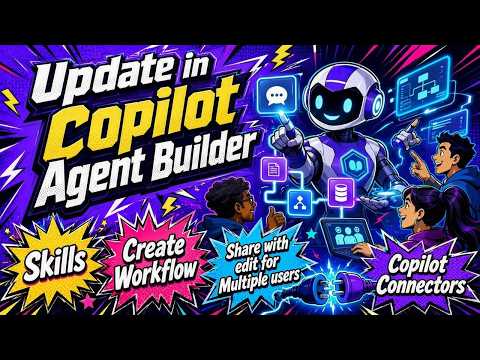
Copilot Agent Builder: Skills Take Off
M365 Adoption Lead | 2X Microsoft MVP |Copilot | SharePoint Online | Microsoft Teams |Microsoft 365| at CloudEdge
Microsoft Copilot Agent Builder update adds Skills, Attachments, Connectors, workflows to power SharePoint Outlook Teams
Key insights
- Skills: A new "Skills" section sits under Instructions so agents can use reusable, task-focused capabilities uploaded as a zip with a skill.md file.
Skills let you build repeatable automations instead of only using raw prompts. - Attachments and improved knowledge: "Files" are now called Attachments, and SharePoint, Outlook and Teams appear under a unified Cloud Files area.
Copilot Connectors also live inside Knowledge so external business data can ground agent answers. - Generate documents, charts, and code: Agents can now create Word, Excel and PowerPoint files, generate graphics, and write code by default.
Note: the setting that controls created documents and images can be hidden in Settings, so check it if outputs don’t appear. - Share with Edit permissions and Workflows: You can now grant edit rights when sharing an agent, and create scheduled workflows (daily/weekly/monthly) from the agent menu.
Expect the workflows feature to be preview-level and to improve over time. - Copy to Copilot Studio: Agent Builder now offers a one-click path to open agents in Copilot Studio for advanced design, making Agent Builder the quick on-ramp and Studio the production environment.
- Model and platform upgrades: Microsoft reports use of GPT-5 Chat in Agent Builder agents and wider availability of GPT-5.2 for better code, multilingual support, and mixing web and work data.
These upgrades aim to improve speed, accuracy, and richer multi-step agent behavior.
Video Snapshot: What Ami Diamond Demonstrated
Ami Diamond [MVP] published a hands-on YouTube walkthrough that explains the latest updates to Copilot Agent Builder, and he guides viewers through every setting and click. In the video, he notes a prominent new feature called skills and shows how it sits directly under the existing instructions area. He also demonstrates practical changes like renamed file uploads and default generation capabilities, while narrating his testing process so viewers can follow along.
Diamond emphasizes that the demo is meant to help everyday makers and IT pros understand how the new elements work together, and he repeatedly highlights the places to watch for hidden settings. Moreover, he points out early-preview features and suggests which items are worth testing first, particularly skills and Copilot Connectors. As a result, the video reads like a guided tour that balances feature explanation with hands-on examples.
Core Feature Changes Explained
First, the video introduces skills as a new, reusable component that lives under instructions, and Ami explains the simple packaging method: a zip file with a skill.md that includes YAML metadata. He shows how these skills act like repeatable automation tasks that agents can call on demand, which streamlines common actions without rewriting agent instructions each time. This design aims to move agents from one-off prompt responses toward repeatable, task-oriented abilities.
Second, Diamond covers the renaming of uploaded documents to Attachments, noting that users can still provide static knowledge from their device but will see a different label in the authoring UI. He demonstrates that agents can now create Word, Excel, and PowerPoint files and generate graphics and code by default, which reduces setup friction. Finally, he points out that generated documents and images may be controlled by default settings that are hidden, so authors should check settings to avoid surprises.
Knowledge, Connectors, and Where Data Lives
In the walkthrough, Ami highlights changes to knowledge sources, explaining that SharePoint and other organizational content now appear under a consolidated Cloud Files area, and that People directory data can be used directly. Consequently, the interface groups Outlook, Teams, OneDrive, and OneNote more clearly, which simplifies source selection for many common scenarios. He argues that this cleanup makes it easier to see what the agent can access at a glance.
Additionally, he draws attention to Copilot Connectors being surfaced inside the same Knowledge section, which could let agents pull in external business systems for grounded answers. While he has not configured connectors in the demo, he stresses that connectors represent a significant step for integrating non-Microsoft systems into agent responses. However, he also warns that bringing external data into agents raises governance and privacy questions that organizations must manage carefully.
Sharing, Workflows, and Usability Improvements
Ami walks viewers through the new sharing option that includes Edit permissions so agents can be shared with collaborators who can modify them, and he suggests this change improves iterative teamwork. Yet he has a candid note: the current UI could separate read and edit more clearly, because not everyone who needs to run an agent should be able to change its configuration. Therefore, he recommends administrators and authors think through role assignments before enabling broad edit rights.
He also explores the new Workflows menu, which lets authors create scheduled triggers for an agent with daily, weekly, or monthly options while the feature remains in preview. Ami demonstrates scheduling basics and encourages testing because previews can be bumpy and may change behavior before general availability. Consequently, teams that rely on scheduled automation should plan a short pilot to validate reliability and error handling.
Tradeoffs and Practical Challenges
Throughout the video, Ami discusses tradeoffs between speed and control: the default document and image generation saves time, but it can also surface content you did not intend to persist or share. He explains that reusable skills lower authorship burden but add packaging and maintenance work, since each skill requires clear metadata and lifecycle management. Thus, organizations must balance the convenience of plug-and-play components against the operational cost of keeping skills updated and secure.
Moreover, integrating external data with Copilot Connectors increases grounding but introduces complexity in data mapping, access control, and compliance. While grounding reduces hallucination risk, it demands careful governance and thorough testing to ensure answers remain accurate and appropriate. Finally, the preview status of workflows and some interface elements means administrators should adopt a cautious rollout strategy and monitor early adopters closely.
What Users Should Try Next
Ami closes his walkthrough by asking which feature viewers will try first, and he suggests starting with a simple skill or a single connector to see how an agent handles real data. He recommends testing agents in a staged environment and validating both the content outputs and permission settings before wider distribution. For those building production agents, he advises planning for moving to Copilot Studio when complexity grows, since the studio offers deeper customization and advanced orchestration.
In summary, the video provides a practical, balanced look at the updated Copilot Agent Builder, and it highlights both the promise and the operational challenges of new capabilities. For teams considering these features, Ami’s demo is a useful starting point to understand practical tradeoffs and to design a staged, governed adoption plan.

Keywords
Microsoft Copilot Agent Builder update, Copilot Agent Builder skills, Copilot Agent Builder upgrade features, how to use Copilot Agent Builder, Copilot skills marketplace, build AI agents with Copilot, Copilot Agent Builder tutorial, new Copilot Agent Builder capabilities