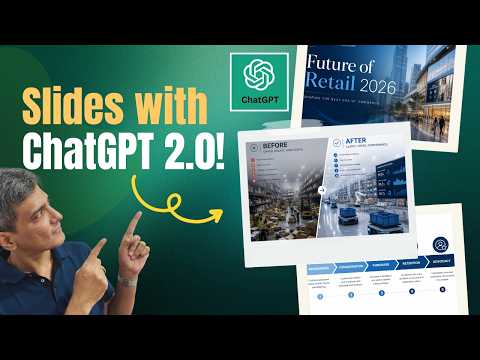
NEW ChatGPT Image Generation
Microsoft expert: Boost PowerPoint visuals with ChatGPT image generation, copyable AI prompts and Office templates
Key insights
- Microsoft Copilot — The video shows Copilot inside PowerPoint that creates images and slide layouts from natural-language prompts.
It keeps the work inside Office so you don’t need separate image tools. - Workflow — Start a new Copilot chat, give a clear brief, let it generate images and slide content, then edit in-place.
This flow moves from idea to a usable slide much faster than manual design. - Prompt structure — Be specific: include topic, audience, desired style, aspect ratio (like 16:9), and elements to avoid.
Clear prompts produce cleaner, more professional visuals on the first try. - Native PowerPoint (.pptx) — Copilot creates and edits actual .pptx slides, so images, text, and layouts are directly editable in PowerPoint.
That reduces copy-paste steps and keeps formatting consistent. - Iterative editing — Use follow-up prompts to refine lighting, composition, or remove objects; Copilot responds conversationally to tweaks.
Iterating this way ensures visuals match your message and brand quickly. - Use cases — The video lists practical uses: convert research to slides, make infographics, build diagrams, replace stock photos, craft visual metaphors, and produce hand-drawn styles.
These cases save time and help non-designers create clearer, more persuasive presentations.
Overview of the Video and Its Source
Presentation Process YouTube published a practical guide that shows how to use ChatGPT image generation to build better slides, and the video frames the topic as a toolkit rather than a theoretical talk. The presenters, Ramgopal and Arte, walk viewers through eleven use cases and share exact prompts so users can copy them into their own workflows. Consequently, the piece serves both newcomers and experienced slide builders by showing step-by-step examples and real-world outcomes.
Core Use Cases Demonstrated
First, the video highlights ways to convert research papers and dense material into clear slides, and then it moves on to editing existing slides with minimal effort using AI prompts. Next, the hosts demonstrate building title slides, diagrams, infographics, and visual metaphors, and they show how to generate hand-drawn styles or corporate-clean visuals depending on the audience. Thus, the tutorial connects content transformation, visual storytelling, and brand consistency into a single, repeatable process.
Workflow and Exact Prompts
The presenters emphasize a prompt-driven workflow: define the audience, state the slide purpose, choose a style and aspect ratio, and then iterate with follow-up edits to refine lighting or composition. They also provide downloadable prompts so users can adapt examples quickly, and they recommend starting a new chat per project to keep context tight and predictable. Furthermore, the video stresses that clear, specific prompts produce better images and faster results than vague requests.
Integration with Native Tools and Alternatives
Importantly, the video contrasts stand-alone image generation with integrated options like Microsoft Copilot in PowerPoint, which can create editable slides directly inside a presentation file, saving the copy-paste step. While Copilot aims for seamless .pptx output and tighter app integration, the presenters point out that general-purpose ChatGPT image tools still offer flexibility for users who prefer custom editing outside the Office suite. Therefore, choosing between a native tool and an external generator involves tradeoffs in convenience, control, and workflow compatibility.
Tradeoffs in Quality, Speed, and Control
However, the video does not present the process as a one-size-fits-all solution, and it carefully weighs tradeoffs between speed and precision: automated images speed up production but sometimes need human editing to avoid clichés or layout issues. Moreover, the hosts explain that highly polished corporate slides require iterative tuning — for example, adjusting emotions, lighting, or text placement — which can erode time savings if not managed. As a result, teams must balance how much manual finesse they keep versus how much they delegate to AI.
Challenges Around Accuracy and Consistency
Another concern the video raises involves factual accuracy and consistent brand voice; automated visuals may misrepresent data or produce inconsistent iconography unless prompts include explicit style rules and template constraints. In addition, depending on the tool, embedding precise text into images or ensuring compliance with slide dimensions can be tricky and require additional correction. Thus, quality control and review remain necessary steps when presentations influence business decisions or public messaging.
Ethical and Practical Considerations
The presenters briefly touch on ethical questions, noting that replacing photographers or stock art with generated imagery affects creators, and teams should consider attribution, copyright, and company policy before wholesale adoption. Practically speaking, some generated images still show artifacts or unrealistic elements, so the video advises pairing AI generation with human oversight to catch errors and maintain professionalism. Consequently, the recommended approach is pragmatic: use AI to accelerate routine work while preserving human judgment for final checks.
Best Practices and Actionable Tips
For viewers who want to adopt these techniques, the video recommends concise prompt templates, consistent brand tokens, and a clear review loop to verify accuracy and alignment with corporate style. It also suggests using AI to replace expensive stock photos, create visual metaphors to simplify complex ideas, and generate posters or training infographics with consistent rules applied across slides. Ultimately, the hosts argue that a repeatable prompt library and an established QA step produce the best balance of speed, cost, and quality.
Why This Matters for Presentation Teams
In conclusion, the video from Presentation Process YouTube argues that image generation can transform how teams create slides, especially for tight deadlines or non-designers who must communicate complex topics clearly. Nevertheless, the change is evolutionary rather than revolutionary: AI speeds routine tasks but raises new needs for oversight, iteration, and ethical thinking. Therefore, teams should pilot these techniques, measure time saved and quality changes, and then scale the approach while keeping control mechanisms in place.
Keywords
ChatGPT image generation for presentations, AI image prompts for presentations, presentation visuals with ChatGPT, exact prompts for AI image generation, AI slide design prompts, ChatGPT image prompts examples, use cases AI images presentations, generate presentation images with AI