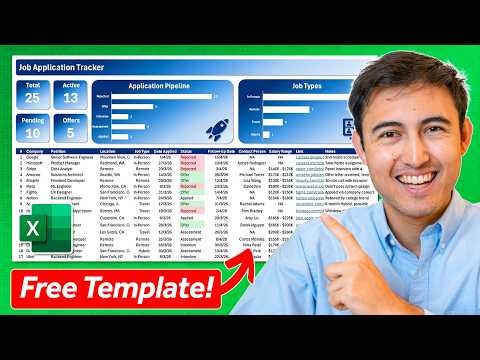
Excel Job Apps Tracker: Free Template
Co-Founder at Career Principles | Microsoft MVP
Microsoft Excel job application tracker with KPIs, dropdowns, conditional formatting and Power BI visuals template free
Key insights
- Job Application Tracker in Excel: A spreadsheet that centralizes your job search so you can log applications, monitor progress, and avoid missed deadlines.
It helps you manage opportunities in one place and update status as you move through interviews. - Tracker structure: Use two sheets—one for applied roles and one for pending applications—with columns for company, job title, date applied, status, follow-up date, contacts, salary, and notes.
Keep consistent column headings to make filtering and reporting easy. - Automation and features: Add dropdown menus for status, apply conditional formatting to color-code stages, and use formulas to auto-fill dates and calculate days left until deadlines.
Timed follow-ups and auto-updating cells cut down manual work and reduce missed actions. - KPIs and visuals: Build top-line KPIs (active jobs, offers, pending items) and simple charts for pipeline breakdown and job types to see trends at a glance.
Place KPIs above the table so the dashboard updates as you change statuses. - Benefits: Templates are free to start, fully customizable, and let you keep control of your data for privacy and portability.
You can work offline in Excel and sync with cloud storage when needed for collaboration. - Quick setup tips: Download a template, configure status dropdowns, add conditional formatting rules, and create a formula column for remaining days.
Version your resume per application with a resume versioning column and review the pending applications sheet daily to prioritize follow-ups.
Video at a glance
In a concise, practical demo, Kenji Farré (Kenji Explains) [MVP] walks viewers through creating a dynamic Job Application Tracker in Excel. He builds the tool from scratch in about 18 minutes, and he explains both structure and visuals so users can replicate the file quickly. The video shows two main sheets—one for completed applications and another for pending applications—and highlights how a few Excel features can turn raw rows into an organized pipeline.
What the tracker includes
Kenji demonstrates a compact set of features that most job seekers need, including status columns that cover stages like applied, assessment, interview, and offer. He uses a drop-down menu for status selection and then applies conditional formatting so each status appears with a consistent color, which improves visual scanning. In addition, the top of the sheet contains key performance indicators, or KPIs, and charts that summarize active jobs, pending applications, and the number of offers.
How the tracker works step by step
First, Kenji sets up core columns for company name, job title, date applied, and status, and then he links follow-up dates so the sheet can remind you of next steps. Next, he crafts simple formulas that count statuses and compute days remaining for application deadlines, which helps prioritize actions. Finally, he assembles dashboard visuals from those formulas, so the tracker updates automatically as entries change and the job search evolves.
Design choices and practical tradeoffs
Kenji opts for a straightforward, offline-friendly approach that favors clarity over advanced automation, which makes the template easy to adapt but limits integrations. On the one hand, keeping the system in Excel grants full control and offline access, which benefits privacy and customization. On the other hand, this choice trades off native cloud collaboration features and richer notification options that specialized apps can provide.
Moreover, he balances simplicity with helpful automation: the video shows useful formulas and formatting, but it avoids complex macros or add-ins that might intimidate casual users. Consequently, users get a stable and portable tracker, although power users may find the lack of two-way syncing or automated email reminders restrictive. Therefore, teams or heavy users should weigh whether to extend the sheet with automation or export data into a dedicated tool.
Challenges to watch for
Maintaining accuracy requires discipline; for example, users must update status fields consistently and keep follow-up dates current to avoid misleading KPIs. Conditional formatting can mislead if status labels differ even slightly, so Kenji stresses using standardized drop-down selections to prevent broken visuals. Additionally, compatibility differences between Excel and spreadsheet alternatives may alter formulas or formatting, which means users who switch platforms should test their trackers carefully.
Another area of caution is scalability: a simple tracker works well for dozens of entries, but as records grow into the hundreds, performance and readability can suffer. In such cases, splitting data, archiving older entries, or moving to a database-backed system becomes necessary. Thus, the tracker suits individual job seekers and early-career professionals best, while heavy-volume applicants may face limits without further refinement.
Tips and best practices from the demo
Kenji encourages consistent naming conventions, regular updates, and use of the provided KPIs to make decisions rather than relying on memory. He also recommends keeping a separate sheet for pending deadlines, which helps focus energy on applications that need immediate action. Furthermore, saving a clean template copy and keeping versioned resumes linked in the sheet prevents lost work and eases recovery if mistakes occur.
For those who want to extend the tracker, the video points to simple enhancements: add a prioritized score column to sort opportunities, include recruiter contact details for faster follow-ups, or use lightweight automation to populate the date applied when a status changes to "applied." However, Kenji warns that each enhancement increases complexity, so users should add features only when they clearly improve workflow.
Why this matters for job seekers
In a competitive job market, a consistent tracking method reduces missed deadlines and duplicate applications, which increases the efficiency of a job search. Kenji’s approach emphasizes clarity and actionability, so users can spend more time preparing for interviews than managing spreadsheets. Overall, the video provides a practical blueprint that readers can adapt to their needs while understanding the tradeoffs between simplicity and automation.
Final takeaways
This YouTube demonstration by Kenji Farré (Kenji Explains) [MVP] offers a clear, replicable way to build a Job Application Tracker in Excel with useful visuals and deadline tracking. In short, the method favors accessibility and control, although it requires users to manage updates and consider limits when data scales up. For most individual job seekers, the template and the techniques Kenji shows strike a practical balance between ease of use and meaningful automation.

Keywords
job application tracker excel, free job tracker template, job search tracker spreadsheet, excel job application template, job application spreadsheet free, applicant tracking spreadsheet excel, job hunt tracker template, track job applications in excel