PDF to Word: convert scanned files with Acrobat
Acrobat Pro can convert scanned PDFs into editable Word files with OCR, while Adobe Scan turns paper documents into PDFs first.
Key insights
- Acrobat Pro runs text recognition automatically when you export a scanned PDF to Microsoft Word.
- In Acrobat, open the PDF, choose Export PDF, select Microsoft Word, then Convert to DOCX.
- Adobe Scan can combine pages into one PDF and recognize printed text when you save it.
- Handwriting may not be fully searchable; OCR works best on printed text.
- The described Acrobat Pro trial lasts seven days; the video lists an annual-plan price of $19.99 per month afterward.
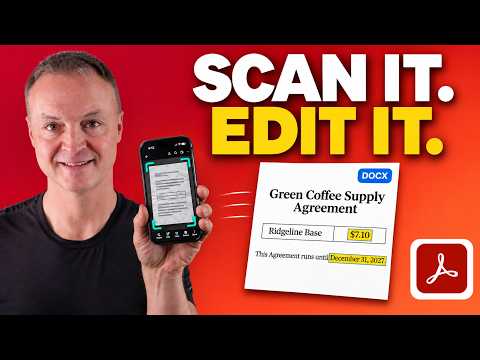
Adobe Acrobat Pro can export a PDF to an editable Microsoft Word document, including a scan, by running text recognition automatically. This workflow is useful for business users who need to revise a paper contract or other scanned document rather than retype it. Teacher's Tech demonstrates scanning paper with Adobe Scan and exporting the resulting file in a YouTube test of everyday business documents.
What it does
A PDF is often a fixed-layout document, and a scan may contain only page images rather than selectable text. Optical character recognition, or OCR, identifies printed words in those images so they can be searched, copied, and converted into editable text. In the demonstrated workflow, Adobe Scan creates the PDF and Acrobat Pro converts it to Word.
The test uses a three-page supplier contract. Adobe Scan saves the pages as one PDF, recognizes its text, and makes a search for “Delivery” jump to the relevant terms. In Acrobat, exporting that scan to Word produces editable text, and the demonstration shows the contract’s headings and tables in the converted file. The layout is retained in the tested example, though any conversion should be reviewed before the document is used.
Who it is for and what you need
This workflow is aimed at people who have a paper document, a scanned PDF, or a PDF they need to edit in Word. For paper, the demonstration uses Adobe Scan on an iPhone; the published description says the app is also available for Android. Scanning requires a free Adobe account, while exporting to Word requires Acrobat Pro or Adobe Scan Premium.
Acrobat Pro includes a seven-day free trial, according to the demonstration. It lists a price of $19.99 per month on an annual plan after the trial. Adobe Scan’s basic scanning features—including auto-crop, multi-page PDFs, and text recognition—are presented as free, with a page limit on free text recognition. These are Adobe product terms, not Microsoft Word licensing requirements.
How it works
For a paper document, start by capturing it in Adobe Scan. Choose a scan type such as Document, point the phone camera at the page, and let the app detect the edges. To create a multi-page file, continue scanning within the same session rather than saving after the first page.
- Review the pages in Adobe Scan. Correct a crop by dragging the corners, rotate a sideways page, and use Filters to adjust its appearance.
- Save the scan as a PDF. Adobe Scan runs text recognition automatically, allowing printed text to be searched, selected, and copied.
- Open Acrobat on a computer. Under Files, select Scans, then open the saved scan.
- Select Export PDF, choose Microsoft Word, and select Convert to DOCX. Acrobat runs OCR on a scanned file as part of this export.
- Open and check the resulting Word document, including its text, tables, and layout, before making changes or sharing it.
The demonstration also shows an export option in Adobe Scan: from the home screen, tap Save as Word doc next to a scan. That requires Acrobat Pro or Adobe Scan Premium. For editing a contract on a computer, the demonstration instead uses Acrobat’s Files and Export PDF steps.
Limitations and alternatives
OCR is most reliable on printed text. The demonstrated handwritten recipe card becomes a clean PDF, but its handwriting may not be fully searchable. Check handwritten content manually if you plan to rely on search or use OCR text as the basis for edits.
Conversion results can vary by file. In the test, some free web converters return the scanned page as an image or scramble text, while Acrobat’s result has editable text and retains the tested headings and tables. The video describes Adobe’s free online converter as an option for a one-off file, with limits on free use; the Acrobat Pro trial is presented for ongoing or more demanding conversions. No conversion should be treated as a substitute for checking the document against the original, especially when changing contract terms.
If a document is still on paper, Adobe Scan is the capture step, not the Word converter: its free scanning workflow creates a PDF. Exporting that PDF to Word is the step that requires Acrobat Pro or Scan Premium. The test also distinguishes Acrobat Studio, which adds AI Assistant for asking questions about documents, from the Pro conversion workflow; AI Assistant is not needed for the basic PDF-to-Word task.
Sources
Frequently asked questions
How do I convert a scanned PDF to Word in Acrobat?
Open the scan in Acrobat, select Export PDF, choose Microsoft Word, and select Convert to DOCX. Acrobat runs text recognition automatically on the scanned file.
Does Adobe Scan export PDFs to Word for free?
Adobe Scan’s basic scanning features are free, but exporting to Word requires Acrobat Pro or Adobe Scan Premium.
How long is the Acrobat Pro free trial for PDF-to-Word conversion?
The described Acrobat Pro trial lasts seven days and includes PDF-to-Word export.
Can Adobe Scan make handwriting searchable?
Text recognition works best on printed text. Handwritten notes can be captured as PDFs, but the handwriting may not be fully searchable.