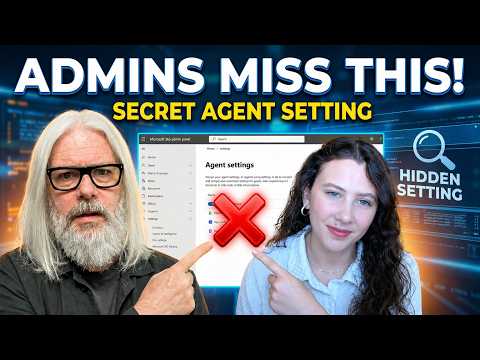
Agent 365: Fix Copilot Agent Settings
Microsoft MVP | Author | Speaker | YouTuber
Microsoft expert guides Copilot Agents fixes in Admin Center with Purview and Entra governance to secure AI agents
Key insights
- Agent 365 and Copilot Studio let you create custom AI agents that run in Microsoft 365 Copilot and Teams.
They use connectors like SharePoint and Dataverse, so confirm the environment and required licenses before deployment. - Teams Admin Center setting: enable Upload custom apps to fix grayed-out "Add Agent" buttons and permission errors.
Make this change once in the global or policy app settings to allow agent uploads from Copilot Studio. - Agent manifest export and upload: export the correct manifest (not a solution package) from Copilot Studio, then upload it to the target channels.
After upload, test the agent in both Teams and M365 Copilot to confirm connectivity. - Reset Data Access and user permissions in Copilot Chat to clear stale "Always allow" settings.
Also verify users have the needed M365 Copilot license for SharePoint or OneDrive data access. - Publish and channel validation: ensure each agent is published in the right Copilot Studio environment and that channel availability (Teams and M365 Copilot) is enabled.
If an agent acts up, disable and re-enable the Teams channel and republish to refresh settings. - Troubleshooting checklist: for common errors (grayed-out upload, SystemError, "agent not available", SharePoint access), enable upload permissions, republish agents, check DLP and admin policies, verify environment access, and run Copilot Studio diagnostics.
Follow these quick steps to reduce deployment failures and improve reliability.
Video Summary and Context
The newsroom reviewed a recent YouTube video by Peter Rising [MVP], featuring Natalia Denisiuc, that continues their series on preparing organizations for agentic AI. In this installment, titled Agent 365 Ready (Part 3), the presenters demonstrate how to control and troubleshoot Copilot Agents from the Microsoft 365 Admin Center. They also touch on configuration work in Copilot Studio and briefly review procurement and contract management considerations tied to agent deployment.
Key Demonstrations and Settings
Rising and Denisiuc show several practical steps that admins can take to prevent common deployment failures, permission errors, and runtime issues. First, they emphasize toggling the Upload custom apps option in the Teams Admin Center to resolve grayed-out or blocked "Add Agent" actions and to permit manifest uploads from Copilot Studio. Next, they guide viewers through exporting the correct agent manifest (not a solution export) and re-uploading it to ensure the agent appears in both Teams and M365 Copilot.
Troubleshooting Workflows Explained
The presenters walk through practical recovery steps for agents that return generic errors such as "Sorry, I wasn’t able to respond" or system errors in Teams. They recommend resetting data access for specific agents within Copilot chats to clear persistent "Always allow" choices and then republishing after verifying environment and channel availability. Additionally, the video highlights how toggling Teams channel availability, running Copilot Studio diagnostics, and using the test pane can reveal environment mismatches or missing permissions that stop agents from functioning correctly.
Compliance, Licensing, and Procurement Considerations
Beyond technical fixes, the episode points to governance and procurement realities that affect agent behavior. For example, SharePoint or OneDrive access by an agent typically requires a specific M365 Copilot license, so admin teams must align procurement and license assignments before troubleshooting deep technical problems. Furthermore, the presenters discuss contract management briefly to stress that procurement timelines, license bundles, and vendor terms can introduce delays or restrictions that appear as technical faults but are actually contractual or licensing gaps.
Tradeoffs: Speed versus Security
The video makes clear that enabling rapid agent deployment often requires loosening restrictions, which increases exposure and demands stricter post-deployment governance. Therefore, organizations must balance the convenience of allowing Upload custom apps and quick publishing against the need to control which agents run in corporate channels and what data they can access. In practice, IT teams should pair any fast enablement steps with stronger review and monitoring to reduce risk without blocking innovation.
Operational Challenges and Common Errors
Several recurring challenges appear in the video and in field reports: environment mismatches between Copilot Studio and production channels, manifest upload mistakes, DLP or conditional access rules that silently block features, and inconsistent behavior between Teams and M365 Copilot. These issues often produce confusing symptoms like "agent not available," which can require coordinated checks across admin centers, license records, and compliance tools such as Purview. Consequently, root cause analysis usually combines admin policy checks with runtime diagnostics.
Recommended Best Practices
To reduce friction, the presenters recommend a small checklist: verify tenant policies in the Teams Admin Center, export the correct agent manifest, assign required licenses, reset agent data access when needed, and republish after toggles. Moreover, they advise using Copilot Studio’s testing features and topic checker before wide release to catch problems early. Finally, documenting each change and coordinating with procurement and security teams helps avoid rework and limits surprise outages.
Balancing Governance and Agility
Rising and Denisiuc stress that governance cannot be an afterthought, but they also argue that overly rigid policies slow adoption and reduce the practical value of agents. Therefore, rolling out staged policies—allowing trusted developers to test in controlled environments, while requiring approval for tenant-wide availability—strikes a useful balance. This staged approach lets teams identify real user needs and technical gaps before committing to broad procurement or permanent policy changes.
Conclusion and Practical Outlook
Overall, the video provides a concise, actionable guide for admins wrestling with broken or inaccessible Copilot Agents. While it does not eliminate all complexity, the demonstrated settings and diagnostic steps give teams a clear starting point for resolving common deployment and permission problems. As organizations scale agent use, they will need to refine governance, procurement, and monitoring practices to maintain a reliable and secure agent ecosystem.
What Newsrooms Should Note
For editors and IT leaders, the episode by Peter Rising [MVP] serves as a useful primer that blends hands-on fixes with broader governance advice, and it highlights the interplay between technical setup and procurement. Consequently, covering these operational tradeoffs will help readers understand why an agent may fail and what practical steps can restore service without compromising compliance.

Keywords
Copilot agents settings, Fix Copilot agents, Microsoft Copilot configuration, Agent 365 tutorial, Copilot agent troubleshooting, Copilot settings best practices, Copilot enterprise setup, Copilot agent security