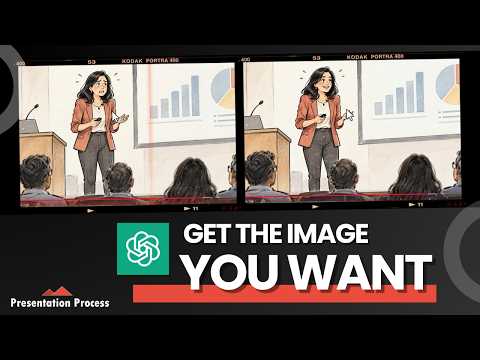
ChatGPT Images: control composition, edits, and style
Use precise prompts and targeted edits in ChatGPT Images to make presentation visuals fit your layout and story.
Key insights
- Put the subject on one side and describe the empty area you need for slide text.
- Ask for an isolated subject on a transparent background, or request background removal for an existing image.
- Markup lets you mark unwanted areas before asking ChatGPT to remove them and retain the rest.
- For a focused edit, name what should change and what must stay the same.
- Create separate foreground and character assets to combine into different scenes.
ChatGPT Images can create and edit visuals with more control when prompts specify composition, transparency, and what should remain unchanged. This is useful for presenters, trainers, and other creators who need images that fit a slide layout or can be reused across scenes. Presentation Process YouTube demonstrates these techniques through examples involving a nervous presenter, a professor character, and related scene assets.
What it does
The techniques are practical ways to guide image generation and editing rather than a named ChatGPT feature or a set of guaranteed results. They start with a clear description of the image's layout and purpose, then use follow-up instructions to refine individual elements. The examples focus on presentation visuals, but the same approach can help when an image needs to leave room for text or fit into a larger composition.
One central idea is to describe the arrangement, not just the subject. A prompt that asks for a nervous presenter in a 16:9 image may fill the frame, leaving little room for slide copy. The demonstration instead places the presenter on the right and reserves the left 40% for text. That instruction tells the model what the composition needs to accomplish.
Other examples use transparency and editing to make components reusable. A standalone character or group of students can be placed over a separate background, resized, or combined with another asset. Focused edits can also change a face or visual style while asking ChatGPT to preserve other parts of the image.
Who it is for and what you need
The workflow is aimed at people creating presentation slides, training videos, educational material, and other visual content. In the examples, the presenter combines ChatGPT-generated images with PowerPoint and separate background images. The tutorial also demonstrates resizing and flipping assets and applying a picture shadow in PowerPoint.
The source does not state which ChatGPT plan, model, account type, region, or device is required for the image-generation and editing capabilities. It also does not establish availability or limits for every user. The steps below describe the demonstrated workflow; the available controls may depend on the ChatGPT experience a user has.
How it works
Begin by deciding how the image will be used. If it needs to sit beside slide text, include the subject's position, orientation, and the part of the frame that should stay relatively empty. For example, the demonstration requests a horizontal 16:9 illustration with the presenter on the right and the left 40% kept open for copy.
- Request transparency when you need a cutout. Describe the subject and add a direct instruction such as “isolated on a transparent background.” The example creates a magnifying glass this way. For an existing image, the demonstration pastes it into the prompt and asks ChatGPT to remove the background.
- Mark areas for removal when a broad edit is not enough. Open Markup, draw over the unwanted elements, and ask ChatGPT to remove the marked areas while retaining the rest. The example marks the audience, laptop, microphone, and presentation screen while keeping the presenter and podium.
- Build reusable parts separately. Generate a character as a full-body asset on a transparent background. Then create a foreground layer, such as students seen from behind, with an empty space where the character will appear. Specify that the new layer should match the character's hand-drawn style and leave the relevant area transparent.
- Make revisions narrowly. State the change and list what should stay fixed. For the facial-expression example, the prompt asks for a happy, confident expression while preserving the character, clothing, pose, background, and composition. A separate example asks for the same professor and style in a seated pose.
- Use a reference for a style change. Paste in a reference image and ask ChatGPT to recreate the subject in that image's style and color theme. The demonstration applies this to the professor character.
Once assets are generated, assemble them in the presentation tool. The demonstration places a character over background scenes, changes the asset's size and orientation, and adds a shadow in PowerPoint. Separate classroom and office foreground layers make it possible to reuse the character in more than one setting.
Limitations and open questions
The examples show particular outputs, not a guarantee that every prompt will produce accurate transparency, preserve every detail, or remove precisely the intended content. The source provides no benchmark, reliability data, or guidance on how many attempts a task may take. Inspect the generated image and make a further targeted edit if the result does not match the intended layout.
The source does not give account or licensing requirements, rollout information, or a complete inventory of image-editing controls. It also does not compare these techniques with other tools or explain a previous workflow. Markup, Eraser, and the described image controls are shown in the tutorial, but their availability in a particular user's interface is not established here.
For presentation work, the clearest practical takeaway is to treat images as parts that can be composed, not only as finished scenes. Requesting a transparent subject and separate foreground can make later layout changes easier. When editing an existing image, specify both the requested change and the details that must remain intact.
Sources
Frequently asked questions
How do I leave space for text in a ChatGPT image?
Describe the composition in the prompt: place the subject on one side and specify which area should remain relatively empty. The example requests a 16:9 horizontal image with the presenter on the right and the left 40% open for text.
Can ChatGPT create an image with a transparent background?
The demonstration asks ChatGPT for a subject isolated on a transparent background. It also shows asking ChatGPT to remove the background from an existing image, but does not establish which plans or accounts have these capabilities.
How can I remove selected objects from a ChatGPT image?
The demonstrated workflow uses Markup to draw over unwanted areas, then asks ChatGPT to remove the marked areas while retaining the rest. The source does not confirm that this control is available to every user.
How do I change one part of an image without changing the rest?
Name the change and explicitly list what should remain unchanged. For example, request a different facial expression while keeping the character, clothing, pose, background, and composition.