- All of Microsoft
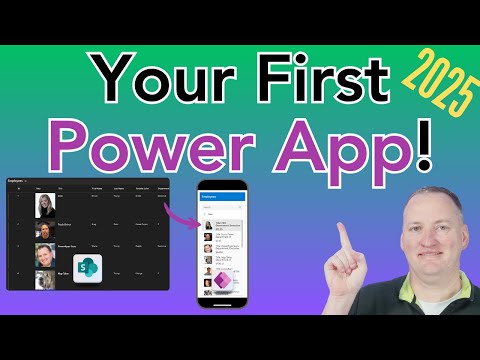
Power Apps: Build First SharePoint App
SharePoint & PowerApps MVP - SharePoint, O365, Flow, Power Apps consulting & Training
Microsoft expert: turn a SharePoint list into a Power Apps app with Power Fx, galleries and forms then publish and share
Key insights
- SharePoint list
Use a SharePoint list or Microsoft Lists as the app's data source; create or reuse a list with clear columns so the app reads structured data instantly. - Power Apps
Create the app from the list or add the list as a data source in a blank canvas app; use drag-and-drop controls, preview in Power Apps Studio, then save and publish for users. - Gallery
Add galleries to show multiple records at once, customize layout and templates, and connect gallery items to detail views for quick browsing and selection. - Form
Use form controls to view, create, and edit list items; wire SubmitForm and ResetForm for reliable saves and validate inputs before publishing. - Power Fx
Apply Excel-like formulas to format values, filter lists, and control navigation; watch for delegation warnings and adjust queries to keep good performance. - Real-time sync & sharing
Changes in the app update SharePoint immediately and vice versa; share apps with users or co-owners and set permissions. In 2025, integrations with Microsoft Lists, improved templates, and responsive options make building and publishing faster and more consistent.
Video Overview
Shane Young [MVP] presents a clear, hands-on YouTube tutorial that walks viewers through building their first Power Apps canvas app from a SharePoint list. He starts with a simple list and shows how to connect it, create an app, and then preview and publish the result. Consequently, beginners can follow a complete flow from data source to a shared app without prior coding experience.
Furthermore, Shane highlights core concepts such as galleries, forms, and basic Power FX formulas while also calling out delegation warnings and real-time syncing behavior. The video keeps the pace steady and practical, which makes it suitable for viewers who prefer step-by-step demonstrations. As a result, learners finish with a working app and clear next steps to expand their skills.
Step-by-Step Workflow Covered
First, the tutorial shows how to use an existing SharePoint list as the app’s data source and connect it in Power Apps Studio. Next, Shane demonstrates creating the default canvas app, customizing the layout, and adding controls such as galleries for lists and forms for item details. He also previews the app and walks through saving and publishing, which helps viewers understand lifecycle actions for a real app.
Additionally, the video emphasizes using simple Power FX formulas to adjust display and behavior, like formatting text and filtering lists. Shane previews the app frequently so learners see how changes affect the user experience immediately. Therefore, this workflow reduces guesswork and gives practical confidence to beginners.
Key Features and Tradeoffs
One major advantage highlighted is the low-code approach: users build functional apps quickly without writing full applications. However, this simplicity brings tradeoffs, such as limits around complex logic and performance when handling very large datasets. Consequently, you must balance rapid development with planning for scale if your list grows or your logic becomes more advanced.
Moreover, the video explains real-time sync between the app and the SharePoint list, which keeps data current for all users. On the other hand, tight integration means your app’s behavior depends on list structure and permissions, so changing columns or security can have immediate effects. Thus, teams should coordinate changes and consider governance to avoid unexpected issues.
Challenges and Practical Tips
Shane points out common hurdles such as delegation warnings that occur when operations exceed data-source limits, which can lead to incomplete results in filters and searches. To mitigate this, he recommends designing queries that work within delegation boundaries and testing with bigger datasets early. In addition, breaking complex tasks into smaller steps or moving heavy processing to other services can improve performance.
Another practical challenge is building responsive layouts that work on both mobile and desktop screens, and the video shows basic adjustments to improve responsiveness. Furthermore, sharing and permissions often cause friction; the tutorial walks through publishing and setting access but also warns that proper Azure AD and SharePoint permissions must be in place. Therefore, coordinate with IT and adopt simple naming and permission conventions to streamline rollouts.
Next Steps and Governance Considerations
After the basic build, Shane encourages learners to iterate: add validation, enhance forms, and explore additional connectors beyond SharePoint. He also suggests learning more Power FX to replace manual steps with reusable formulas and to improve user experience. As you advance, consider environments and solutions to separate development and production work.
Finally, governance matters: assign co-owners carefully, document data schemas, and establish publishing rules to avoid accidental data loss. In short, the tutorial offers a strong foundation, but successful adoption requires planning for permissions, performance, and maintainability. Consequently, teams that follow the video and adopt these governance practices will find they can scale Power Apps responsibly.

Keywords
Power Apps tutorial for beginners, Build Power App with SharePoint, Create Power App from SharePoint list, Power Apps step-by-step tutorial, SharePoint and Power Apps integration, Microsoft Power Apps beginner guide, Power Apps form customization SharePoint, First Power App tutorial