- All of Microsoft
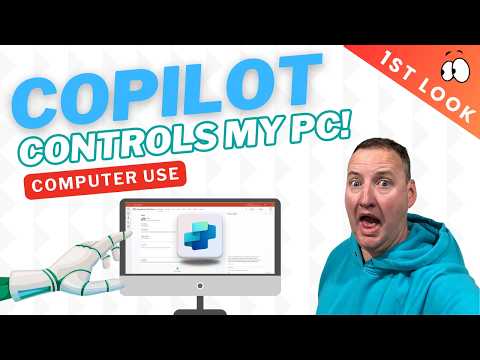
Power Apps: Control with Copilot Studio
SharePoint & PowerApps MVP - SharePoint, O365, Flow, Power Apps consulting & Training
Microsoft expert demo of Copilot Studio Computer Use automating Windows to run custom Power Apps Canvas App setup guide
Key insights
- Copilot Studio with Computer Use lets AI agents control a Windows PC to operate your Power Apps Canvas apps automatically.
It connects user intent to app actions and runs tasks that a person would normally do. - Autonomous agents interpret natural-language commands, open apps, enter data, and trigger Power Automate flows in sequence.
This lets the agent complete multi-step tasks without manual steps. - Setup and demo: enable Copilot in Power Apps, open Copilot Studio, and install the Computer Use tool on your Windows machine.
Creators can follow guided steps to build an agent and test it with a Canvas app, as shown in real demos. - Automation and integration boost productivity by handling repetitive work and connecting to Microsoft 365, Dataverse, and Power Automate.
Agents can speed processes and reduce human errors across cloud and desktop apps. - Security and governance include tenant controls, auditing, and support for customer-managed keys to protect enterprise data.
Admins can monitor activity and apply compliance rules while agents run tasks. - Practical impact: businesses can automate form entry, data lookups, approvals, and other routine workflows to save time and improve accuracy.
Start small with a single Canvas app and scale agents to handle broader enterprise workstreams.
In a recent YouTube video, Shane Young [MVP] demonstrates how Copilot Studio can physically control a Windows machine using the new Computer Use capability to operate a custom Power Apps Canvas app. The video offers a hands-on demo that shows both successes and limitations, as the agent opens the app, fills fields, and triggers backend flows. As an outside observer, this article summarizes the demonstration and explores the practical tradeoffs, setup steps, and governance considerations raised by the clip.
What the Video Shows
Shane Young [MVP] walks viewers through a live demo where a Copilot agent takes over desktop actions and drives a Canvas app just as a human would. He shows the agent navigating screens, entering sample data, and invoking connected Power Automate flows, while also calling out moments when the automation stumbles. Consequently, viewers get a realistic sense of how the feature behaves in everyday scenarios instead of a polished highlight reel.
Moreover, the presenter explains the setup steps and builds a first “Computer Use” tool on camera, which helps viewers see configuration choices and practical details. He discusses options for authoring the agent, links to enterprise data via Dataverse, and how the agent matches natural-language intent to app actions. Thus, the video balances demonstration and instruction in a way that helps makers and administrators decide whether to experiment further.
How Computer Use Works
The core idea is that a Copilot agent can execute desktop-level actions, not just answer questions, by chaining clicks, keyboard input, and flow triggers to accomplish tasks automatically. In practice, the agent interprets user intent, selects appropriate app operations or flows, and then performs step-by-step interactions on the Windows desktop. Therefore, the capability bridges conversational AI and practical automation across cloud services and local apps.
Setting this up requires several steps: enabling the Copilot component in a Canvas app, opening Copilot Studio to author agents, and installing the Computer Use tool on the client machine. After that, authors build or upgrade agents to perform tasks autonomously and test execution paths to make sure the agent reliably finds the right controls. As a result, organizations must plan deployment and training before rolling the feature into production.
Benefits and Tradeoffs
On the plus side, Computer Use can boost productivity by automating repetitive, error-prone tasks that cross both desktop and cloud boundaries, and it integrates with Microsoft 365 Copilot and enterprise data sources for richer automation. Additionally, makers can create tailored agents without heavy coding, which lowers the barrier to entry for many business teams. Consequently, the feature can reduce manual effort and improve response times for routine processes.
However, tradeoffs exist: desktop automation tends to be more fragile than API-based integrations because it relies on UI elements that can change with app updates or screen layouts. It also introduces new security and governance demands, so robust auditing, careful permissioning, and fallback strategies are essential. Therefore, teams must weigh the convenience of UI control against the operational cost of maintaining stable automations and securing access.
Challenges and Governance
Reliable operation requires careful testing, durable selectors, and contingency plans when an agent fails to find a control or encounters unexpected data. Furthermore, organizations face choices about how much autonomy to grant agents and how to log or supervise their actions, since desktop access can surface sensitive information. Consequently, admin controls, activity auditing, and encryption become core concerns when evaluating adoption.
Microsoft notes enterprise tools like Microsoft Purview and Sentinel can help meet governance needs, while features like customer-managed keys and Copilot Tuning aim to preserve data control and domain accuracy. Nevertheless, implementing those protections takes time and skill, and smaller teams may find the onboarding overhead significant. For that reason, many organizations will likely run pilots with limited scope before broader rollout.
Editorial Takeaway
Shane Young’s video offers a clear, grounded look at how Copilot Studio and the Computer Use tool can extend automation into the desktop environment and into custom Power Apps. The demo succeeds in showing both the promise and the practical limits, which helps decision-makers understand where quick wins may lie and where extra effort will pay off. Overall, the feature looks powerful for specific scenarios, yet it demands careful governance, robust testing, and ongoing maintenance to deliver reliable value.
In short, the video is a useful starting point for teams that want to explore autonomous desktop automation; however, readers should pilot cautiously, document agent behavior, and invest in controls before expanding usage across critical workflows. By balancing automation gains with security and reliability concerns, organizations can adopt this capability thoughtfully and minimize downstream risk.
Keywords
Power Apps Copilot Studio, Control Power App with Copilot, Copilot Studio tutorial for Power Apps, Power Apps automation with Copilot, Microsoft Copilot Studio desktop control, Use Copilot to control Power Apps on PC, Power Apps AI assistant Copilot, Copilot Studio integration with Power Apps