PowerPoint: explain ideas with animated visual metaphors
PowerPoint presenters can use a familiar visual and step-by-step animation to make relationships between ideas easier to follow.
Key insights
- Use a puzzle to show how human judgment and AI capabilities complement each other.
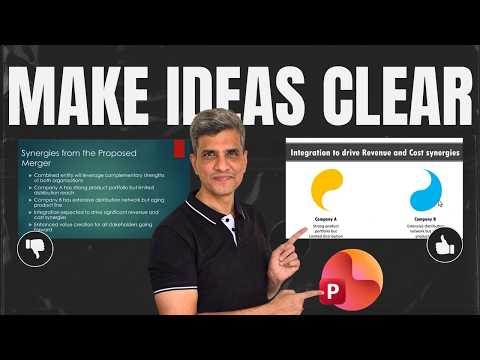
- A Yin and Yang visual can represent two organizations combining complementary strengths.
- A light bulb divided into three parts can explain What, So What, and Now What.
- The demonstration uses narration and animation to reveal each relationship in sequence.
- The presenter says a Microsoft 365 PowerPoint icon can be used to build the light bulb visual.
PowerPoint visual metaphors and purposeful animation can make abstract ideas clearer by showing how their parts relate. This approach is useful for presenters explaining complex business ideas, findings, or relationships to an audience. Presentation Process YouTube demonstrates the technique through three slide makeovers using a puzzle, a Yin and Yang symbol, and a light bulb.
What it does
A visual metaphor uses a familiar object or image to represent an idea. Animation can then reveal the parts in an order that follows the explanation, so the audience sees not only individual points but also how they fit together.
The demonstration starts with the relationship as the design problem. For human judgment and AI, the puzzle represents two capabilities that complement one another: AI brings speed and pattern recognition, while people contribute context and judgment. The interlocking pieces help make that connection visible instead of leaving it as a bullet point.
The other examples apply the same principle to different messages. Yin and Yang represents the proposed merger of two companies with different strengths, while a light bulb divided into three parts supports a finding-to-action framework. The visual is meant to explain the message, not merely decorate the slide.
This is a presentation technique rather than a new PowerPoint feature. The steps shown draw on familiar slide elements and animation; readers looking for more PowerPoint guidance can explore the product topic separately.
Who it is for and what you need
The approach suits business professionals, consultants, trainers, educators, and presentation designers, as well as anyone who needs to explain how ideas connect. The examples are framed around workplace communication: describing AI’s role alongside human judgment, explaining merger synergies, and presenting a data finding to management.
The video description identifies the software used as Office 365. In the light bulb example, the presenter says the icon is available in the Microsoft 365 PowerPoint icon set. The demonstration also uses prebuilt templates, but says the visuals can be recreated without those templates.
No specific subscription tier, minimum software version, operating system, rollout stage, or regional availability is stated. The material does not establish that every icon or template is available in every PowerPoint environment, so check the assets available in your own installation.
How it works
Start by deciding what connection the audience needs to understand. The examples focus on relationships: complementary capabilities, combined strengths, and the sequence from finding to implication to action. Pick a visual metaphor that expresses that relationship directly, then make the spoken explanation and the visual work together.
- State the point. Identify the core message before choosing a graphic. In the first example, AI’s speed and pattern recognition complement human context and judgment.
- Choose a matching metaphor. Use interlocking puzzle pieces for complementary strengths, Yin and Yang for the merger example’s synergy, or a light bulb divided into sections for a three-part message.
- Reveal the parts in the order you explain them. The presenter narrates each component as it appears. For the puzzle, the explanation first introduces AI’s contribution, then the human contribution, and finally how the pieces fit.
- Connect the visual back to the outcome. In the merger example, describe each company’s strengths before showing the combined opportunity. For a finding, move from “What” to “So What” to “Now What.”
The three-part finding structure gives presenters a practical way to organize an explanation: state what the data shows, explain why it matters, and recommend what the audience should do. In the demonstration, the light bulb serves as the familiar image, and its three parts correspond to those stages.
The presenter says a prebuilt template can save the work of creating the graphic and animation, but is not required. For the light bulb, the video suggests using an icon available in Microsoft 365 PowerPoint and dividing it into three parts. It does not provide detailed instructions for a specific animation effect or menu path.
Limitations and open questions
The examples are illustrations, not a universal formula for every subject. A metaphor only helps if its connection to the message is understandable; the demonstration does not test audience comprehension or compare alternative graphics. Treat the images as options to adapt to the idea rather than fixed templates for every presentation.
The transcript describes animations already included in templates and explains the intended reveal sequence, but it does not list specific effects, timing values, or exact steps in PowerPoint’s interface. It also does not explain how to create the puzzle pieces or Yin and Yang animation from scratch. The presenter says the light bulb icon can be divided and animated, without detailing those build steps.
There is no Microsoft documentation among the supplied source URLs to verify feature behavior, licensing, or availability. The source material does not name a required license beyond identifying Office 365 in the description, and it does not say whether the cited icon set is available to every user. Confirm the assets and animation options in your own PowerPoint environment before relying on a particular template or icon.
Sources
Frequently asked questions
How can I use visual metaphors in PowerPoint?
Choose a familiar image that expresses the relationship in your message, then reveal its parts as you explain them. The examples use puzzle pieces, Yin and Yang, and a three-part light bulb.
What is the What, So What, Now What structure?
State the finding, explain its implications, and recommend a specific action. The demonstration maps these three steps to sections of a light bulb.
Do I need a template to create animated visual metaphors?
No. The presenter says the examples can be recreated without the templates; for the light bulb example, the video suggests using an icon in Microsoft 365 PowerPoint. It does not provide full build instructions.
What PowerPoint license do I need for these animations?
The video description identifies the software used as Office 365, but does not specify a license tier or confirm availability across plans. It also does not establish that every user has access to the mentioned icon.