- All of Microsoft
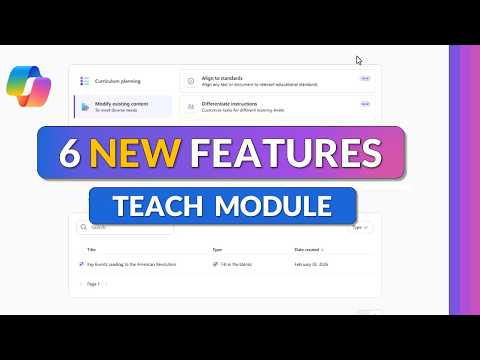
Microsoft 365 Copilot: 6 Teacher Tools
Principal Group Product Manager - Microsoft Education
Microsoft Copilot Teach helps teachers align to standards, adapt reading level and build differentiated activities
Key insights
- Tutorial video: A step-by-step YouTube demo walks through six new Teach features in Microsoft 365 Copilot.
I summarize the video for the editorial team and do not speak for the video's creator. - Align to Standards: The Teach module can align lessons to curriculum standards automatically.
This saves time and helps teachers keep materials consistent with learning goals. - Modify Reading Level: Teachers can change text complexity while keeping the main ideas intact.
The tool makes content easier or more challenging for different student levels. - Add Supporting Examples: AI can insert clear examples to strengthen understanding of key concepts.
These examples help students connect ideas to real-world situations. - Differentiate Instructions: The app creates varied directions and scaffolds for diverse learners.
Teachers can quickly produce versions for remediation, on-level work, and enrichment. - Create Activities: The demo shows turning lessons into ready-to-use activities like matching games and fill-in-the-blanks.
These features help teachers produce engaging classroom materials fast.
Introduction
Mike Tholfsen’s recent YouTube tutorial walks educators through six new features in the Microsoft 365 Copilot app that are specifically built into the Teach module. In clear, step-by-step demonstrations, he shows how teachers can use Modify Existing Content and Learning Activities tools to adapt lessons within minutes. The video targets practical classroom needs, offering examples across subjects such as science, English, and history. As a result, viewers can see both the mechanics and the likely classroom impact of these features.
What the Video Demonstrates
Tholfsen breaks the tutorial into focused segments that include aligning lessons to standards, changing reading levels, adding examples, differentiating instructions, and converting content into activities like fill-in-the-blanks or matching games. He shows each transformation live so teachers can follow along and reproduce the steps in their own files. Moreover, the video includes timestamps for each demonstration, making it easy to jump to a specific feature. Therefore, teachers who want quick, hands-on guidance will find the format straightforward and practical.
Throughout the tutorial, the presenter emphasizes how the Teach tools integrate with familiar apps such as Word, OneNote, and Teams, and how outputs can be saved directly for classroom use. He highlights that some capabilities are already available, while others are rolling out or marked as coming soon, which helps set realistic expectations. Furthermore, the video showcases how AI preserves key concepts when simplifying text and how it can add supporting examples without diluting content. Overall, the demonstrations are framed to show immediate classroom-ready results rather than abstract promises.
Classroom Applications
First, the video demonstrates aligning lessons to educational standards, a feature that helps teachers ensure consistency and coverage across grade levels. Next, Tholfsen shows how to modify reading level while preserving the lesson’s core ideas, which supports differentiated instruction and helps students with varied literacy skills access the same content. He then moves on to creating supporting examples and glossaries, which can deepen understanding without adding heavy preparation time.
Additionally, the tutorial covers turning existing material into interactive activities: a matching game and a fill-in-the-blanks exercise are created from the same lesson content in minutes. These moves turn static documents into engaging practice that can suit diverse learning activities and assessment needs. Because these conversions save as editable files, teachers can further tweak them to match classroom pacing and student preferences. Consequently, teachers can use AI to scaffold lessons, engage students, and free time for targeted instruction.
Tradeoffs and Challenges
While the tools promise speed and flexibility, the video also implies tradeoffs that teachers must manage, most notably the balance between automation and professional judgment. AI can simplify text or suggest examples, but educators need to verify accuracy and relevance, particularly when aligning to local curricula or sensitive topics. Therefore, reliance on AI without review can introduce errors or unintended shifts in meaning that require teacher oversight.
There are also technical and logistical challenges to consider, such as integration with existing learning management systems and school data policies. Although the Teach module uses grounding to reference organizational data and protect context, schools must still configure IT controls and review privacy implications. Moreover, equitable access and teacher training remain hurdles: some staff will adopt quickly, whereas others may need structured professional development and pilot time. In short, the promise of time savings comes with responsibilities around accuracy, privacy, and change management.
Adoption and Next Steps
For schools considering rollout, the video suggests practical first steps: pilot the features with a small group of teachers, collect feedback, and involve curriculum leaders to ensure standards alignment. Additionally, administrators should use available analytics and dashboards to monitor adoption and identify training needs, which helps scale use without overwhelming staff. Because some features are still being refined, iterative testing will let teams adjust workflows and identify when full deployment makes sense.
Ultimately, Tholfsen’s tutorial presents a usable path for teachers to save preparation time while maintaining instructional quality, provided they pair AI output with professional review. As these tools mature, educators who experiment responsibly can refine lessons faster and offer better differentiated experiences. Therefore, the video is a useful starting point for schools that want to combine teacher expertise with AI assistance, and it encourages practical testing rather than wholesale replacement of teacher judgment.

Keywords
Microsoft 365 Copilot for teachers, Copilot features 2026, Copilot for education, Copilot lesson planning, AI teaching tools Microsoft, Copilot grading assistant, Classroom productivity Copilot, Copilot accessibility features