- All of Microsoft
OneNote Keyboard Shortcuts to Save Time
Principal Group Product Manager - Microsoft Education
OneNote keyboard shortcuts to boost productivity and organize notes with Microsoft Three Six Five Windows Copilot Teams
Key insights
- Keyboard shortcuts speed up OneNote by letting you perform actions without a mouse.
They cut repetitive clicks and help you capture ideas faster, boosting overall productivity. - Shortcut categories include Navigation, Editing, Insertion, Tagging, and Drawing.
Knowing the category helps you find the right shortcut quickly. - Common navigation shortcuts: open a new OneNote window (Ctrl+M), create a new page (Ctrl+N), create a new section (Ctrl+T), and switch notebooks (Ctrl+G then arrows).
These cut the time spent moving between notebooks and pages. - Editing and formatting shortcuts: undo/redo (Ctrl+Z / Ctrl+Y), cut/copy/paste (Ctrl+X / Ctrl+C / Ctrl+V), insert hyperlink (Ctrl+K), and insert a line break without a new paragraph (Shift+Enter).
Use these to edit notes faster and cleanly. - Tags and insertion shortcuts: apply a To Do tag (Ctrl+1) or Important tag (Ctrl+2), insert date (Alt+Shift+D), insert time (Alt+Shift+T), and create quick notes (Ctrl+Shift+M).
Tags and timestamps keep notes organized and searchable. - Tips and customization: dock OneNote for side-by-side work (Ctrl+Alt+D), press F1 for help, and consider adding custom shortcuts with extensions if you need them.
Practice a few shortcuts daily to build muscle memory and save minutes every day.
Video Overview
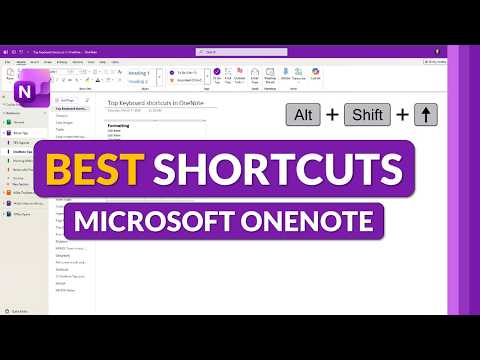
In a recent YouTube tutorial, Mike Tholfsen walks viewers through practical ways to speed up note-taking in OneNote by using keyboard shortcuts. The video targets students, teachers, and professionals who rely on Microsoft 365 tools and want to reduce repetitive mouse work. As a result, Tholfsen emphasizes a compact set of shortcuts that cover navigation, formatting, and quick page creation to improve daily workflows.
Moreover, he demonstrates shortcuts across the Windows desktop and app versions, and he notes differences that matter for everyday use. Consequently, the tutorial mixes basic commands with some less obvious tricks that many users overlook. Overall, the video aims to make the app feel faster and more predictable for regular note-takers.
Key Shortcuts Demonstrated
Tholfsen highlights several core commands that save time, such as creating a new window or page and docking OneNote alongside other apps. For example, viewers learn how to open a quick note and how to move quickly between notebooks and sections using familiar modifier keys like Ctrl and Alt. He also covers shortcuts for inserting dates and times, applying common tags, and toggling full-page views so users can focus on content.
In addition, the tutorial calls out editing and formatting shortcuts that reduce keystrokes, such as undo/redo and inserting links or line breaks without creating new paragraphs. Tholfsen points out tag shortcuts that map numbers to common tasks like to-dos and important items, which can be especially useful during meeting notes. Therefore, these small efficiencies compound over time, cutting down repetitive clicks and context switches.
Practical Benefits and Tradeoffs
Adopting these shortcuts delivers clear gains: faster navigation, fewer misclicks, and a more keyboard-centered workflow that supports multitasking. At the same time, there are tradeoffs to consider. Users must invest time to memorize the keys, and the immediate benefit varies depending on how often they use OneNote each day.
Furthermore, while shortcuts can boost accessibility and speed, they may conflict with system-level shortcuts or vary between app versions, which creates friction. For instance, a key combination that works in the Windows desktop app might behave differently in the UWP or web versions. Thus, teams should weigh the speed improvements against the training needed and the potential for inconsistent behavior across devices.
Challenges and Adoption Tips
Tholfsen acknowledges practical challenges, such as version differences and the learning curve for new users. Consequently, he suggests starting with a small set of high-impact shortcuts—like creating a quick note, docking the window, and adding a to-do tag—before learning more advanced combinations. This incremental approach makes adoption less overwhelming and helps build useful muscle memory.
Moreover, he recommends using built-in help commands like F1 to view shortcut lists and practicing the keys in real tasks instead of drills. For organizations, the tradeoff is between standardized training and personal customization: centralized guidance helps teams move together, while individual users benefit from tailoring shortcuts to their habits. Therefore, balance training with flexibility to get the best results.
Customization, Extensions, and Security Considerations
The video also touches on customization via third-party tools that let users create macros and custom hotkeys, which can fill important gaps. However, Tholfsen warns that adding extensions brings tradeoffs: while customization can multiply productivity, it can also introduce compatibility and security risks, especially in managed enterprise environments. Consequently, IT teams need to vet add-ins before wide deployment.
In contrast, relying solely on built-in shortcuts avoids third-party dependencies and reduces support complexity, but it limits advanced automation. Therefore, organizations must decide whether to prioritize ease of support or deeper personalization, and they should document approved tools and training paths accordingly.
Takeaway for Readers
In summary, Mike Tholfsen’s tutorial provides a clear, practical roadmap to get more from OneNote with a relatively small time investment. By focusing on a handful of high-impact shortcuts, users can quickly reduce friction and improve note-taking speed while avoiding an upfront overload of memorization. Importantly, the choice between built-in shortcuts and third-party customization involves tradeoffs around security, consistency, and support.
Therefore, viewers should start small, test shortcuts in their daily routines, and coordinate with their teams or IT departments when considering extensions. With that balanced approach, the video offers a useful starting point for anyone who wants to become a more efficient OneNote user without disrupting established workflows.
Keywords
OneNote keyboard shortcuts, OneNote tips and tricks, OneNote time saving shortcuts, OneNote productivity tips, OneNote shortcuts for Windows, OneNote shortcuts for Mac, OneNote note taking shortcuts, OneNote essential shortcuts