- All of Microsoft
PowerPoint Morph: Easy Animated Diagrams
Microsoft expert PowerPoint Morph guide for animated process diagrams in medical workflows using Microsoft Office
Key insights
- PowerPoint Morph — The video demonstrates how to turn a static slide into a smooth, animated process diagram by duplicating a slide and letting Morph interpolate object movement and size changes.
- Build the Base Diagram — Start with a clean layout: draw a horizontal line, place circular step markers, add numbers and short subtitles so each step reads clearly on the slide.
- Duplicate Slide — Duplicate the starting slide, then move or resize the shapes on the copy to show the next state; Morph creates the motion path automatically between the two slides.
- Animate with Morph — Apply the Morph transition to the second slide to animate steps sequentially; preview and adjust transition duration for smooth pacing.
- Name objects — Give shapes distinct names or ungroup elements when you need independent motion; consistent naming helps Morph match and animate the right items.
- Benefits and uses — Morph saves time, produces polished visuals, and works well for medical workflows, business processes, training, and teaching where clear step-by-step animation keeps the audience focused.
Video at a glance
The recent tutorial from Presentation Process walks viewers through creating a clean, animated process diagram in PowerPoint Morph transition. In roughly five minutes the video demonstrates a medical example, but the method applies equally well to business processes, training flows, and educational sequences. As a result, presenters can learn a practical technique that replaces complex animation work with a simple slide-duplication workflow.
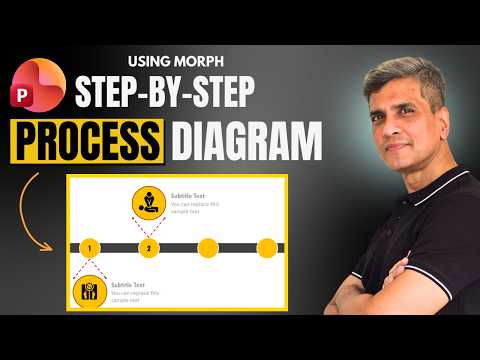
The creators emphasize clarity and pace, showing a four-step horizontal diagram that reveals steps one by one. They start with a base layout, add numbered circular elements, and then animate each step by adjusting positions and applying Morph to the duplicated slides. Consequently, the tutorial focuses on readability and smooth motion rather than flashy effects.
How the Morph transition works
At its core, the Morph transition interpolates changes between two slide states to create smooth motion. In practice, you set up a starting slide, duplicate it, then move, resize, or rotate shared objects on the duplicate; PowerPoint detects matching shapes and animates them automatically during the transition. This approach replaces manual motion-path creation and reduces the time needed to animate multiple elements.
However, Morph works best when objects are clearly defined and, where needed, given consistent names or kept ungrouped so PowerPoint recognizes them as the same items. Moreover, it supports resizing, rotation, and even 3-D-style changes when slides are arranged correctly, but it does not offer the granular control of custom animation timelines. Therefore, users must balance convenience against precision depending on their goals.
Step-by-step tutorial summary
The tutorial begins by drawing a simple horizontal baseline and placing circular nodes to represent each process step. Next, the presenter fills each node with a number and subtitle text to make the flow readable at a glance, and then duplicates the slide to prepare for animation. By adjusting the position or size of elements on the duplicated slides, each step appears to move or highlight as the presentation advances.
After animating the first step, the video repeats the process to reveal subsequent steps, illustrating how a sequence of duplicated slides can create a continuous, narrated process. Then it completes the sequence by smoothing timing and ensuring transitions look coherent across different slide advances. As a result, the final product feels like a single animated graphic rather than a set of disconnected slides.
Finally, the presenter highlights small finishing touches such as timing, object alignment, and how grouped elements behave under Morph. These details matter because they affect whether PowerPoint treats items as distinct or as parts of a single group during transition. Thus, learning to name and organize shapes pays dividends when you want consistent animation results.
Benefits and tradeoffs
Using Morph can significantly speed up slide production while producing professional-looking animations, which is ideal for busy professionals and teams. Furthermore, because the technique uses standard PowerPoint features, it remains accessible to users of Microsoft 365 and recent desktop versions without additional software. Therefore, many organizations can adopt it without changing their toolchain.
On the other hand, the simplicity of Morph brings tradeoffs: it trades fine-grained control for speed, and complex sequences that require precise timing or conditional triggers may still need manual animations or additive tools. In addition, presenters must take care not to overuse motion, because excessive animation can distract rather than clarify. Ultimately, the best use balances clarity, pacing, and audience needs.
Challenges and practical tips
One common challenge is ensuring PowerPoint recognizes the same object across slides; grouping, naming, or accidental duplication can prevent Morph from producing the intended effect. Therefore, the tutorial recommends organizing shapes logically, ungrouping when necessary, and testing each transition step as you build the sequence. This attention reduces surprises during a live presentation.
Compatibility and performance also pose considerations: older versions of PowerPoint or alternative viewers may not support Morph, and complex slides can slow rendering on low-powered devices. As a workaround, presenters can prepare a non-animated fallback slide or export the sequence as a video for sharing. Meanwhile, keeping designs clean and avoiding excessive layered elements helps maintain smooth playback.
Takeaways for presenters
In summary, the Presentation Process tutorial provides a clear, repeatable method to animate process diagrams using Morph, with a focus on simplicity and readability. By duplicating slides and adjusting shared objects, presenters can create dynamic, stepwise reveals without spending hours on manual animation. However, they should weigh the tradeoffs between speed and control, test compatibility, and use motion sparingly to support, not overshadow, their message.

Keywords
PowerPoint Morph tutorial, animated process diagram PowerPoint, PowerPoint animation tutorial, create process diagram in PowerPoint, Morph transition tutorial, easy PowerPoint Morph guide, animated flowchart PowerPoint, PowerPoint diagram animation tips