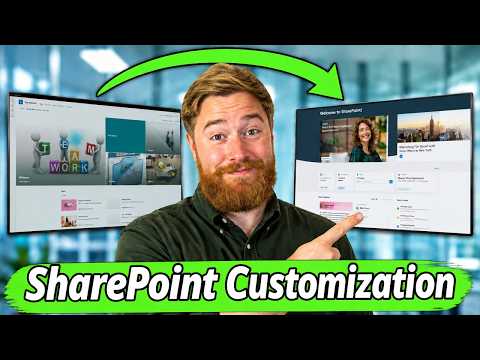
SharePoint Online: customize sites without code
SharePoint site owners can use themes, flexible sections, audience targeting and navigation tools to improve an intranet without writing code.
Key insights
- Create a site theme with brand colors, then apply it through Settings > Change the look > Theme.
- Flexible sections let authors position web parts over a background image using a grid.
- Audience targeting shows or hides navigation links; it does not secure the linked content.
- SharePoint mega menus support up to three levels of navigation.
- Creating an HTML page through the demonstrated Copilot chat requires a Copilot license; site visitors do not.
SharePoint Online site owners can customize themes, page layouts, navigation and employee tools to make an intranet more consistent and easier to use. These options matter to intranet owners and page authors who want a more tailored experience without relying only on standard layouts. Dougie Wood [MVP] demonstrates these techniques, including both native SharePoint settings and Copilot-assisted HTML pages.
What it does
SharePoint customization is broader than changing a color scheme. It can shape how a site looks, how people find content and which links appear for different audiences. The techniques range from built-in settings to pages created with HTML.
For basic branding, site owners can create a theme with their organization’s colors and select a font package available in SharePoint. Flexible sections offer more control over page composition: authors can position web parts on a grid and use a background image to create a different visual effect.
Other options focus on the employee experience. Audience targeting can tailor navigation links, while dashboards can bring together cards such as tasks, people search, recent OneDrive files and approvals. A mega menu can organize destinations into a hierarchy rather than leaving users to browse through pages one by one.
Who it is for and what you need
Site owners and page authors can use the native customization options to improve an existing SharePoint intranet. Audience targeting requires security groups to be set up first, with relevant people added to the groups that match the intended audience.
Creating an HTML page through the demonstrated Copilot chat requires a Copilot license for the employee creating it. The page can then be viewed by people in the SharePoint site without each viewer needing that license. Another route is to create an HTML page elsewhere and upload it to SharePoint.
Before setting up targeted links, decide which groups should see them. For example, a managers-only navigation link can target a Managers security group. The link’s destination still needs its own permissions, so targeting should not be treated as access control.
How it works
- To set brand colors, open the site’s settings with the gear icon and choose Site branding. Create a new theme, add the brand colors as hex values, review the color combinations, name the theme and save it.
- Apply the theme by opening Change the look, selecting Theme, choosing the saved theme and selecting Save. The same Change the look area also offers font packages to preview and apply.
- To arrange a page with more freedom, edit the page and add a Flexible section. Place web parts on its grid and adjust the section’s design or background image. The image can contribute a shape or visual backdrop behind the content.
- To target a quick link, edit the page, select the web part and open its properties. Turn on Enable audience targeting, edit the relevant link, choose the group under Audiences to target, then publish the changes. The demonstration also describes targeting links in navigation.
- To manage a dashboard, open the site settings and choose Manage dashboard. Edit it like a SharePoint page, add the cards that suit the audience and publish the changes. Available examples include approvals, tasks, events, folders and a card designer.
- To build a mega menu, choose Edit navigation. Add links or labels, then arrange them by promoting or indenting items. A label groups links without acting as a clickable destination. Save the navigation when the hierarchy is ready.
- To make a Copilot-assisted HTML page, select New and choose the HTML page option. Describe the page, optionally add a document and specify styling. After it is created, publish it and add its URL to the site navigation.
These steps address different needs: themes and fonts establish visual identity, flexible sections change page composition, and dashboards and navigation help people reach useful resources. Authors can combine them, but each element should serve a clear purpose on the site.
Limitations and alternatives
Audience targeting changes whether a link is shown, not whether someone can open the destination. If a link points to a folder or document library for a restricted audience, configure permissions on that resource as well.
Mega menus have a maximum of three navigation levels. HTML pages can be a quick way to create content, but the demonstration describes them as less rich than regular SharePoint pages. Use a standard page when the richer page experience is more important than producing a simple HTML page.
For HTML creation, Copilot chat is not the only route: an HTML file created elsewhere can be uploaded to SharePoint. Whichever customization you choose, check the page and destination permissions as well as how the navigation is organized before publishing it to employees.
Sources
Frequently asked questions
Does SharePoint audience targeting secure a link’s destination?
No. Audience targeting shows or hides links in navigation areas. Set permissions on the linked folder, library or other resource separately.
Do all SharePoint users need a Copilot license to view an HTML page?
No. The employee creating the page through the demonstrated Copilot chat needs a Copilot license, but site visitors can view the published page without one.
How many levels can a SharePoint mega menu have?
The demonstrated mega menu supports a maximum of three navigation levels.
Can I create a SharePoint HTML page without Copilot?
Yes. You can create an HTML page elsewhere and upload it to SharePoint.