- All of Microsoft
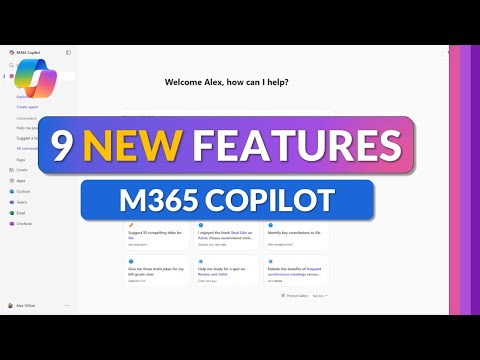
Microsoft Copilot: 9 Top 2026 Features
Principal Group Product Manager - Microsoft Education
Microsoft Copilot walkthrough: Copilot Chat, GPT upgrades, Thinking Mode, Teams, PowerPoint and OneDrive tips
Key insights
- Agent Mode and GPT-5.2: The 2026 update turns Copilot into an agent-style assistant that can run multi-step tasks across Word, Excel, PowerPoint and Outlook.
GPT-5.2 gives deeper reasoning and more accurate responses for complex workflows. - Thinking Mode selector and model choice: Users pick fast answers or deeper analysis using the Thinking Mode selector.
The new selector also lets you try different reasoning models for varied task styles and accuracy trade-offs. - Implicit grounding, Glance Card and search integration: Copilot now auto-uses open emails or highlighted text as context, reducing copy-paste errors.
Search results show a Glance Card and let you open Copilot chat directly from search for faster follow-ups. - Collaboration tools in Teams and OneDrive: You can start a Group Chat with Copilot assistance and use a floating Copilot button in OneDrive for quick document help.
PowerPoint gains on-image editing powered by Copilot for faster slide polishing during design tasks. - Chat history, Memory and Version History: Copilot remembers recent conversations and personal preferences to provide consistent follow-ups.
Version History on the Copilot page helps track changes and restore earlier outputs when you iterate on results. - M365 Copilot Premium and practical limits: Several features (image editing, some collaboration actions, and the OneDrive floating button) require the Premium license.
The video emphasizes real demos, shows where Copilot speeds work, and points out current limitations so teams can adopt features wisely.
Overview
In a recent YouTube tutorial, Mike Tholfsen walks viewers through nine new features that Microsoft rolled out for Microsoft 365 Copilot in 2026. He demonstrates each feature with practical examples, aiming for a clear, no-hype explanation of what is new, how it works, and when it proves useful. The video highlights updates across core apps such as Chat, PowerPoint, OneDrive and Teams, and explains which capabilities require the M365 Copilot Premium license. Overall, the presentation targets everyday users who want to adopt the new tools thoughtfully and effectively.
What’s Included in the Update
The nine features Mike covers include a Thinking Mode selector, the new GPT-5.2 model, version history in the Copilot page, a glance card in search results, and deeper integration of Copilot Chat into search. Additionally, he shows how to start a group chat in Teams, edits images in PowerPoint, a floating Copilot button in OneDrive, and a new Teach Module. He walks through each item with demonstrations so viewers can see the UI changes and the expected outcomes. As a result, the video gives a practical sense of where Copilot can save time and where it still needs human guidance.
Practical Demos and Everyday Use
Throughout the tutorial, Mike emphasizes real demos that show both helpful moments and limitations in context. For example, the Thinking Mode selector helps users choose between quick answers and more thorough reasoning, while GPT-5.2 aims to deliver richer responses when deeper analysis is needed. When he opens Copilot alongside an email, the tool implicitly grounds on that email so users do not have to copy and paste content, which speeds up workflows in Outlook. Likewise, the floating Copilot in OneDrive and the PowerPoint image edits simplify task flows, but Mike points out when manual adjustments remain necessary.
Tradeoffs: Autonomy Versus Control
The rollout shifts Copilot toward more autonomous, agent-like behavior, and that brings tradeoffs between convenience and oversight. On one hand, agents can perform multi-step tasks across apps, reducing repetitive work and freeing users for higher-value activities. On the other hand, increased autonomy raises governance, compliance, and accuracy concerns, so organizations must balance automated execution with approval controls and auditing. Therefore, administrators should weigh model capabilities against internal policies and risk tolerance before enabling broad agent functionality.
Model Choices and Performance Balancing
Mike highlights the new model selector that lets users choose response style and depth, which reflects an important design tradeoff: speed versus thoroughness. Selecting the fast mode gives quick responses for routine queries, while choosing the deeper thinking mode or GPT-5.2 yields more detailed analysis but can take longer and consume more compute. Additionally, the platform now supports alternative reasoning models, offering diversity in output style but also requiring users to understand different model behaviors. Consequently, teams should experiment with settings for their specific needs and monitor outputs closely to avoid over-reliance on any single model.
Challenges in Adoption and Governance
Adopting these new features presents both technical and human challenges, particularly around training, licensing and change management. Several capabilities in the demo, such as starting group chats in Teams, advanced PowerPoint image editing, and the OneDrive floating button, require a M365 Copilot Premium license, which introduces a cost-benefit decision for organizations. Moreover, the improved memory and chat history integration means admins must plan retention rules and data access policies to protect sensitive information. Thus, organizations need a roadmap that pairs pilot projects with governance guardrails to scale safely.
Teach Module and Personalization
The new Teach Module aims to help users shape Copilot’s behavior for specific tasks, which supports more relevant outputs over time. By teaching the agent preferred styles, templates or domain rules, teams can reduce repetitive corrections and improve consistency across documents and communications. However, this personalization depends on accurate training data and continual oversight to avoid embedding outdated or biased practices. Therefore, teams should combine automated training with periodic reviews to maintain quality and alignment with evolving standards.
Next Steps for Teams and Individuals
Mike’s tutorial closes with pragmatic advice: try the new features on small, controlled tasks first and document what works before expanding usage. As users test the Thinking Mode selector, Copilot Chat integrations and other updates, they should track productivity benefits and any error patterns that emerge. In parallel, IT and security teams must update policies to manage agent actions, model selection, and data grounding to ensure safe and useful deployment. In this way, organizations can adopt the improvements while staying in control of outcomes.
Conclusion
Overall, the video offers a practical, balanced walkthrough of nine meaningful updates to Microsoft 365 Copilot that promise to reshape routine work. While the new capabilities boost automation and convenience, they also require thoughtful governance, training, and cost decisions—especially where premium licensing applies. By testing features, monitoring results, and aligning policies with business needs, teams can capture productivity gains while managing risks. Thus, Mike Tholfsen’s tutorial serves as a useful starting point for organizations planning a measured rollout of Copilot’s 2026 enhancements.

Keywords
Microsoft Copilot 2026 features, Copilot new features 2026, Microsoft 365 Copilot updates 2026, Copilot AI productivity tools 2026, Copilot integrations Teams Office 2026, Copilot security privacy improvements 2026, Copilot generative AI enhancements 2026, Copilot workflow automation 2026