Windows 11: reset your PC and choose what to keep
Ex-Microsoftie with over 10 years experience
Windows 11 users can reinstall the operating system while keeping personal files or removing everything from the device.
Key insights
- Find the reset option at Settings > System > Recovery > Reset PC.
- Keep my files preserves personal files but removes apps and settings.
- Remove everything deletes personal files, apps, accounts and settings.
- Cloud download gets a fresh copy of Windows; local reinstall uses files already on the PC.
- Back up important files and locate the BitLocker recovery key before starting.
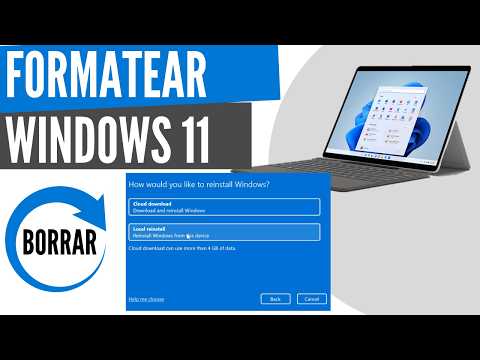
Windows 11’s Reset this PC reinstalls the operating system and lets you keep personal files or remove everything from the device. It can help address system problems or prepare a PC for another user. Aldo James published a YouTube Short about resetting Windows 11; this guide covers the choices and precautions for the process.
What it does
Reset this PC returns much of Windows’ system configuration to an initial state. The Keep my files option retains personal files but removes installed apps and settings. Remove everything deletes personal files, apps, accounts and settings, making it the more suitable choice when handing the PC to someone else.
During the reset, Windows also asks how to reinstall the operating system. Cloud download retrieves a copy of Windows, while local reinstall uses installation files stored on the device. Cloud download can be useful if local Windows files may be damaged; local reinstall uses less internet data.
Who it is for and what you need
This built-in recovery option is for Windows 11 users troubleshooting a PC or preparing it for another person. Before proceeding, back up important documents to an external drive or OneDrive. A reset can remove apps and settings, so plan to reinstall apps and restore files as needed.
If the device uses BitLocker encryption, find the recovery key first. Windows may request it during the reset, particularly when you start from the Windows Recovery Environment. On a work or school device, follow your organization’s data-removal policies.
How it works
- Open Start, then go to Settings > System > Recovery.
- Under Recovery options, select Reset PC.
- Choose Keep my files or Remove everything.
- Select Cloud download or Local reinstall.
- Review the options, confirm, and follow the on-screen instructions.
The PC will restart several times during the process. Do not manually turn it off while the reset is underway. If Windows does not start normally, use Windows Recovery Environment: from the sign-in screen, hold Shift, select Power > Restart, then choose Troubleshoot > Reset this PC.
Limitations and alternatives
A reset is not the same as a clean installation from a USB drive; a clean install provides a more complete wipe and reinstall. If an issue began after a Windows update, the Recovery page may offer Go back, which can be preferable while that option remains available.
Keeping personal files does not preserve installed apps or settings. Before choosing Remove everything, review any additional drive-cleaning options shown during the process, especially before transferring ownership. Afterward, complete Windows setup, install updates, reinstall apps and restore files from your backup.
Sources
Frequently asked questions
Where is Reset this PC in Windows 11?
Go to Settings > System > Recovery, then select Reset PC under Recovery options.
Does resetting Windows 11 keep my files?
Choose Keep my files to retain personal files. Windows removes apps and settings; back up important files before resetting.
What is the difference between cloud download and local reinstall?
Cloud download retrieves a copy of Windows, while local reinstall uses installation files stored on the PC. Local reinstall uses less internet data.
Can I reset Windows 11 if it will not start?
From the sign-in screen, hold Shift, select Power > Restart, then choose Troubleshoot > Reset this PC in Windows Recovery Environment.