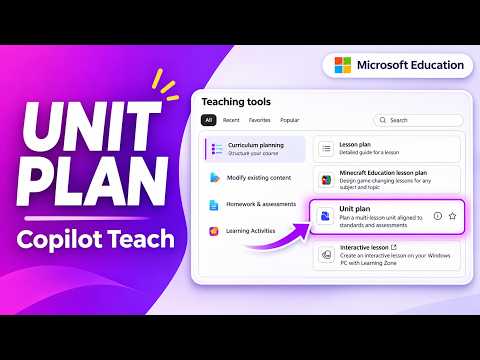
Copilot Teach: create and use unit plans
Principal Group Product Manager - Microsoft Education
Teachers can use Copilot Teach to draft standards-aligned, multiweek unit plans and build connected lessons and quizzes.
Key insights
- Open Teach from the Copilot experience at microsoft365.com using an educator or staff account.
- Set the unit duration, lessons per week and lesson length before generating a draft.
- Add standards, essential questions and an assessment strategy to guide the plan.
- Create lesson plans and quizzes from individual parts of a saved unit plan.
- Edit, reorder, regenerate or export the unit plan to Word.
Microsoft Copilot Teach can turn a teaching topic into a structured, multiweek unit plan, with suggested lessons and assessments organized by week. The workflow is aimed at educators who want to plan a sequence of instruction and then develop its individual lessons and quizzes. Mike Tholfsen demonstrates the process in a YouTube video.
What it does
Unit Plans extends planning beyond a single lesson: you provide a title and description, set a schedule, and can add supporting material, standards, essential questions and assessment preferences. Copilot Teach generates an editable draft that organizes the unit into weeks and suggests lessons and assessments. In the demonstration, the plan includes an overview, vocabulary, selected standards and lesson details such as objectives, topics and duration.
The plan is a starting point for further work, not a fixed document. You can edit its contents, reorder sections, copy text, or regenerate parts of the draft. Saving the plan adds a table of contents that lets you navigate to sections, and the plan can also be exported to Word.
Who it is for and what you need
The workflow is designed for teachers planning a unit of instruction. The demonstrated starting point is microsoft365.com, signed in with an educator or staff account, followed by the Teach module and its Curriculum planning area. The walkthrough uses an example unit on the American War of Independence.
For K–12 planning, the standards picker can be used to select standards by location, grade, subject and strand. In the example, the teacher selects Washington State, Grade 10, Social Studies and History before choosing relevant standards. The teacher also uploads a Word document as grounding material; the walkthrough notes that a PDF can be used as well.
How it works
- Open the unit planner. Sign in at microsoft365.com, open Copilot, select Teach, then go to Curriculum planning and choose Unit plan.
- Describe the unit. Enter a title and description. Add grounding material if you want the plan to use an uploaded document as additional context.
- Set the schedule. Choose the unit duration, lessons per week and lesson length. The example uses four weeks, two lessons per week and 45-minute lessons.
- Choose curriculum and assessment details. For K–12, use Add standards to select applicable standards. Under More options, add essential questions and choose an assessment approach: no assessments, an assessment in every lesson, or a custom strategy.
- Generate and review. Select Generate, then check the resulting overview, standards, weekly sequence, lesson suggestions and assessment points. Expand or collapse weeks to inspect the details or see a shorter outline.
- Save and develop the plan. Save the unit plan to access its table of contents and the actions for creating lesson plans or quizzes from its sections. You can also export the plan to Word.
- Add a lesson or quiz. Choose Create lesson plan or Create quiz beside a relevant section. The demonstrated lesson workflow carries objectives and standards into lesson creation. For a quiz, the plan supplies context such as objectives, topics and standards; you can adjust settings such as question count and duration. Generate the item, review it, and choose Add to unit plan.
After adding these items, the saved plan displays the connected lesson document or quiz under its relevant section. You can repeat the process for other parts of the unit, then return to the overall plan to review its structure.
Limitations and alternatives
The generated unit plan, lesson and quiz are editable drafts. Review the content, standards mapping, pacing and assessment choices before using them with students. The demonstration shows controls for editing and regenerating content, but it does not establish that generated material is ready to use without teacher review.
Some options depend on the planning context: the standards picker is described for K–12, and the available choices shown in the walkthrough include a location, grade, subject and strand. For a portable copy, export the plan to Word. You can also save the unit plan and develop connected lesson plans and quizzes within Teach rather than exporting first.
Sources
Frequently asked questions
How do I create a unit plan in Copilot Teach?
Open Teach from Copilot at microsoft365.com, go to Curriculum planning and select Unit plan. Enter the unit details, set its schedule, choose any standards and assessment options, then generate and review the draft.
Can Copilot Teach create lessons and quizzes from a unit plan?
Yes. After saving a unit plan, choose Create lesson plan or Create quiz beside a section. Review the generated item and select Add to unit plan to attach it.
Can I export a Copilot Teach unit plan?
Yes. The unit plan can be exported to Word. The saved plan also provides a table of contents for navigating its sections.
Can I add curriculum standards to a Copilot Teach unit plan?
For K–12 planning, use Add standards and select standards by location, grade, subject and strand. The selected standards can guide the generated unit plan.