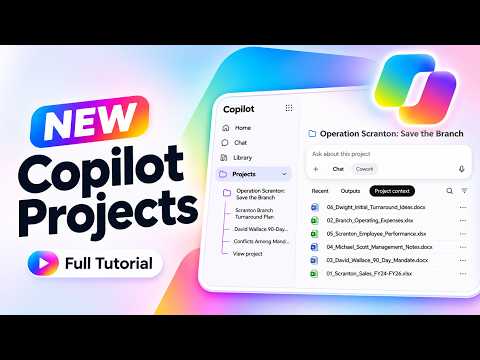
Microsoft Copilot Projects: organize chats and files
Principal Group Product Manager - Microsoft Education
Copilot Projects keeps project chats, reference files and instructions together so users can continue work with shared context.
Key insights
- Create a Project from Projects in the left navigation, then name it and choose a color.
- Add reference files from OneDrive or upload files, and remove them from the Project when they are no longer needed.
- Project instructions can set a recurring role, response style and constraints for Copilot.
- Existing chats can be added to a Project, and new chats started there become part of the Project.
- The demonstration uses Copilot Premium for creating Word and PowerPoint files; Cowork also requires Premium and additional credits.
Microsoft Copilot Projects groups related chats, files and custom instructions in a workspace so Copilot can use project context across conversations. It matters to people using Copilot for continuing research, planning, analysis or drafting who want to avoid re-entering background information. Mike Tholfsen demonstrates a setup with reference files, existing chats and generated Office documents in a YouTube walkthrough.
What it does
A Project gives ongoing work a named home in Copilot. Rather than keeping each question in a separate, context-free conversation, users can bring together reference files, instructions and related chats. Copilot can then draw on the project context when responding to new questions.
In the demonstration, the Project is set up for a fictional branch turnaround effort. Its instructions tell Copilot what role to take, what goal to focus on, which files to use as primary evidence and what constraints to follow. The user then asks different questions about operating performance, spending decisions and conflicts between priorities. Those prompts rely on context added earlier, rather than restating the full background each time.
Projects can also connect discussion with deliverables. The walkthrough uses project information to draft a Word plan and a PowerPoint presentation. This makes the Project useful as an organizing layer for ongoing work, not just as a place to ask one question.
Who it is for and what you need
Projects are suited to individual users managing work that spans multiple conversations, such as analysis, planning, research and document drafting. A useful starting point is a clearly defined workstream, a few relevant reference files and instructions that explain the desired response style and any rules Copilot should follow.
The demonstrated setup is in Copilot at microsoft365.com, where Projects appears in the left navigation. Projects are generally available in the Microsoft Copilot app. The demonstrated document and presentation creation is associated with Copilot Premium in the walkthrough; using Cowork requires Premium and additional credits.
For a Project that uses business documents, choose reference material that is relevant to the task and write instructions that make the intended use clear. For example, users can ask Copilot to cite filenames when possible, distinguish recurring from one-time effects, or avoid recommendations that violate stated constraints.
How it works
- Open Copilot and select Projects in the left navigation. Choose the option to create a Project, enter a name, select a color and create it.
- Open the Project’s three-dot menu and choose Edit instructions. Add recurring guidance for the work, then save it. Keep instructions focused on the project’s purpose, evidence, audience and constraints.
- Use the plus button in the Project to add reference files. In the walkthrough, files can be selected from OneDrive or uploaded. Remove a file using its remove icon if it no longer belongs in the Project.
- Add relevant existing conversations if needed. The demonstration selects an existing chat and adds it to the Project. Starting a new chat from the Project also associates that conversation with it.
- Ask questions that refer to the Project’s context. For example, request an analysis of the supplied files, ask for options that meet stated requirements, or check a proposed plan against explicit constraints. Copilot can use the files and instructions already associated with the Project.
- When a written deliverable is needed, ask Copilot to draft it using the Project information. The demonstration creates a Word document and a PowerPoint deck, which can be viewed in Copilot and opened in their respective Office apps. Generated files are stored in OneDrive, in the Copilot Creations folder, according to the walkthrough.
- Use the Project’s menu to edit its name or color, archive it, or restore it later. Archived Projects appear in the Archived view in the demonstration.
Specific prompts help make the output easier to review. Ask for quantified findings only when the evidence supports them, request citations to source files, and specify the audience and format for a document or presentation.
Limitations and alternatives
Projects are an organizing and context feature; they do not replace the need to check Copilot’s answers against the underlying files. A response that cites a source still needs review, especially when it includes financial estimates, recommendations or claims that affect a business decision. Clear instructions can guide Copilot, but users should assess the output before sharing or acting on it.
Feature access can differ by capability: the walkthrough distinguishes ordinary Project chats from creating Word and PowerPoint deliverables, which it associates with Copilot Premium. Cowork is presented as an additional option requiring Premium and extra credits, so users who do not have those capabilities can still use the demonstrated Project setup for chats and context.
Projects can be archived and restored, which helps keep completed work out of the active list without removing it from view permanently. For a team deliverable, the demonstration shows opening the generated file in Word or PowerPoint; it does not demonstrate a shared team Project. Check that the correct reference files and instructions are attached before relying on a new conversation to produce work.
Sources
Frequently asked questions
How do I create a Project in Microsoft Copilot?
Select Projects in the left navigation, create a new Project, enter a name, choose a color and create it. You can then add instructions and reference files.
Can I add existing chats to a Copilot Project?
Yes. The demonstrated workflow opens the existing chat list, selects a conversation and adds it to the Project. New chats started from the Project are also associated with it.
Can Copilot Projects create Word documents and PowerPoint presentations?
The walkthrough demonstrates creating both from Project context and associates those capabilities with Copilot Premium. The generated files are stored in OneDrive in the Copilot Creations folder.
What do I need to use Cowork with a Copilot Project?
The walkthrough says Cowork requires Copilot Premium and additional credits.