- All of Microsoft
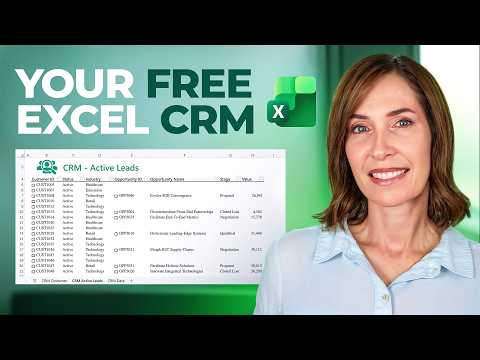
Excel CRM: Create a No-Code Customer Hub
Microsoft expert: build no-code CRM in Excel with Power Query custom types for searchable auto-updating customer lists
Key insights
- Power Query and custom data types: Convert separate customer sheets into linked, searchable records in Excel by using Power Query to create custom data types that store contacts, interactions, and opportunities.
This requires no coding, add-ins, or third-party apps and keeps data inside Excel for Microsoft 365. - No-code simplicity and familiar interface: Use sheets and fields you already know (name, email, stage, value) to track pipeline and customer interactions without learning new software.
Teams adopt it quickly because it stays in Excel and looks like a normal workbook. - Copilot and Agent Mode: AI features in Excel can analyze data, generate summaries, and run workflows, helping you find active leads and update records automatically.
These agents can connect insights from Excel to enterprise systems for smarter decision making. - Contacts and Opportunities setup: Create separate sheets for contacts and deals, import and transform data with Power Query, map statuses and stages, and convert rows into custom data types for fast searching and reporting.
Set owners and consistent field names to keep records reliable. - Data hygiene and scale: Clean duplicates, standardize entry formats, and assign a data owner to avoid errors; this approach works best for small teams or low data volumes and can scale by linking to systems like Dynamics 365 when growth demands it.
AI helps reduce manual cleanup but does not replace good data practices. - Automate workflows and get real-time insights: Use Power Query plus Copilot to build live lead lists, pipeline reports, and notifications that update as your workbook changes.
Start with a simple template and iterate—automation reduces repetitive tasks and keeps focus on closing deals.
Video Overview and Context
The newsroom reviewed a recent YouTube tutorial by Mynda Treacy (MyOnlineTrainingHub) [MVP], which demonstrates how to turn Excel into a lightweight CRM using Power Query custom data types. In the video, Mynda combines three separate customer datasets—contacts, interactions, and opportunities—into a single, searchable system. She emphasizes that no coding, add-ins, or third-party apps are required and that the method runs in Excel for Microsoft 365. Consequently, the approach targets small teams and users who prefer staying inside a familiar spreadsheet environment.
The tutorial walks through the steps to import, transform, and link records so that customer details and active opportunities update automatically. Moreover, Mynda highlights how custom data types in Power Query let you nest tables and create lookup-like behavior without formulas scattered across sheets. Thus, the result approximates basic CRM features while keeping everything in one workbook. However, this setup is not a full replacement for enterprise CRM platforms.
How the Solution Works
First, Mynda instructs viewers to structure separate sheets for Contacts, Interactions, and Opportunities and then load them into Power Query as tables. Next, she converts related records into custom data types that act like compact, linked entities inside cells, making details retrievable with simple table operations. As a result, you can click into a cell that represents a customer and see nested rows for interactions or opportunities without switching files. This technique reduces formula complexity while preserving the flexibility of spreadsheets.
Furthermore, the video shows how to build dynamic reports that list active leads and summarize pipeline value automatically. Mynda also demonstrates refreshable queries so that incoming updates propagate through the workbook, which helps keep dashboards current. Therefore, teams that regularly import CSV exports or copy/paste lists can get near real-time visibility with minimal manual effort. Yet, the system depends on disciplined data structure to remain reliable.
Benefits and Tradeoffs
The main benefit is simplicity: users gain basic CRM functions without purchasing software or learning new platforms, and they retain full control over workbook design. Additionally, since the method uses built-in Excel features, teams avoid vendor lock-in and can customize fields and reports exactly as needed. However, there are tradeoffs between convenience and scale, because spreadsheets handle modest volumes well but struggle with very large datasets and concurrent multi-user edits.
Moreover, integrating AI features like Copilot or agent-based automation can add intelligence and reduce repetitive tasks, yet these capabilities introduce new costs and governance questions. For small operations, the balance often favors the spreadsheet approach, but for larger sales organizations the lack of formal workflow, permissions, and audit trails may become limiting. Consequently, teams should weigh short-term speed against long-term maintainability when choosing this path.
Challenges and Practical Limits
Despite its strengths, the solution presents several operational challenges that Mynda flags implicitly through practical tips. Data duplication, inconsistent record keys, and manual entry errors quickly degrade reporting accuracy, so careful use of unique identifiers and validation rules is essential. In addition, version control and collaboration become tricky when multiple people edit a single workbook, since Excel desktop files can create conflicting copies if not managed through a cloud service.
Security is another consideration: sensitive customer data stored in spreadsheets must be protected, and role-based access in a true CRM is hard to mimic reliably inside an Excel file. Therefore, organizations handling regulated data or large sales teams should plan migration pathways to dedicated CRM systems once needs exceed what a workbook can safely support. Finally, automating imports and ensuring refresh schedules work regularly require a modest amount of ongoing maintenance.
Best Practices and Takeaway
Mynda’s practical recommendations include starting with clean, normalized tables, assigning a single owner for data hygiene, and using Power Query to centralize transformation logic rather than spreading formulas across sheets. Furthermore, establishing clear naming conventions and refresh procedures reduces drift and keeps reports trustworthy. For teams that need more robust workflows later, she suggests preparing data schemas that can be ported to a CRM with minimal rework.
In conclusion, the video offers a compelling, no-code path to build a functional CRM inside Excel, and it works particularly well for small teams or early-stage businesses. Nevertheless, readers should balance ease and cost savings against scalability, security, and collaboration needs. Ultimately, this approach can serve as an effective interim solution, while more formal CRM platforms remain the better option for complex enterprise requirements.

Keywords
Excel CRM, Excel CRM template, build CRM in Excel, no-code CRM Excel, Excel customer management, Excel contact manager, Excel CRM tutorial, small business CRM Excel