- All of Microsoft
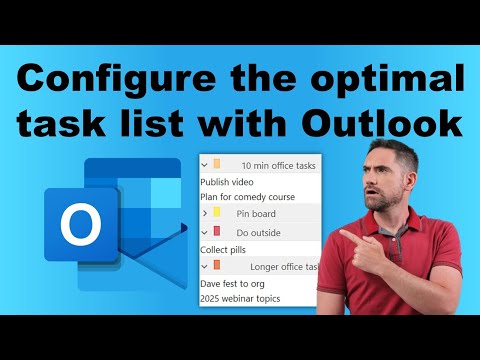
Productivity with These Outlook and ToDo Setup Tips
Master Outlook for Efficient Task Management: Multi-Select, No Deadlines, Easy Email Conversion.
Key insights
- Flexibility of Outlook: The video emphasizes the customizability of Outlook for managing tasks, highlighting that it doesn't require tasks to have a due date, which many other task apps focus on.
- Features to Enhance Productivity: Outlook's task management includes abilities like multi-select, snooze, categorizing by type rather than deadline, and an easy method for converting emails to tasks.
- No Due Date Pressure: The system described avoids the pressure of deadlines which can make task lists seem overwhelming and meaningless.
- Exclusivity to Classic Outlook: The method shared is specific to the Classic Outlook for Windows and isn't compatible with Outlook for Mac, Online, or the New Outlook for Windows.
- Usefulness of Video Breakdown: Provides a timeline for viewers, starting with an introduction, then moving on to practical steps like adding the taskbar, creating categories, and settings adjustments to manage tasks efficiently.
Outlook and ToDo the perfect due
The instructional video provides a comprehensive guide on setting up an efficient task management system using Microsoft Outlook, particularly the classic version for Windows. The presenter shares a personal method used for nearly a decade, offering viewers insights into making their task management experience more tailored and less overwhelming. Rather than focusing on deadlines, the system categorizes tasks by type, utilizing groupings suggested by Think Productive, which helps maintain a clear and functional to-do list. This approach not only simplifies task management but also enriches the user's productivity without the stress of impending deadlines. The features discussed, such as converting emails directly into tasks and categorizing them effectively, are particularly beneficial for users looking to streamline their workflow and manage their time more efficiently.
In the latest video from David Benaim, he explores the often overlooked flexibility and utility of Outlook for managing tasks. Unlike many task management applications that prioritize deadlines, Benaim’s approach with Outlook focuses on a more fluid organizational scheme. This, he argues, allows for greater adaptability and relevance to real-world uses, where not all tasks require strict deadlines.
He begins by pointing out a common issue with generic task apps: they often overwhelm the user with future-due tasks that diminish the tool's value. Benaim has developed a system, which he's refined over nearly a decade, using Outlook because of its superior customization options. This approach doesn’t just handle tasks effectively; it incorporates them in a way that aligns with day-to-day productivity without adding unnecessary pressure.
The main features Benaim highlights in his system include the ability to multi-select tasks and snooze them as needed, which helps in prioritizing immediate needs over less pressing ones. More importantly, his method emphasizes categorizing tasks by type rather than deadline. He recommends specific groupings that enhance efficiency and suggests converting emails directly into tasks to save time and ensure no action item gets lost in the shuffle.
- Multi-select and snooze capabilities allow for better task prioritization.
- No undue pressure from looming deadlines due to categorization by task type.
- Efficient conversion from emails to tasks ensures seamless integration into daily workflows.
However, it's important to note that his recommendations are primarily based on the Classic version of Outlook for Windows. Current iterations of Outlook for Mac, Online, or the new Outlook for Windows unfortunately don’t support all the functionalities he discusses. Likewise, Microsoft To Do, which is another task management tool offered by Microsoft, isn't currently compatible with these features either.
The video also includes a brief tutorial on how to integrate these features into your workflow in Outlook, starting with the addition of the taskbar and the creation of categories. Benaim thoroughly explains which settings to adjust to maximize the usability of the task list and provides insights into making an email into a task—a particularly useful feature for those who manage most of their professional communications through email.
This approach not only simplifies task management but also enhances general productivity by reducing the clutter often associated with traditional task applications that are overly reliant on deadlines. The customization options that Outlook offers make it a robust tool for anyone looking to improve their task management system.
Expanding on Outlook's Task Management Capabilities
Outlook remains a powerful tool for more than just email management; its capabilities in task management are robust yet often underutilized. David Benaim’s video sheds light on customizing Outlook for a more effective task management system. By using features like multi-select, snooze, and the conversion of emails into tasks, Outlook can be transformed into a dynamic tool that aligns more closely with individual workflow needs.
As traditional task management applications continue to focus heavily on deadlines, Benaim’s method offers a refreshing alternative that prioritizes efficiency and adaptability. The ability to categorize tasks by type rather than by deadline helps users focus on what’s truly important, thereby enhancing productivity and reducing the stress of a cluttered task list.
However, the limitation remains that these advanced functionalities are not yet available across all versions of Outlook, which points to a potential area for further development by Microsoft. Users of Outlook for Mac or the online versions are left awaiting these enhancements. The evolution of Outlook underscores the ongoing adaptations that Microsoft continues to make in order to meet user demand for more finely-tuned and flexible tools within its suite of applications.
Ultimately, anyone looking to overhaul their approach to task management should consider exploring Benaim’s strategies within Outlook, especially for those already embedded within the Microsoft ecosystem. This method provides a comprehensive, pressure-free way to manage tasks that cater to the nuances of modern professional activities.

People also ask
## Questions and Answers about Microsoft 365"What is the best way to organize tasks in Outlook?"
[Begin Answer] As a Microsoft expert, I suggest leveraging Outlook's task features such as categorizing tasks, setting up due dates, and using task lists. Organizing tasks by categories allows for a visually structured approach, while setting reminders ensures that no deadline is missed. [End Answer]"What would be the best way to Prioritise tasks using Microsoft Outlook?"
[Begin Answer] To prioritize tasks within Microsoft Outlook, I recommend utilizing the priority setting which allows tasks to be marked as 'Low', 'Normal', or 'High'. This ensures that important tasks are readily visible and can be addressed accordingly. Additionally, color-coding tasks and using the flags feature can further enhance the prioritization process. [End Answer]"Is Outlook good for task management?"
[Begin Answer] Yes, Outlook is highly effective for task management. It integrates seamlessly with other Microsoft 365 tools, providing a comprehensive platform to manage daily tasks with features like task creation, categorization, delegating tasks, and tracking progress. This integration enhances productivity and collaboration across teams. [End Answer]"How to organize Outlook efficiently?"
[Begin Answer] To organize Outlook efficiently, streamline your inbox with folders and rules for automatic sorting of incoming emails. Utilize the search folders to quickly access important emails and archive old messages to keep the inbox clutter-free. Customizing the view and utilizing the calendar and task list side-by-side can also enhance efficiency. [End Answer]
Keywords
Outlook task setup, Outlook productivity tips, managing tasks in Outlook, Outlook task organization, best Outlook features, how to use Outlook for tasks, improve task management Outlook, Outlook tasks tutorial