- All of Microsoft
- Windows
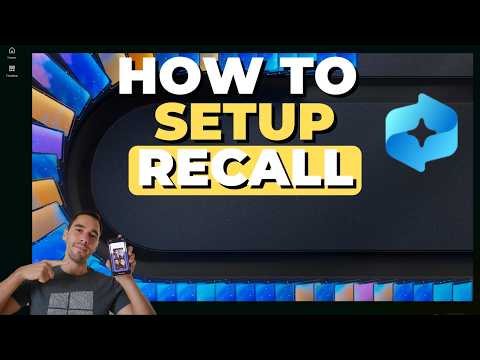
Windows 11 Recall: Quick Setup Guide
Ex-Microsoftie with over 10 years experience
Microsoft expert guide to Recall on Windows eleven: setup, navigation, settings and Microsoft To Do integration
Key insights
- Recall
Microsoft’s opt-in feature captures periodic screen snapshots and indexes them so you can search and replay things you saw or did.
It runs on Copilot+ PCs and needs a recent Windows update (April 2025 preview or later) to work. - Snapshots
Recall saves window contents, selected text, and metadata as local snapshots by default.
You can pause capturing, export snapshots, or delete local copies; exported or shared copies stay outside Windows deletion. - Enable & Use
Turn on Recall in Settings > Privacy & security > Recall & snapshots and give consent at first launch.
Open the Recall app or use the system tray icon to search, replay activity, or use the Click To Do option. - Reset & Remove
Reset Recall from Settings > Privacy & security > Recall & snapshots > Advanced to delete local snapshots (Windows Hello confirmation required).
To remove Recall completely, disable the feature under “Turn Windows features on or off” and restart; removal deletes local snapshots too. - Admin controls
On managed devices Recall is removed by default until IT allows it; admins must enable policies for users to turn it on.
IT can manage deployment with PowerShell, Group Policy, CSP or Intune and set app filters to exclude sensitive apps from snapshots. - Privacy & Security
Recall is designed as local and opt-in, with pause, reset, and export controls, but it has sparked privacy concerns about continuous screenshots.
Exclude sensitive apps and plan policies for managed environments, and remember exported or shared images won’t be deleted by a local reset.
Overview of the video
In a concise how-to video, Aldo James walks viewers through setting up Recall on Windows 11, explaining navigation and the most important settings. He times the guide so users can jump to key moments, and he demonstrates enabling, pausing, and resetting the feature. Moreover, James frames the tool as a productivity and accessibility aid that lets users search and replay on-screen activity. As a result, the video serves both new users and IT professionals who need a clear, practical walkthrough.
What Recall does and how it works
Recall periodically captures snapshots of your screen, indexes them locally, and lets you search with natural language to retrace steps. James shows that snapshots include window contents, selected text, and metadata, which together make later search and playback more useful. Furthermore, the feature is opt-in by default on personal systems and off or removed on many managed devices, which affects how organizations must plan deployment. Consequently, users should understand what gets stored and how the index works before turning the feature on.
James also emphasizes that the experience relies on recent Windows updates and on Copilot+ compatible hardware for full functionality. He demonstrates how snapshot capture happens in the background and how the Recall app surfaces results, which helps viewers see the practical benefit. However, he clarifies that exported or shared snapshots are not removed by a local reset, a critical detail for privacy-conscious users. Therefore, viewers need to manage exports and any third-party copies carefully.
Step-by-step setup and daily controls
The video explains how to enable Recall via Settings > Privacy & security > Recall & snapshots and describes the first-run prompts that request consent. James walks through pausing save operations from the system tray icon and shows the quick pause options like “Pause until tomorrow” for immediate privacy control. He also demonstrates how to reset the feature, which requires Windows Hello and deletes local snapshots but not exported copies. As such, the process balances convenience with a degree of safeguard, yet leaves users responsible for exported material.
Additionally, James covers full removal through Windows features, which uninstalls Recall and deletes local data after a restart. He notes that admins can use PowerShell and Group Policy to enable or remove the optional package, giving IT teams deployment options. In this way, the video provides both consumer-level steps and information for enterprise settings. Consequently, the guide suits a broad audience seeking practical setup directions.
Privacy, security, and administrative options
James addresses the core privacy tradeoffs by showing that snapshots remain local by default and that saving is always opt-in; nevertheless, continuous capture raises concerns for some users. Moreover, he highlights that administrators can block installation on managed devices, enforce exclusions for sensitive apps, and set policies to avoid capturing banking or credential screens. This administrative control is important because organizations must balance employee productivity against data handling risks. Therefore, IT teams should evaluate policy settings and app filters before enabling Recall organization-wide.
He also explains the limits of deletion: a reset removes local snapshots but not any copies users exported or uploaded elsewhere, which creates an incomplete deletion scenario. Meanwhile, James points out that filters and app-exclusion lists mitigate some risks, yet they require careful configuration and testing. In practice, administrators face the challenge of keeping filters up to date as new apps and workflows appear. Consequently, maintaining a secure deployment will demand ongoing attention and governance.
Tradeoffs, challenges, and recommended practices
The video encourages viewers to weigh convenience against privacy: while Recall speeds retrieval of past content, it also increases the surface area for accidental exposure. James suggests pausing capture in sensitive contexts and using reset when handing off devices, which are practical mitigation steps. Additionally, he advises IT teams to use Group Policy or Intune settings to control availability and to apply app-exclusion lists where appropriate. Thus, the best practice combines thoughtful user education with technical controls to reduce risk.
James also discusses deployment challenges such as compatibility with older updates and the need for Copilot+ hardware features for full functionality. He recommends that organizations test the feature in a controlled group and document any interactions with other privacy tools. Moreover, he stresses exporting backups only when necessary and tracking where data leaves the local device. As a result, his guidance balances hands-on tips with strategic planning for secure use.
Conclusion and key takeaways
Overall, Aldo James delivers a clear and practical guide to setting up and managing Recall on Windows 11, with useful demonstrations of enabling, pausing, resetting, and removing the feature. He highlights both the productivity benefits and the privacy tradeoffs, and he points viewers toward administrative controls for enterprise deployment. Therefore, the video works well as an introductory resource for individuals and IT teams who want to evaluate Recall thoughtfully. In sum, James’ walkthrough helps viewers make informed choices while underscoring the need for careful configuration and ongoing oversight.
Keywords
setup Recall Windows 11, enable Recall on Windows 11, Microsoft Recall Windows 11 setup guide, how to use Recall Windows 11, configure Recall feature Windows 11, Recall app tutorial Windows 11, Recall privacy settings Windows 11, troubleshoot Recall Windows 11