- All of Microsoft
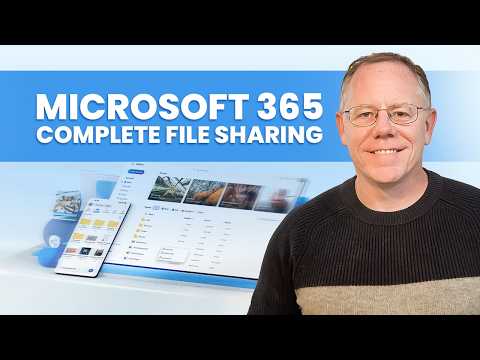
Microsoft 365: File Sharing Explained
Content Creator & former Microsoft Product Manager
Control OneDrive Outlook Teams SharePoint file sharing, change permissions and request access with Microsoft guidance
Key insights
- OneDrive core sharing: Use OneDrive as the main place to create and manage shared files.
Share directly from Word, Excel, PowerPoint, or OneNote for a consistent experience across apps. - Hero link (unified link): Each file can use one main link that controls access instead of many different links.
Change that link’s permissions later to restrict or expand who can view or edit the file. - Manage Access: The Share dialog and Manage Access views are combined into one interface so you see who has access and what they can do.
Update permissions quickly and see changes in real time. - Bulk permission management: Select multiple people or groups at once to change or remove access.
This speeds up cleanup when teams change or when people leave. - Named additional links: Create extra links with clear names for special uses, like "Client Review" or "Team Drafts."
Named links help track why a link was made and who should use it. - Group libraries, request access, and Copilot: Use Document Libraries in Teams, SharePoint, and Outlook to store team files with shared controls.
Users can request access if a file wasn’t shared with them, and AI tools can add a short summary to sharing notifications to help recipients know what’s inside.
Video Snapshot: What Kevin Stratvert Demonstrates
Kevin Stratvert's recent YouTube video walks viewers through practical file sharing in Microsoft 365, focusing on OneDrive, Outlook, Teams, and SharePoint. The video, presented with clear step-by-step demonstrations, shows how to set and later change user permissions for shared files. Moreover, the host explains how to request access when a file wasn’t shared directly and how to work with group document libraries. This guide is useful for both everyday users and IT professionals looking to tighten sharing controls.
First, the video emphasizes using OneDrive as the central tool for sharing because it offers the most consistent controls across the Microsoft ecosystem. Next, it highlights sharing directly from Office apps like Word and Excel, and how those methods tie back to the same sharing model. Finally, the presenter points out the practical benefits of a single, unified approach to file links across apps, which reduces confusion.
Core Sharing Tools and the Unified Link
At the heart of the presentation is the concept of a unified sharing link, often referred to as the hero link. Rather than managing multiple links for the same file, this approach uses one link that you can update or revoke, which simplifies both day-to-day collaboration and later audits. As a result, users can change permissions centrally without hunting down legacy links scattered across messages and chats.
However, this centralization brings tradeoffs. While it reduces link clutter and improves visibility, it also concentrates control into a single object, which means errors or misconfigurations can have wider impact. Therefore, the video recommends careful naming and occasional audits to keep sharing under control, especially for files that need extra protection.
Managing Access: Practical Steps and Tips
Kevin walks through the Manage Access controls and shows how to change permissions for individuals or groups after a file is shared. He demonstrates bulk permission changes, which are efficient for administrators who need to revoke access from many people at once. Moreover, he explains the difference between view and edit permissions and when to apply time-limited access to reduce long-term exposure.
Nevertheless, these capabilities introduce governance challenges. Bulk updates save time, yet they require discipline to avoid accidentally removing necessary access or granting overly broad rights. Therefore, teams should pair these tools with clear policies and regular reviews to strike the right balance between productivity and security.
Group Document Libraries in Teams, Outlook, and SharePoint
The video also covers group document libraries, which integrate tightly with Teams channels, SharePoint sites, and Outlook group mailboxes. Stratvert shows how these libraries provide shared storage tailored to team workflows, allowing consistent access and versioning across the apps. Consequently, teams gain a single place to manage documents while keeping collaboration features like comments and co-authoring intact.
On the other hand, group libraries require coordination about ownership and lifecycle. If ownership is unclear, files can become orphaned or retain excessive permissions after people leave. Thus, the presenter recommends assigning clear custodians and documenting retention and permission rules for each library to avoid accidental data exposure and to maintain compliance.
Request Access, Copilot, and Security Considerations
Another useful feature highlighted is the ability to request access when a user encounters a file they cannot open. This workflow simplifies collaboration by routing access requests to the file owner, who can promptly approve or deny them. In addition, the video touches on emerging features like AI integration, where automated summaries or previews may be included with shared notifications to help recipients decide whether they need access.
Yet, these conveniences raise privacy and governance questions. For instance, automated summaries created by AI tools may inadvertently expose sensitive content in notifications. Therefore, organizations must weigh the productivity gains against potential information leakage and consider configuring AI features carefully or limiting them for high-risk files.
Balancing Usability and Control: Final Takeaways
Overall, the video delivers a practical roadmap for regaining control over file sharing in Microsoft 365, and it balances usability tips with governance advice. The unified link model and centralized Manage Access tools promote consistency and reduce administrative overhead, while features like named links and bulk edits improve real-world workflows. Consequently, users can collaborate faster without sacrificing visibility.
Still, the tradeoffs persist: centralization increases the impact of mistakes, and automation can create new privacy risks. Therefore, the editorial recommendation is to adopt these tools thoughtfully—pairing them with clear policies, periodic audits, and role-based responsibilities. In this way, teams can enjoy smoother collaboration while keeping security and compliance intact.

Keywords
Microsoft 365 file sharing, OneDrive file sharing, SharePoint file collaboration, Teams file sharing, Outlook attachment sharing, secure file sharing Microsoft 365, Microsoft 365 file permissions, file sharing best practices Microsoft 365