SharePoint: Hidden Features You Need
Microsoft SharePoint transforms libraries into no code visual galleries with JSON metadata icons and live filters
Key insights
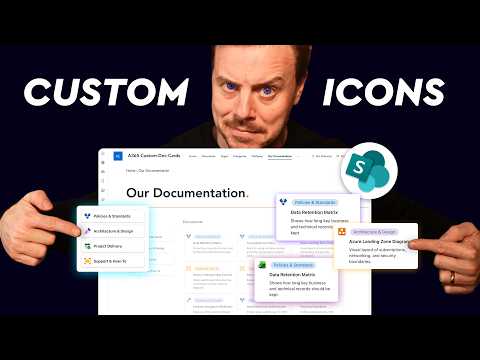
- Visual card gallery — Transform a SharePoint document library into a dynamic card gallery that displays custom icons, category badges, and live filters without custom code.
Use JSON view formatting to control layout and render file-specific icons, even for unrecognized file types. - Custom file-type icons — Map file extensions to bespoke icons so Draw.io, Figma, Miro and other nonstandard types show meaningful visuals.
Apply the mapping in JSON view formatting so icons appear automatically for each file. - Metadata-driven categories — Use a metadata column to drive category icons, color-coded badges, and card styling so visuals update from the document’s metadata.
Maintain a separate Categories list to centralize icons and colors for consistent styling across libraries. - Live visual filter panel — Connect the Categories list to a document library to create an interactive filter panel that updates results in real time.
This approach avoids Power Automate and keeps the experience fast and maintainable. - Card styling and reuse — Style card backgrounds, borders, and badges based on metadata values so a single rule set applies across lists and libraries.
Save and reuse the JSON formatting to standardize look-and-feel across sites. - SharePoint + Copilot — Treat SharePoint as a semantic content foundation: good metadata, clear permissions, and structured content improve Copilot and AI-driven outcomes.
Use AI-assisted site creation and reusable Copilot skills to speed solution design while keeping business users in control.
Introduction: A fresh look at a familiar tool
The YouTube video from Academy 365 shows how a standard document library in SharePoint can become a visual, interactive card gallery without writing code. In addition, the presenter demonstrates how to add custom icons for file types that Microsoft does not include by default, and how to make category-driven styling that updates automatically. Consequently, the technique relies on view formatting with JSON and native SharePoint features rather than external platforms. This approach promises more attractive and discoverable document libraries while staying within platform limits.
What the video demonstrates
First, the tutorial explains how to display a custom icon for any file type, including less common ones such as Draw.io or Figma files, by mapping file extensions to icon references. Next, it shows how to use a metadata column to set category icons and colored badges on document cards so that styling follows the document’s classification. Then, the author applies JSON view formatting to a library and connects a separate Categories list to act as a live visual filter panel. Finally, the video covers card-background and border styling driven by metadata so a single rule can style items consistently across a site.
How it works without code
The key is using SharePoint’s out-of-the-box formatting capabilities and smart metadata design rather than Power Platform or custom development. Furthermore, the presenter provides downloadable JSON files so users can reuse the formatting quickly and replicate the gallery look. This no-code route reduces barriers for non-developers and speeds adoption, but it also requires careful metadata planning up front. As a result, teams get a polished experience with less technical overhead, though they must still manage the metadata lifecycle.
Tradeoffs and practical challenges
Although the no-code method simplifies setup, it introduces tradeoffs around maintainability and scale. For example, extensive JSON view formatting can become hard to update across many libraries, and performance may suffer if a library grows very large or contains numerous custom render rules. Moreover, the approach depends on consistent metadata and taxonomy across sites, which demands governance and user training to avoid degradation over time. Therefore, teams must balance the immediate visual gains with longer-term governance and performance planning.
Integrating with broader SharePoint and AI features
The video sits against a backdrop where SharePoint is evolving into an AI-aware workspace that powers tools such as Copilot. In this context, well-structured libraries and useful metadata improve the quality of AI-driven results and agentic experiences. However, while AI can propose structures and help create sites, the human task of designing meaningful metadata and keeping content accurate remains critical. Consequently, the visual gallery approach complements AI features by improving content findability and clarity, but it does not eliminate the need for governance.
Best practices and recommendations
To get reliable results, start by defining a small set of metadata fields and categories, then pilot the gallery on a representative library before wider rollout. Also, document the chosen JSON templates and the mapping of file types to icons so future editors can maintain the design. Additionally, consider accessibility and cross-browser testing because complex visual formatting can create unexpected behaviors for assistive technologies or on older browsers. Finally, plan a lightweight governance model to keep categories and icons consistent across teams.
When to choose this approach
This method works well for teams that want a more visual document experience without adding licenses or developers. It is particularly useful for shared knowledge repositories, marketing asset libraries, and project workspaces where visual cues speed discovery. On the other hand, organizations with extremely large, highly dynamic libraries or strict compliance needs may prefer more robust search and automation strategies. In such cases, evaluate whether card styling and live filters give enough value compared with the cost of ongoing metadata management.
Conclusion: A practical enhancement with caveats
The Academy 365 video provides a practical, reproducible pattern to turn document libraries into dynamic visual galleries using built-in SharePoint features. Moreover, it shows that non-developers can achieve polished results by combining metadata design with JSON view formatting and a connected Categories list. Nevertheless, teams should weigh the benefits against the need for governance, performance monitoring, and accessibility testing before full adoption. In sum, the technique offers an attractive middle path that enhances usability while keeping platform complexity manageable.

Keywords
SharePoint hidden features, SharePoint tips and tricks, SharePoint productivity hacks, SharePoint automation features, SharePoint power user guide, SharePoint tutorial for beginners, SharePoint modern experience features, SharePoint secrets revealed