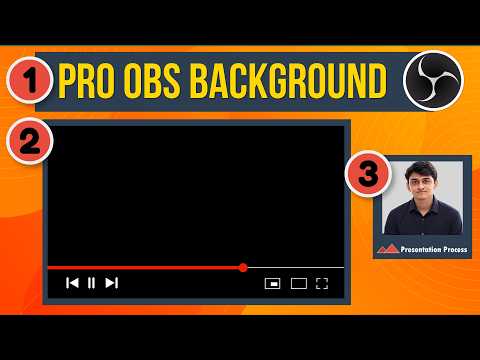
OBS Studio Builds a Branded Recording Scene
Presentation Process YouTube walks through arranging a webcam, screen share, logo and title in OBS Studio for a consistent recording layout.
Key insights
- The walkthrough builds a branded layout directly in OBS Studio.
- Its chapter list covers webcam setup, screen sharing, cropping and resizing.
- The scene adds a background color or image, a logo and a title.
- An audio input source is added before the video is recorded and saved.
Presentation Process YouTube published an 11-minute, 50-second walkthrough on creating a branded background in OBS Studio. The video shows how to arrange a webcam, screen share, logo and title as part of a recording setup. The central takeaway is that creators can assemble these elements in OBS rather than relying on a separate editing step to add the layout afterward.
What's new
This is a practical tutorial, not an announcement of a new OBS feature. Its focus is a custom scene that brings together visual elements commonly used in training videos and webinars. The chapter list indicates that the presenter starts with a webcam and video scene, then adds screen sharing to the OBS canvas.
The later chapters cover cropping and resizing the webcam, adding a background color and logo, importing a background scene, and arranging sources to fit that background. The walkthrough also includes adding text or a title, adding an audio input source, and recording the video to save the output. In other words, it follows the setup from assembling the picture to capturing a recording.
Why it matters
For people who record training modules, webinars or other presentations, keeping the camera and supporting visuals in one scene can make the recording layout more consistent. A logo and title can help identify the content, while a screen-share element lets the presenter include on-screen material in the same composition. The description presents this as a way to manage visual assets within the recording setup, without complex editing software.
This could also be useful to teams or independent creators who want a repeatable presentation format. The video description does not explain how to save or reuse a scene, so it would be too strong to promise a particular reuse workflow. It does, however, show the component parts that viewers can arrange: webcam, screen sharing, background, logo, title and audio input.
The material is aimed at creators rather than Microsoft 365 administrators. It does not cover Microsoft Teams integration, tenant settings, licensing, or OBS deployment in an organization. Readers looking for those details will need other guidance; this video is about composing and recording a visual scene in OBS Studio.
How it works
The sequence in the published chapter list gives a useful outline of the process. It begins by setting up the webcam and video scene, then brings screen sharing onto the OBS canvas. The webcam is cropped and resized so it can be positioned as part of the layout rather than simply occupying the full frame.
- Set up the webcam and create the video scene.
- Add screen sharing to the OBS canvas, then crop and resize the webcam.
- Add a background color and logo, or import a background scene.
- Arrange the OBS sources to fit the background and add a title or other text.
- Add an audio input source, record the video, and save the output.
The description says the walkthrough uses simple graphics and built-in OBS Studio features. It does not specify exact dimensions, source settings, or the order of every click, so the chapter list is a summary rather than a complete written configuration guide. Viewers who need those precise settings will have to follow the video itself.
Limitations and open questions
The available description and chapter list do not identify an OBS version, operating system, recording format, or recommended audio settings. They also do not say whether the background is made from a particular image asset or provide a downloadable scene template. No licensing or rollout questions apply here: the video describes a creator workflow, not a Microsoft product release.
The material refers to an imported background scene but does not explain where to obtain one or how to prepare it. It also does not describe how to configure lighting, remove a physical background, or use a green screen. Those topics should not be assumed to be part of this walkthrough based only on its published outline.
Sources
Frequently asked questions
What does the OBS Studio walkthrough show?
It outlines a scene with a webcam, screen sharing, a background, logo, title and audio input, followed by recording and saving the video.
Does the video require separate editing software?
The description says the layout can be created in OBS Studio using simple graphics and built-in features, without complex editing software.
Does it provide exact settings or a downloadable scene?
The published description and chapters do not specify exact settings or mention a downloadable scene template.