- All of Microsoft
Excel: Build a Dynamic Events Calendar
Co-Founder at Career Principles | Microsoft MVP
Microsoft Excel pro creates dynamic calendar from events using FILTER data validation cond formatting and Power BI
Key insights
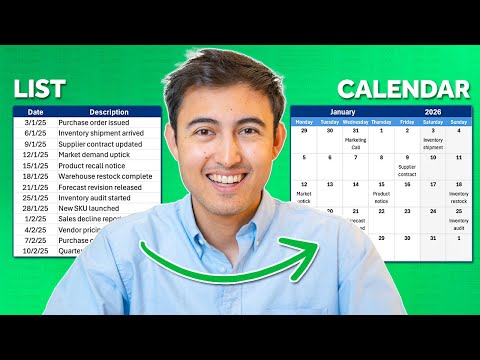
- Quick overview: Build a dynamic calendar from an events list in Excel so selecting a month and year updates the whole calendar automatically.
- Sheet setup: Store events (date and name) in a table on a separate sheet and add month/year dropdowns using data validation to control the view.
- Auto-fill dates: Create a 6x7 calendar grid that spills dates using SEQUENCE combined with WEEKDAY to align the month’s start correctly.
- Show events in cells: Use FILTER to pull events that match each date and TEXTJOIN to combine multiple event names into one calendar cell.
- Visual polish: Apply conditional formatting to highlight today, holidays, and multi-day ranges; wrap text, center content, and add week numbers for clarity.
- Practical tips: Keep the events as an Excel table, use named ranges for formulas, and test by changing the dropdowns to ensure the calendar updates without manual edits.
At a glance
Kenji Farré (Kenji Explains) [MVP] published a clear tutorial that shows how to turn a simple list of events into a fully functional monthly calendar inside Excel. The video walks viewers step by step, and therefore it serves both beginners and more experienced users who want a practical, no‑code calendar solution. Importantly, Kenji demonstrates the full build—starting from dates setup to highlighting today’s date—so editors can quickly evaluate the technique for newsroom or team planning. Overall, the tutorial emphasizes reproducible steps and small, testable formulas instead of complex macros.
The video is structured into short chapters that focus on specific tasks, which makes it easy to follow and to skip to a particular section when needed. Consequently, the workflow stays modular: set up date logic, add interactivity, import events, format the view, add week numbers, and then apply conditional highlighting. In practice, that modular structure reduces errors and simplifies troubleshooting when calendars behave unexpectedly. As a result, teams can adapt the same pattern to different reporting schedules or project timelines.
How the video builds the calendar
Kenji begins by creating the date grid using dynamic array formulas so that a full six‑week calendar grid fills automatically based on chosen month and year. He uses dropdowns to let users switch months and years via data validation, and then aligns the grid with the first weekday using functions such as WEEKDAY. Next, he shows how to inject events from a separate events table into each date cell, which keeps source data clean and editable. By splitting the build into logical phases, Kenji helps viewers reproduce the calendar without rebuilding everything from scratch.
After populating dates and linking to the events table, Kenji uses the FILTER and TEXTJOIN functions to pull matching events into each calendar cell and display them as concatenated text. Then he applies wrapping and centering so the calendar remains readable and attractive on the screen or when printed. Finally, he adds week numbers and uses conditional formatting to highlight the current date, which improves usability for day‑to‑day planning. Because these steps rely on formulas rather than macros, the result updates automatically when the underlying data changes.
Core functions and formatting explained
The tutorial highlights several modern Excel features that matter most for this kind of solution. For example, Kenji demonstrates SEQUENCE to generate the grid of dates and WEEKDAY to align the first day of the month, while FILTER grabs the relevant events and TEXTJOIN formats them into readable strings. In addition, he shows practical uses of data validation for month/year selectors and conditional formatting rules to color-code holidays and highlight today's date. Together, these tools replace repetitive manual updates and make the calendar responsive to changes in the events list.
Kenji also suggests formatting choices—such as using custom date formats and wrapped text—to balance density and readability. He demonstrates how to style cells with borders and colors so that event text remains legible even when multiple items appear on a single day. Since the event text is concatenated, Kenji points out when to limit text length or use shorter labels to avoid clutter. Moreover, he notes that testing across view sizes and print layouts helps ensure a calendar remains useful in different contexts.
Tradeoffs and technical challenges
While dynamic formulas are powerful, Kenji acknowledges tradeoffs between complexity and maintainability that editors should weigh. For instance, the approach works best in modern versions of Excel that support dynamic arrays; older versions may require helper columns or manual formulas, which increases maintenance effort. Also, heavy conditional formatting and many array formulas can slow large workbooks, so performance becomes a consideration for extensive event lists. Therefore, teams should balance convenience against workbook size and the need for cross‑version compatibility.
Another challenge is handling multi‑day events or overlapping entries in a compact calendar cell, which can reduce legibility if not designed carefully. Kenji demonstrates simple duration checks, but more advanced scenarios—such as event categories, priorities, or multi‑sheet synchronization—require additional logic or a different tool. In addition, sharing the calendar across teams introduces version control questions: embedding a live events table in a shared Excel file differs from using a centralized calendar service that syncs automatically. Consequently, editors should choose an approach that matches their collaboration and update needs.
Practical tips for newsroom and team use
For newsroom editors, Kenji’s method offers a fast way to visualize assignment schedules, publication deadlines, and broadcast rotations without leaving the familiar Excel environment. He recommends starting with a clean, well‑formatted events table and keeping event labels concise so the calendar remains scannable. Additionally, testing the calendar with real event volume exposes layout issues early and helps teams decide whether to automate further or use a companion tool for heavy scheduling demands. Thus, the solution works well as a lightweight editorial planning board or a quick visual aid during meetings.
Finally, Kenji advises saving a template for repeated use and documenting key cells and ranges so colleagues can update the calendar reliably. Because the build relies on explicit formulas and visible helper cells, onboarding new users is straightforward if the workbook includes brief annotations. In summary, this video provides a practical, maintainable recipe for turning event lists into dynamic calendars in Excel, while also clarifying the limitations and choices editors should consider before deployment.

Keywords
dynamic calendar Excel, Excel event calendar, create calendar from events Excel, Excel dynamic calendar from list, Excel calendar template events, build event calendar in Excel, dynamic monthly calendar Excel, Excel calendar from table of events