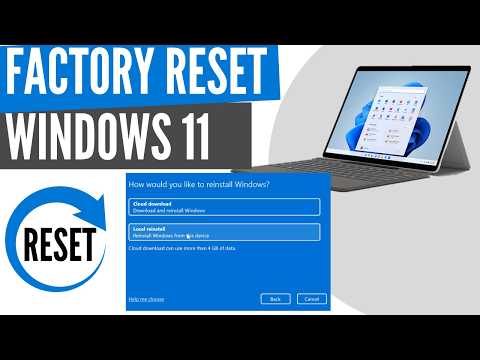
Windows 11: factory reset with Reset this PC
Ex-Microsoftie with over 10 years experience
Windows 11 users can reinstall the operating system with Reset this PC while keeping personal files or removing everything.
Key insights
- Find the reset option under Settings > System > Recovery > Reset PC.
- Keep my files preserves personal files but removes apps and resets many settings.
- Remove everything deletes personal files, applications, and settings.
- Cloud download gets a fresh Windows image; Local reinstall uses recovery files on the PC.
- Back up important data and save the BitLocker recovery key before resetting.
Windows 11’s Reset this PC reinstalls the operating system and lets you keep personal files or remove them, depending on the option you choose. It can help with persistent software problems or prepare a PC for another user. Aldo James’s YouTube Short is framed as a Windows 11 factory-reset walkthrough.
What it does
Reset this PC reinstalls Windows 11 and removes applications and settings. The Keep my files option preserves personal files, while Remove everything also deletes them. Neither choice should be treated as a substitute for backing up important data before you start.
You can reinstall from files stored on the PC or download a fresh Windows image. A reset does not necessarily restore the manufacturer’s original recovery image, bundled software, or exact factory configuration; its core purpose is to reinstall Windows.
Who it is for and what you need
This recovery option is for Windows 11 users dealing with persistent instability, suspected corrupted system files, or a PC they plan to transfer. It is also relevant when Windows still starts and when you need to reach recovery options from the sign-in screen.
Before beginning, back up important files, confirm OneDrive files have finished syncing if you use it, and make sure you know your Microsoft account password. If BitLocker or device encryption is enabled, save the recovery key. Connect the PC to power and disconnect external drives you do not want affected.
How it works
- Open Settings, then go to System > Recovery.
- Under Recovery options, select Reset PC next to Reset this PC.
- Choose Keep my files to retain personal files while removing apps and resetting many settings, or Remove everything to delete files, apps, and settings.
- Choose Cloud download for a fresh Windows image, or Local reinstall to use recovery files already on the PC.
- Review the choices, select Reset, and keep the device connected to power until Windows reaches initial setup.
Cloud download requires an internet connection and downloads several gigabytes. It may suit a PC whose local recovery files are damaged. Local reinstall generally involves less downloading but depends on files stored on the device.
Limitations and alternatives
Keep my files does not preserve installed applications, so plan to reinstall software and restore settings afterward. Remove everything is the more appropriate choice before transferring a PC; if Windows offers drive cleaning, enable it to make deleted data harder to recover, allowing for a longer process.
If Windows will not start normally, hold Shift at the sign-in screen, choose Power > Restart, then select Troubleshoot > Reset this PC. Do not manually shut down or restart the device while the reset is running. Afterward, complete Windows setup, install updates, reinstall applications, and restore files from backup.
Sources
Frequently asked questions
Where is Reset this PC in Windows 11?
Open Settings and go to System > Recovery. Under Recovery options, select Reset PC next to Reset this PC.
Does a Windows 11 reset keep personal files?
Choose Keep my files to preserve personal files. Windows still removes applications and resets many system settings.
What is the difference between Cloud download and Local reinstall?
Cloud download downloads a fresh Windows image and needs an internet connection. Local reinstall uses recovery files already stored on the PC.
How do I reset Windows 11 if it will not start?
At the sign-in screen, hold Shift while selecting Power > Restart. In Windows Recovery Environment, choose Troubleshoot > Reset this PC.